Updated: November 21, 2025
Just a few days ago, I encountered a rather silly problem. I opened the Play Store. It showed the main view, and then, withing a second, it closed. I tried again. It closed again. Then, on the Home Screen, the phone displayed a message that read: Google Play Store keeps stopping. What they should have written was crashing, but no matter. Thus, a problem. One of the most critical pieces of software on an Android phone will not launch and open correctly.
Naturally, I followed all of the usual boilerplate "fixes", and as expected, none of them worked. Reboot the phone, clear cache, clear data, check for updates, uninstall updates, install any system patches, check permissions, and then some. None of these suggestions helped. After one of the Play Store resets, it stayed put, and it seemed as if the problem had been resolved, but no. After I changed a few small things in the app's settings, it crashed again. Well, there's a workaround, let me show you.
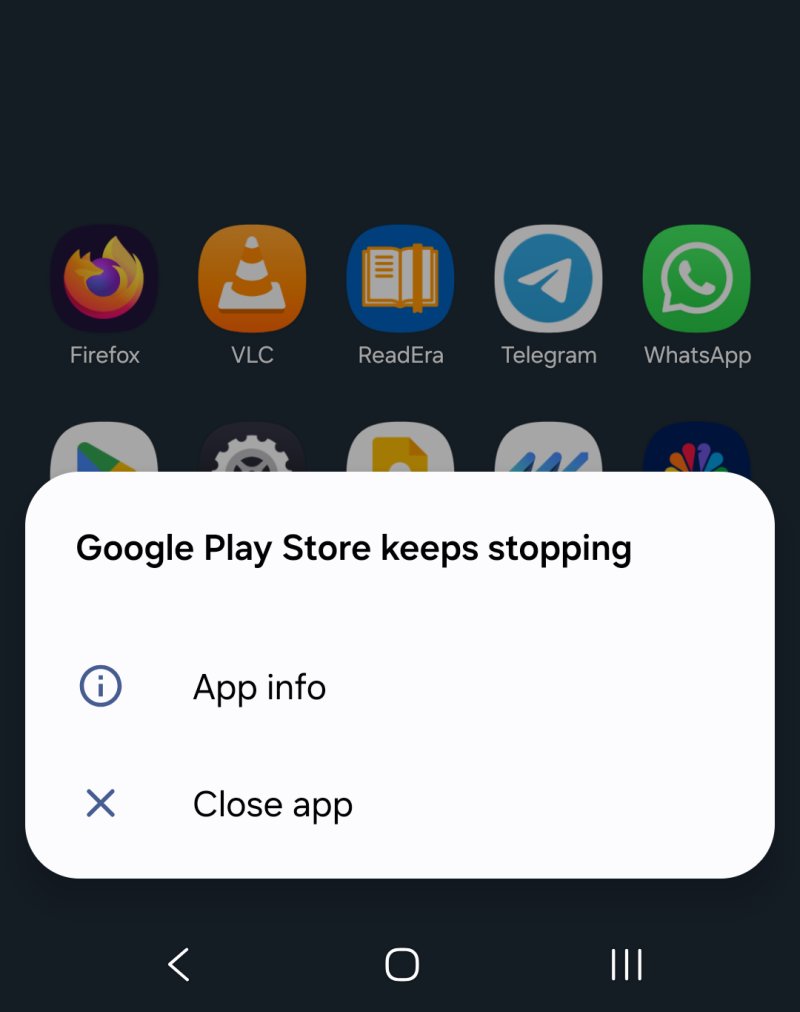
Manifestation of the problem
As I wrote above, the Play Store will simply not open and stay open. But:
- Updates work. You will get a notification that your apps have updates (if you disable auto-updates, as I do), and that screen does not crash. It seems as if the issue only happens on the first/main screen of the Play Store, when you open it. Sub-menus, if you can get to them, seem to work fine. This is an important clue for me. More later.
- App reset didn't help, nor did the Play Store services reset. However, if you reset the latter, it will also disable your backup.
- If you use backup, then you will want it turned on again. There are three or four different ways to do that, each styled its own way. One of the methods, via the notification, will try to automatically enable backup for photos. If you don't want that, like I don't, then you should be slow, deliberate and careful on how you re-enable the backup so you don't send your images to the Borg. This is not strictly related to the problem, but it is a consequence of the reset, as a result of the problem.
- After the reset, Play Store wanted to install all sorts of suggested apps, including about a dozen Samsung apps (on my A54 device), which I had long disabled, removed and purged from my phone. Another annoyance. Worse yet, if you perform a reset, the download and install of these apps, even if you select none, will only activate (and complete) on Wi-Fi by default, but if you don't want to use Wi-Fi, you will be stuck, as Play Store may still be broken, and you won't be able to get into settings and change the network download options. It's a chicken-and-egg issue.
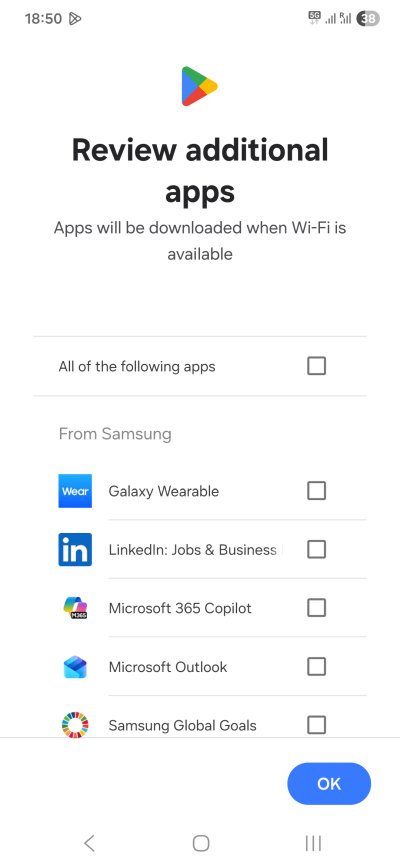
Pointless modern experience, in one screenshot.
And that's where we stand. The only remaining option is a phone reset. But that's silly.
Workaround
What I found is that the same method I used to skip the payment addition problem in Play Store also applies here. Since the main screen of the Play Store keeps crashing, we will do everything but the main screen. Long press on the app icon. Tap My Apps.
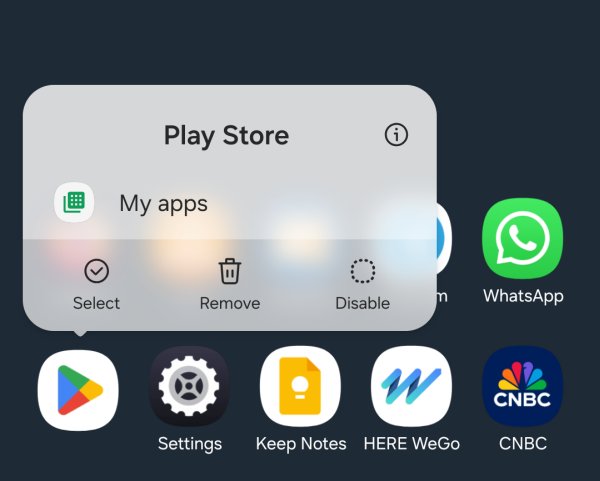
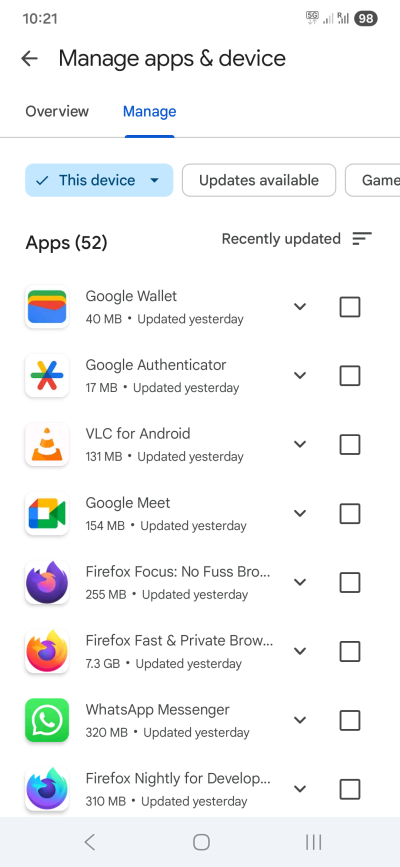
This Play Store view should launch just fine. Here, under Updates, apply any available updates. Once you're done, there will be a link titled: Show recent updates. Tap on that. This will open a list of all your recent updates. Tap on any one icon, like say Firefox Nightly or Clock.
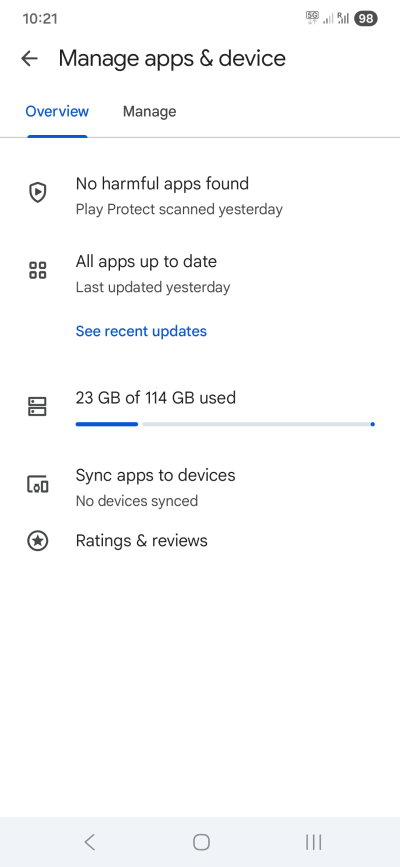
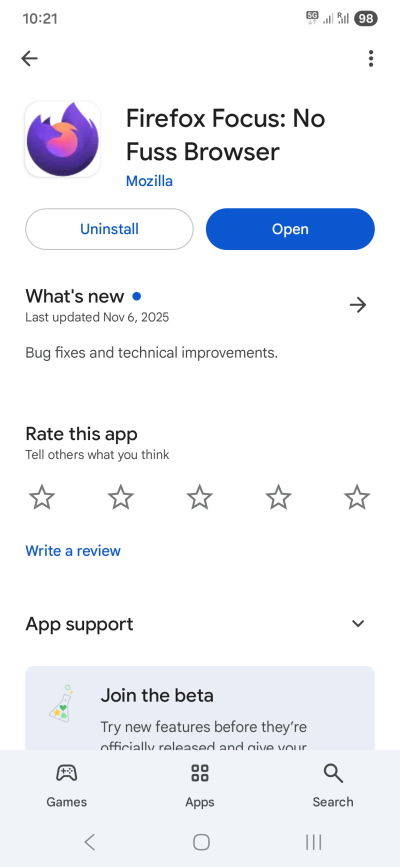
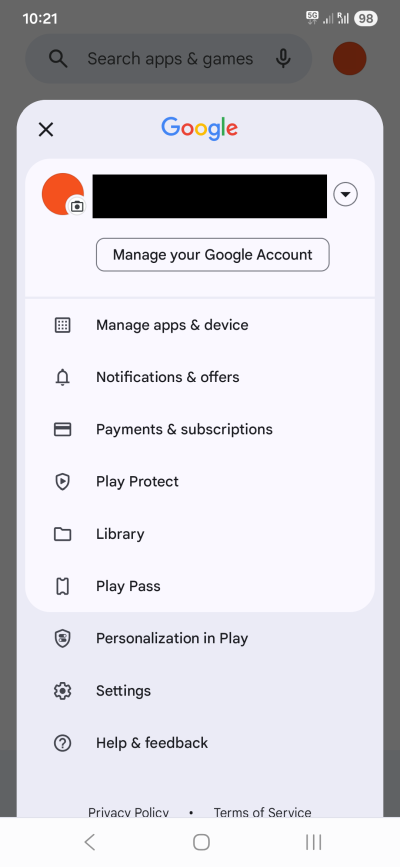
In turn this will open the Play Store page for that particular app. Now, you will have the search icon available, and you can search and install apps. You will also have your user icon in the top right corner on the search page. Tap then, and you will be able to now access all of the different categories: Manage apps & device, Payment & subscriptions, Library, Settings, and then some. Effectively, you will have everything except the main screen. Problem solved.
Conclusion
There you go. I am quite confident this will sort out your issue with the Play Store. Worse case, don't do anything, and let Google sort it out automatically. If you do decide to tinker, going via My Apps should help you work around the main screen crash. In general, since all the main screen does is show some ads and present you with a search button, there's no real loss. You can get there using the alternative method I outlined above.
What irks me extra is that the Play Store could ever crash, for whatever reason. All of the might and glory and intelligence of Android, and then this. Where's the hallowed AI when one needs it? Where are meaningful error messages? If the device is a silly black box, and the user has zero control or access to any information that can help them troubleshoot this, then for all practical purposes, the phone is useless if a cardinal piece of software breaks. To me, the fact I had to handle this problem on a tiny screen, using my fingers like a chimp, only adds insult to injury. But, let us rejoice. The workaround! Hopefully, I will have saved you a lot of anger and grief and time. See you around.
Cheers.