Updated: February 27, 2024
Can and should one be concerned with how their personal data is used and managed online? Yes. The answer is yes. But there are two aspects to it. One, the obvious implications of your data being misused. Two, the simple question of basic human dignity. If you let smartphones treat you like an idiot, you become, ipso facto, an idiot. This is why you should consider tweaking your devices, so they're less noisy, less data-greedy, less everything. Welcome to my newest guide on how to make Android behave.
This ain't my first rodeo with Android privacy. A few years back, I wrote a namesake article, detailing a reasonable, no-nonsense approach to using an Android phone, with some level of privacy and without greatly sacrificing usability. A pragmatic middle-ground formula, if you will. Today, I'd like to expand on that old guide, make it a bit more structured, and up to date. Begin, we shall.
Table of Contents
- What is this guide about?
- Paranoid versus pragmatic
- Step 1: Purchasing an Android device
- Step 2: Installation
- Step 3: Sensors
- Step 4: Biometrics
- Step 5: Going through Settings, everything
- Step 6: Applications
- Step 7: Analytics & diagnostics
- Step 8: Personalization, Google account
- Step 9: Messaging apps
- Step 10: Anti-malware software
- Step 11: VPNs
- Step 12: Data backups
- Conclusion
What is this guide about?
I shall use a clever literary device to illustrate my point. Negation. Instead of telling you what this guide is, I will start by first telling you what it is NOT. To wit:
- This guide is not a recipe for 100% foolproof mobile computing.
- This guide is not a replacement for basic usage discipline and common sense.
- This guide will not make you invisible on the Internet.
- If someone is skilled or determined enough, they may hack you despite your best efforts.
- If you think you're being targeted by a "nation/state" actor, you have a much bigger problem than your phone.
OK, with that in mind, please also note:
- Your cellular network provider will have knowledge of your phone's existence and whereabouts. Every time your device connects to a cell tower, it will advertise a bunch of data, which can be used to appromixate your location, as well as other pieces of information.
- You can try to "obfuscate" your online presence - use a custom DNS, use a VPN, etc - but at the end of day, these things will merely move your data from one place to another. Perhaps your ISP will not know what sites you connect to, but the VPN provider will, for instance.
- If you use search engines, they will have information about your searches, even if made 100% anonymously. In some scenarios, anonymous pieces of data can be combined to create a personally identifiable picture of the end user. In the modern world, it's pretty much a given. The only way to avoid that is to stop using online services altogether.
- If you use your phone, you will transmit data. That data tells a story, whatever it may be. Even if you use encrypted chat tools, there's still a lot of useful information that can be derived from the topology of established connections, without ever reading the contents of the messages. If you talk to a bunch of friends, those relations exist, whether you chat about farts or cars or cats.
- You're not smarter than the powerful, multi-billion-dollar industries that have entire battalions of experts working on collecting, analyzing and profiling data, be it for research, marketing, advertising, or else. What you can do is minimize your exposure, but if you use online services, you cannot avoid leaving a mark there. Accept it or become a caveman.
Paranoid versus pragmatic
Another important aspect of this guide is that I want to make it simple and accessible for everyday users, with everyday needs. If you're Jason Bourne reincarnate, this isn't for you. If you're a Bond villain, same thing. I want this guide to allow the optimal combination of privacy, security and actual functionality.
- Therefore, no custom ROMs, no root, no ADB, none of the nerdy stuff.
- This guide applies to non-rooted, stock configuration Android phones.
The idea is for you to still actually be able to use your device and do things, like browsing, music, streaming, perhaps even banking and such, if that's what you want or need. If you don't want to use your phones for any of these purposes, you don't trust Google or such, you don't want to use the Play Store, then don't. There are tons of different ways to do that. The basic premise is that you actually want to use Android. That's out starting point.
- I want this guide to be easy and fully reversible if needed.
- The idea is to improve your privacy without wearing a tinfoil hat.
- The idea is to improve your security without doing any Hollywood drama hax0ring.
- The idea is to minimize stupidity and annoyances that are so prevalent in the mobile space.
- At the end of the day, you will still be profiled and analyzed, and online services will be lax and badly configured and they may leak or lose your data, as it so often happens nowadays. This guide should help you minimize your participation in this pointless ritual. That's all.
Step 1: Purchasing an Android device
Ideally, you want to buy a phone that will be supported for a long time. The situation has improved lately, with more and more vendors pledging longer update cycles. In the past, you'd be lucky if you got a single major version upgrade, and perhaps 2-3 years of patching. Nowadays, you can find phones with five, even seven years of support. I think this is a useful part of the security equation. From what I know, Samsung, Google and Fairphone offer devices with 5-7 years of upgrades and patches. You can probably find a device you want from among these three. There might be other vendors with similar policies. Worth reading a bit before splurging cash.
Step 2: Installation
For the most part, there's not much you need to think about when setting up a new device. One, be thorough and methodical. Two, untoggle anything and everything you don't like or need. Three, do not rush to get online, you should spend several slow, careful hours taming your device.
Step 3: Sensors
Most phones are quite "noisy". They are configured for instant connectivity. However, for the most part,
this is not the best security or privacy posture. The sensors you use emit a lot of information about your
device, which can potentially be captured and analyzed. in particular, there's no reason to ping every
Wi-Fi router or Bluetooth-capable device in your vicinity unless you intend to actively use them.
My recommendations are as follows:
- Keep Wi-Fi off - turn it on when you need it - use mobile data, if you can until then. Furthermore, some devices may auto-turn Wi-Fi on, and may "pair" its usage with location services for whatever reason. If such toggles exist, turn both off. Allow only manual Wi-Fi activation.
- Disable Bluetooth unless you use a Bluetooth-capable accessory, like a headset or a watch. I personally dislike pretty much all and any Bluetooth gadget, so I turn the function off. Furthermore, I always disable the Bluetooth change system access special permission wherever possible. This should reduce your exposure vector somewhat. In particular, if you do not use Bluetooth, you will not be affected by any potential proximity attack vulnerabilities in the stack. If you do use it, and you disable the change system settings options, there's less chance of a serious problem should you encounter a Bluetooth exploit. Now, since these toggles are software-based, you cannot really know how exactly the operating system enforces them, and if the toggles actually do anything, but it does not hurt to turn them off if possible. Please be aware that this may "complicate" your usage of Bluetooth accessories.
- If you do not use your phone as a mobile credit card, you do not need NFC.
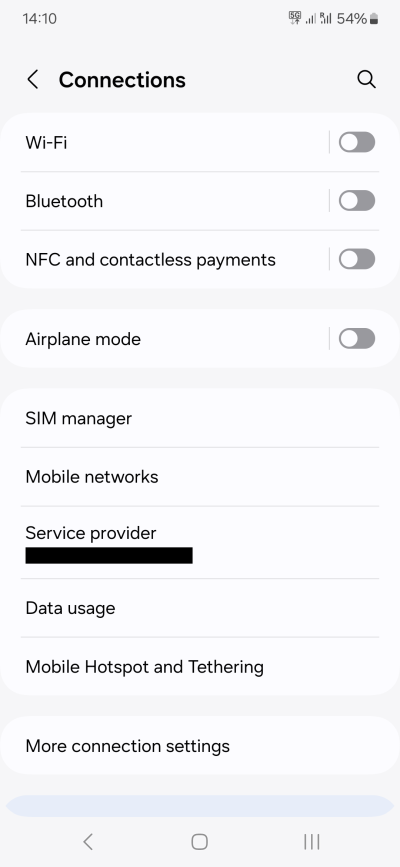
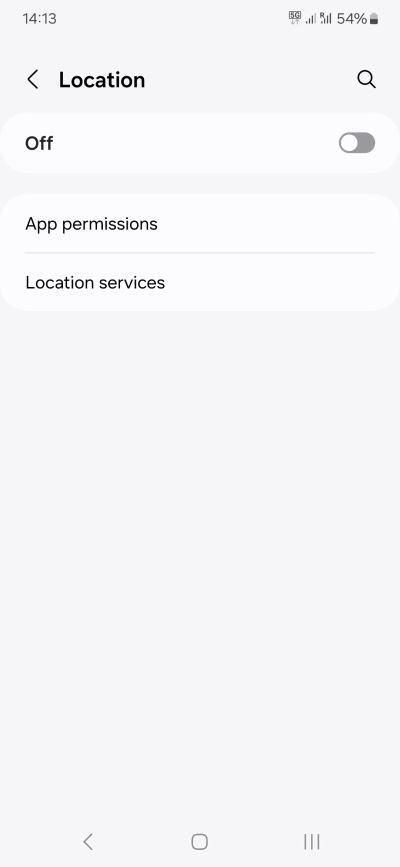
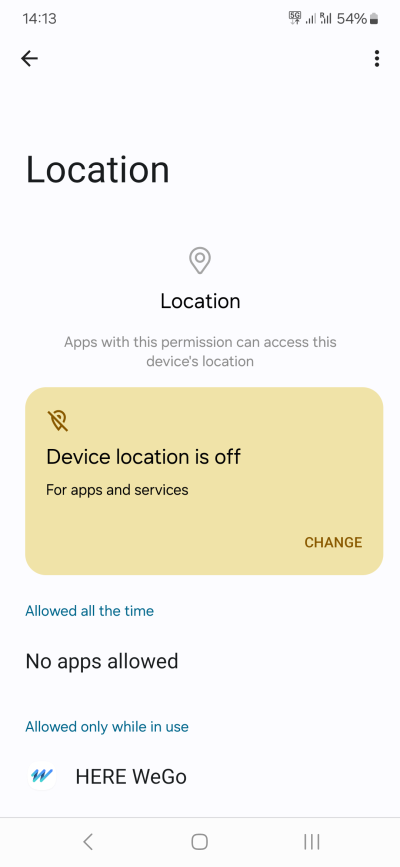
When it comes to location services, they can be useful, especially if you intend to navigate. But most of the time, you really do not need the location services turned on. Toggle on when necessary. Furthermore, I would suggest enabling Location for relevant apps only when in use.
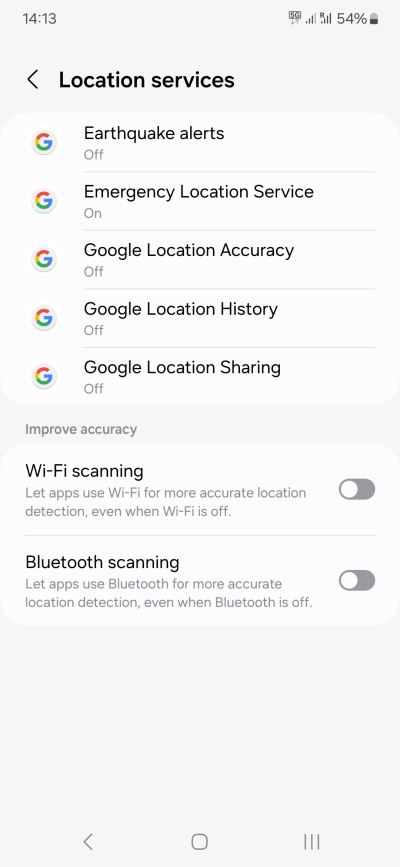
Android also uses a number of other location services, including earthquake alerts, emergency service, location accuracy, history and sharing, plus improved accuracy via Wi-Fi and Bluetooth scanning. When it comes to "safety", which would be earthquake and emergency, I really cannot tell you what to do. Use your own judgment. Personally, I think if you do not live in a seismically active region, you don't need the former. The latter can be useful, but even then, it depends on your risk appetite and the actual environmental and societal conditions. The important thing here is, be aware these settings exist and turn them on/off as needed.
I see no reason to use any accuracy service, location history or sharing. I don't see value in these functions. One, I don't need a reminder as to where I've been, I know where I've been. Two, I don't see any reason why I ought to share a digital trace of my whereabouts. To what end.
Last but not the least, please note that turning location off does NOT mean you become invisible to either Google, your cellular provider, and/or other entities. You simply reduce a vector of deliberate data exposure of your location, within what's plausible with a smartphone.
Step 4: Biometrics
A lot of modern devices come with various readers - fingerprint readers, iris and retina scanners, microphones for voice recognition, and then some. These can be used to potentially identify you, and simplify your login process into your own device. Alas, this is a misplaced approach.
Newsflash: Biometrics should NOT be used as a replacement for passwords!
This is the biggest load of nonsense that has come to the tech world in the past decade. Too much Hollywood, it seems. First, this isn't original in any way. Second, all the "evidence" we have shows that biometrics are cool but not really safe. After all, we've all seen those movies where spies and hax0rs and whatnot fake user's retina, fingerprint or voice, and gain access to this or that facility. Nothing new, either. This was the premise of James Bond's Thunderball, back in the 1960s (and written way before that). The idea is there, and it looks techy and fun.
The simple problem is - in all of these examples, biometrics were a method of authentication, not identification. Indeed, biometrics being "unique" - they should be used to identify people, followed a SECOND challenge, which would be some form of authentication (like a password).
And yet, just like in the movies, many companies insist on biometrics being used for authentication. You show your face or fingerprint, and you're allowed to unlock and use your hardware. This is nonsense, no matter how sophisticated the actual method of identification+authentication is, because your biometrics are: 1) public 2) irreplaceable.
Think about it. If someone "steals" your biometrics, you can't do anything. Your voices or eyes or fingerprints cannot be changed like a password. I've even come across banks that insist on using voice identification for their customers - but what they actually do is forget the second part - the authentication. They assume that if they hear a voice (usually saying a certain phrase), then the actual person is you. But that's total nonsense. Especially today, when you can use ML/AI to synthesize voice and speech from a relatively tiny sample of short audio recordings.
Biometrics could be a good first part of a 2FA or MFA mechanism - instead of say a username or a phone number or whatever. But they cannot or should not be the second part of this mechanism, and definitely not ALL parts thereof. In essence, any system that uses biometrics like that is a one-factor system, and it uses publicly accessible information for that (your face, your voice, your whatever, which can be relatively easily obtained in the modern digital world). That's anti-security, if you ask me. Hint: one of the reasons many companies eschew 2FA for 1FA is because idiots, I mean users, often forget their credentials. It's more convenient (and cheaper) to put people at some calculated risk over potential data loss and unauthorized access than having support teams deal with password resets all day long.
Therefore, my suggestion would be: do not use biometrics unless it's for pure convenience, and you don't really do anything important on your phone. But even then, it's just bad practice.
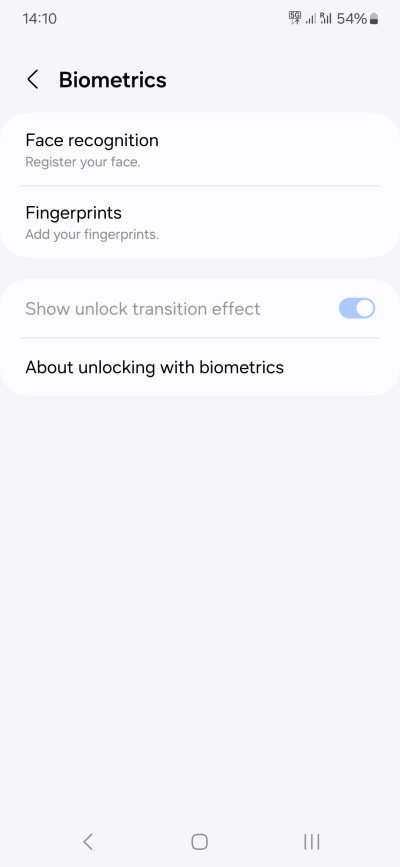
As Dr. Evil would say: How about nooooo.
Step 5: Going through Settings, everything
The next step in your privacy and security hardening is to go through everything in your phone's settings. This can be a long and laborious process. It's also a convoluted process, as the different options are scattered all over the place. Furthermore, many vendors add their own customization, which complicates the work, as no two Android phones are quite the same. Lastly, in some cases, you will need to open certain apps or widgets and make additional privacy- and security-focused changes there.
Therefore, you should focus on all of the following:
- Any toggle that refers to data collection (analytics, diagnostics, improvement program).
- Any toggle that offers suggestions, personalization or customization.
- Any toggle that offers sharing.
- Any toggle that offers account logins.
- Ant toggle that offers backups to cloud.
- We will go through these, but let's focus on the most important one: actual apps.
Step 6: Applications
The bulk of phone security and privacy comes down to the software you're gonna be using. This is your primary vector of exposure to things good and bad, and will ultimately determine what kind of trail you leave behind you. Here, the process for security and privacy hardening is a bit convoluted.
- We need to talk about general rules for all applications.
- We need to talk about the software you want.
- We need to talk about the software you do not want.
- We need to talk about application permissions.
- We need to talk about special permissions.
- We need to talk about online accounts and accounts linking.
The problem is, there's no "linear" way to handle this list, so I will be jumping back and forth a little.
Permissions
Most smartphones are configured with overly permissive application settings. The reasons for this are many, and not necessarily just blatant user profiling and greed. Yes, those are (a big) part of the equation, of course, but the primary reason for everything being DEFAULT ON is because most people are clueless (idiots). They would not be able to change anything if their life depended on it. And as it happens, stupid people are conveniently good for business. But let's not get too cynical.
Ideally, phones should have two basic modes - common user, like now, and expert user, where everything is set to off, and you need to manually turn things on if and when needed. The only question is, would that break the user experience?
Yeah or nay?
Now, over the years, I discovered that the restrictive mode actually works really well. In almost 100% of the cases, if an app needs a permission, it will prompt and ask for it. So it can be done. The only major difference is that it introduces a level of disruption into the usage model. My experience isn't restricted to any one particular phone, or a short period of time. Nope. We're talking roughly five years of use, six-ish devices from several manufacturers, Android versions 9-14.
The ONLY time I broke something was the Gallery application on the Samsung A54 phone, just recently, and it comes down to this application not being able to delete images. However, it still isn't really a big problem, as I'm using Google Photos rather than Samsung Gallery as my photo application. In other words, the issue is relatively small, and easily worked around, and it's the only instance of any sort of breakage I've experienced with my everything-OFF model. P.S. And, it's also been fixed since - the vendor released a patch that seems to have fixed whatever was borked, without me reducing my privacy or security stance one bit. We will talk about this in more detail in one of the Samsung A54 follow-up reports.
Permissions can be managed in multiple ways:
- Permission manager - a general tool that shows access by resource - the type of permission, and what apps are allowed to use it. This can be your first step to managing access in a relatively quick way.
- Per-app settings - for each app, you can configure access. Here, you will have more granularity than just using the permission manager, as you will be able to set permissions that don't necessarily show above, as well as special permissions that definitely do not show above. You will also be able to define usage duration - all the time, or only while the app is open and in use. Please note this last function will depend on your Android version, and some customization from the manufacturer/vendor.

Now, let's carefully review all the different permissions and data vectors.
Background data access & unrestricted data
Should apps be allowed to communicate when "closed"? For the most part, no. Why? After all, if you stopped using an app, there's no real reason why it should continue sending and receiving information in the background.
Therefore, my approach is as follows:
- Map applications into two buckets - those that MAY need to receive updates when not in direct use, and those that do not. For example, Messages or WhatsApp need background data, because someone may send you a message, and you want to receive it in a timely fashion, and not just when you're using the app. On the other hand, an app like a music player doesn't need any data when not running.
- For apps that need background data, let them be (background data set to ON is usually the default).
- For apps that do not need it, turn the background data sync to off.
This can be a tedious process, depending on how your phone buckets and presents applications. In the worst case, you will need to go into the Apps section, open the settings for every single listed app, and then look for a sub-section that says: Mobile data, background data or data usage. Open it, then toggle off background data usage for the apps that don't need it (based on the classification above).
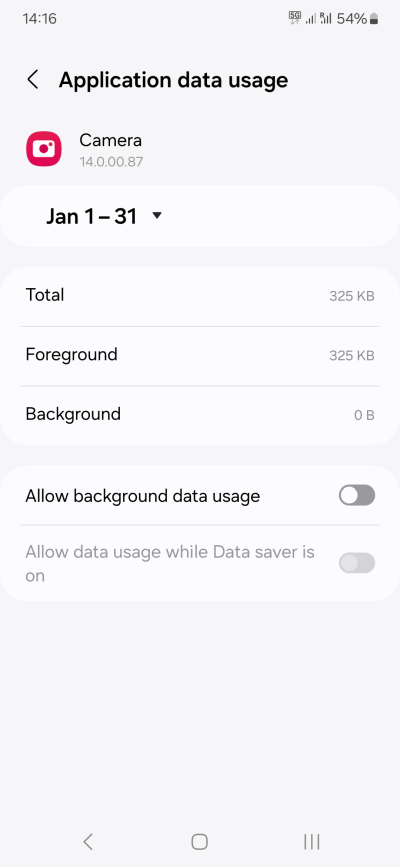
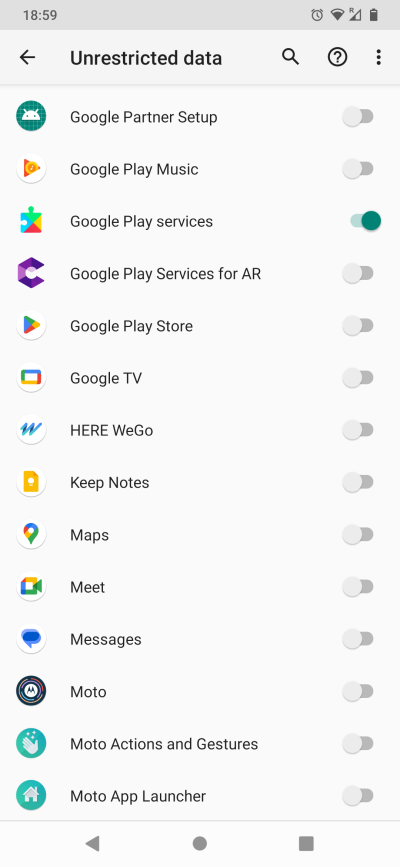
Another data setting is Unrestricted data. This defines whether the specific app can use any amount of data it wants. There are two reasons why you may want to disable this for all except: Play services and your carrier or service provider. Reason one, apps shouldn't be able to communicate without control. Two, you may accidentally exceed your data allowance.
Other general permissions (photos, contacts, etc)
Next, most applications have access to way too many resources, again, for the same reasons mentioned earlier. At some point in the future, an app may need something like Photos or Contacts or Camera, and so, quite often, the permissions are set to ON by default. In most cases, this is unnecessary, and may pose a privacy or security risk if the app misbehaves, for whatever reason.
Therefore, my approach is as follows:
- Disallow everything except the bare minimum.
- It's not always easy to figure out what that minimum means. Some apps may have a mandatory permission requirement even if they don't use the resource. For example, on my Samsung A54 phone, the Samsung Camera app will not work unless it has Nearby Access. The logic is that this is used for Bluetooth audio. But I never use Bluetooth, making the requirement moot. In some scenarios, this could be lazy coding, an over-eager developer, who knows.
- Start by disallowing everything, see if the app works. If it does, move on. If it does not, restore the default configuration for the particular app, then start removing permissions one by one, until it breaks. Repeat until you have the minimum working set for each app.
- Newer versions of Android have a greater level of permissions granularity than in the past. You can allow some resources all the time, or only while the app is in use. If possible, always use the latter, because there's no reason why an app should have something when it's not actively utilized.
In general, most apps don't need as much as they ask for. For example, I use my Firefox browser with no permissions. If and when I might require something, I can turn the permissions on briefly, do what I need, and then turn them off. The cross-app functionality is a nice thing, but often not necessary. Why would Photos need access to your Calendar? Or why would WhatsApp need access to your Call logs? Both these programs work great without these specific permissions.
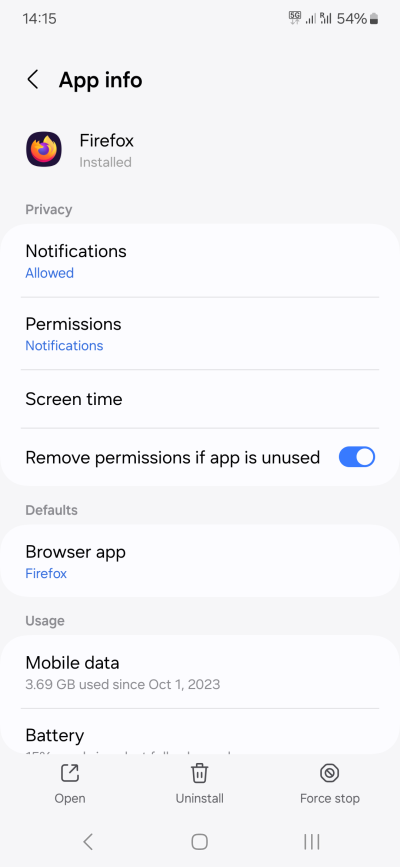
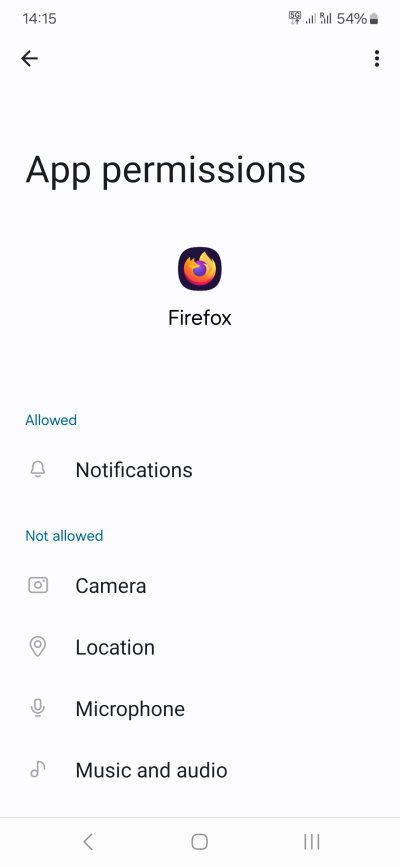
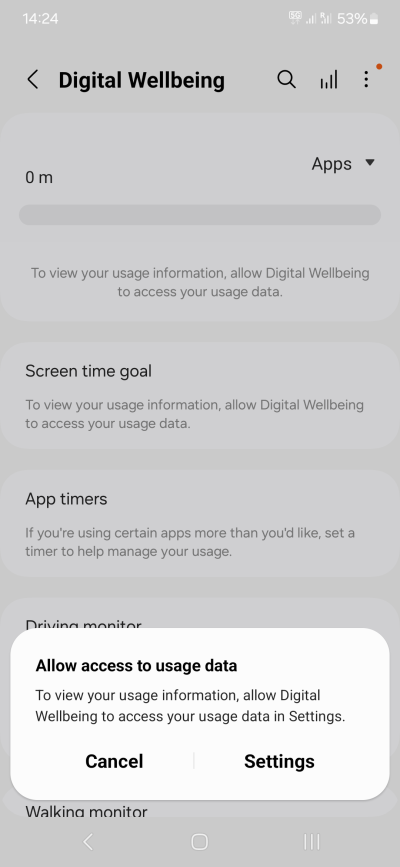
When needed, the apps will ask.
Special app access
To make things somewhat confusing, Android separates common permissions like Phone, Calendar, Contacts, and alike from Special app access, like Display over other apps, Picture-in-Picture, Premium SMS, Wi-Fi control, Unrestricted data, Install unknown apps, and then some. In a way, these are equally if not more important than the common permissions.
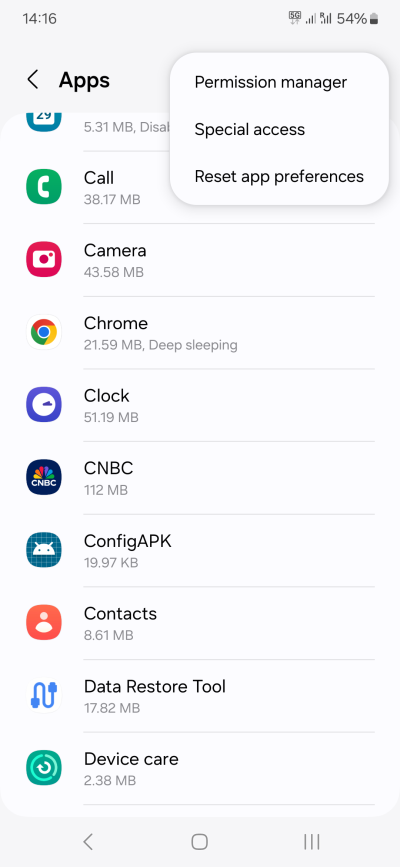
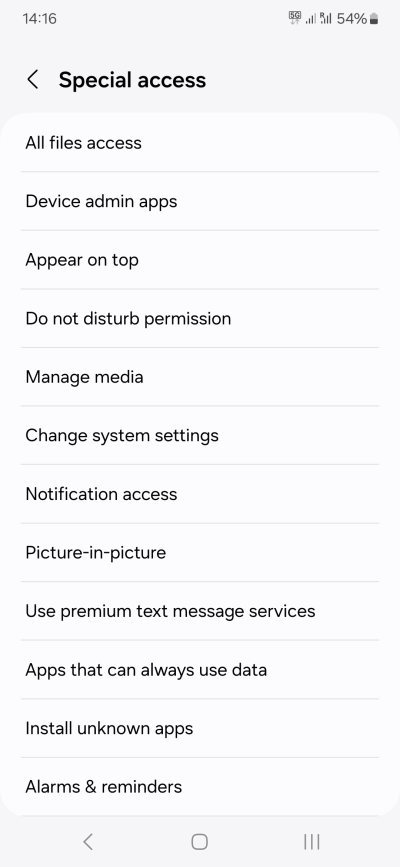
This is the list that I have recently seen on Samsung A54, Android 14, and my stance: For the most part, few if any applications should ever need special permissions. Like before, my approach is to deny all, check if anything breaks, and then selectively restore if and when needed.
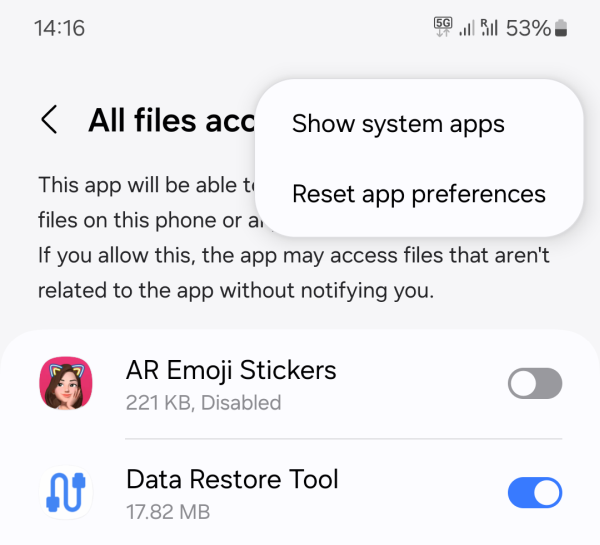
Please note that some phones will show all apps in the list, including both user and system apps. Some phones will have a separate toggle to show/hide system apps. We will discuss system apps separately. Just be aware that you can also set rules and special permissions for system apps, with all the implications and ramifications that such an action carries. In others, you could - accidentally or deliberately - block or break a system app.
- All files access - Few if any apps need this. File manager, backup & restore tools, package manager. The rest, not really.
- Device admin apps - Very few apps needs this. Typically, only Find my device or similar.
- Appear on top - This is only relevant for apps that may need to "pop up" over other apps. Typically, applications that require a real-time prompt, like alarm clock, call and messaging apps. The rest, not really, no.
- Do not disturb permission - Technically, all apps should have access, so they don't disturb you when you don't want them to disturb you. But if you disable background data access, most apps won't disturb you anyway.
- Manage media - Only media-related apps really need this. But even then, choose sparingly.
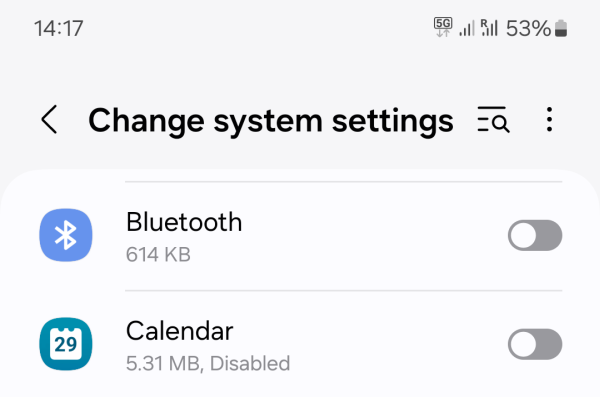
- Change system settings - This is a super-important one. Very few apps should be given the ability to make system changes. Now, this does not have to be anything super-privileged. Even a small thing like changing the system clock is a system change, and this can be relevant if you travel to a different timezone, for instance. Most apps do not need this.
- Notification access - For the most part, you can let apps access notifications, but do remember that this also means said apps can read notifications. If there are apps you don't want to be able to read or send you notifications, toggle off. For each app, you can usually set a finer, more granular level of control.
- Picture-in-picture - I don't see much value in this setting. At best, your browser may need this.
- Premium SMS - I find this absolutely useless. If possible, contact your provider and ask them to block premium SMS on the network level for you.
- Apps that can always use data - This is identical to unrestricted data access.
- Install unknown apps - Unless you intend to sideload software, only Google Play should be allowed to install apps.
- Alarms & reminders - Few apps should need this.
- Usage data access - Few if any apps need this permission. Technically, this allows health tools and similar to profile your usage and present you with recommendations. It can also be used to help optimize battery usage. My recommendations is to turn this off for pretty much everything.
- VR helper services - Your choice, I see no value to this. Won't be relevant unless you pair VR gadgets.
- Wi-Fi control - Defines whether apps can turn network on/off and similar. For the most part, the apps should not be able to do this. Keep off except a very limited set like Play services, Wi-Fi provisioner, and such.
- Turn screen on - For the most part, you want this from apps that can prompt you, like messaging apps, call apps, and similar.
- Full screen alerts - For the most part, this is not required for any software except maybe the system updater, but that's not a user app, so it's outside the consideration here, in this category.
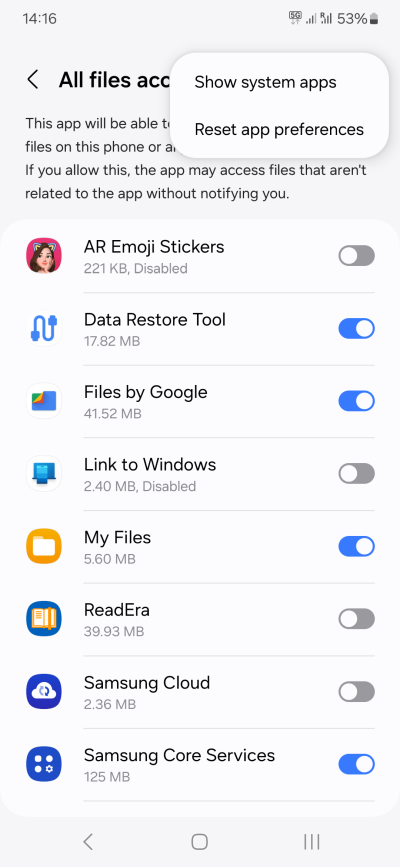
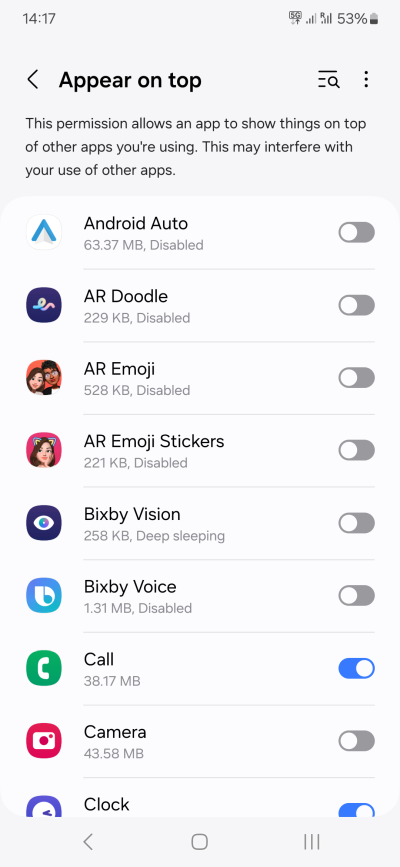
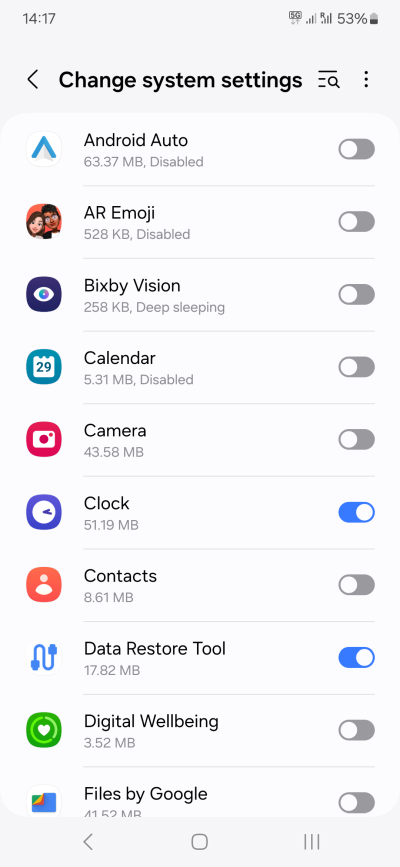
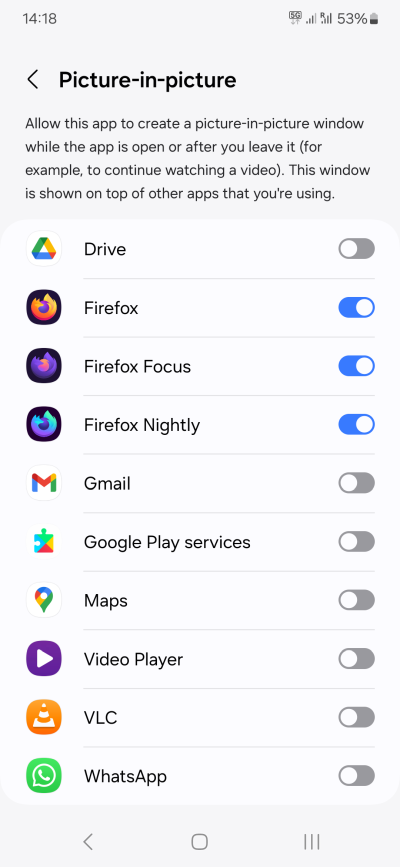
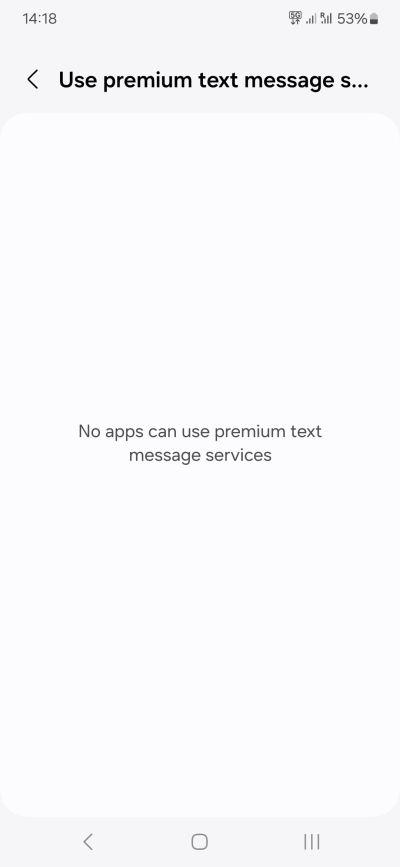
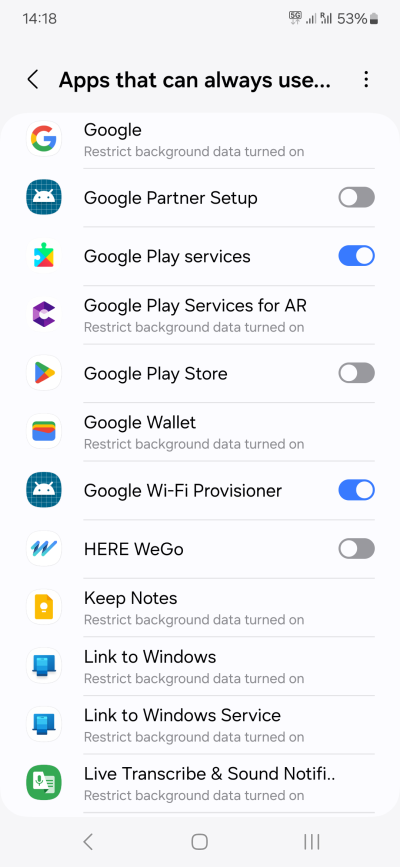
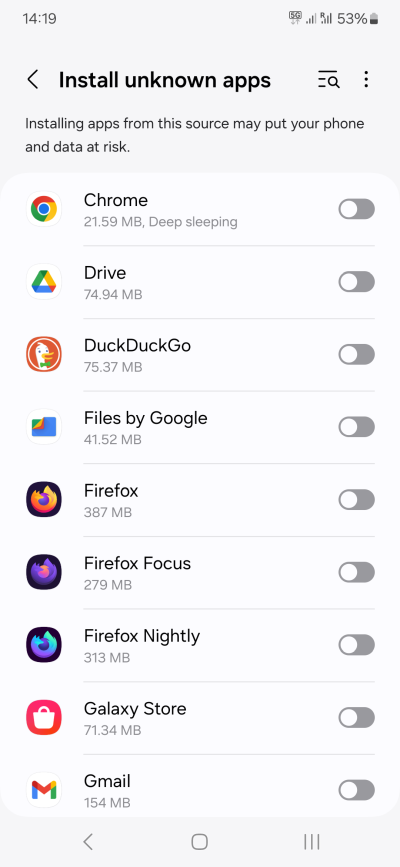
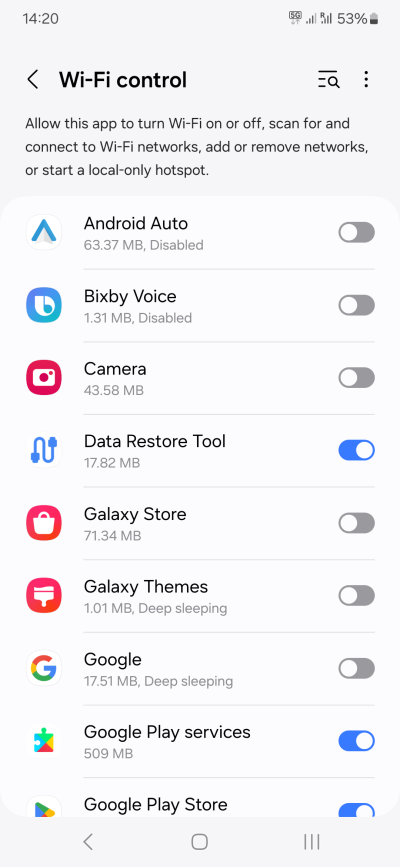
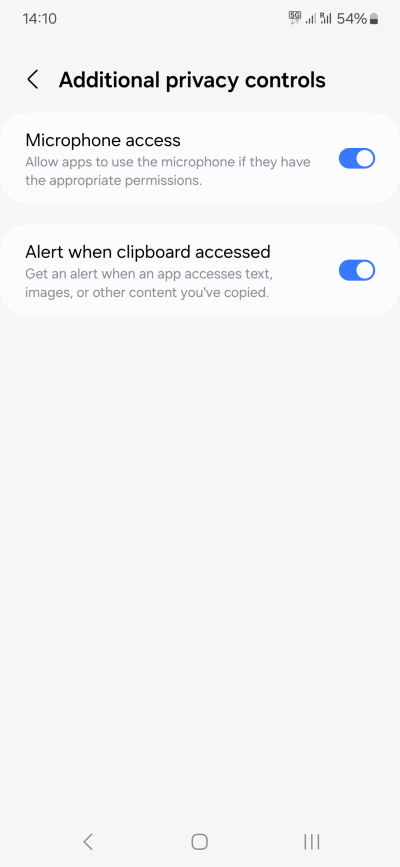
Some phones may also have special controls for microphone and clipboard. At some point, I guess these will become individual toggles for each and every app. If your device has them, you need to think carefully what you want to do. I don't think disabling the microphone is useful, unless you never use the phone as a phone. Clipboard access is definitely something you should monitor, if possible.
Required applications
So far, we talked about what to do with various applications and their permissions. The bigger question is, what applications do you actually want or need? Because if you don't need an app, you don't it installed, and then, you don't need to worry about its permissions.
It can be difficult to decide what you need. But here's a general rule - if a certain "activity" does not require persistence, or there's no need for customization, you don't need an app. Let's take weather as an example. Most phones offer built-in weather widgets, so you rarely think about it, but say there was no weather app installed on your device. You can open a browser, open a new tab, and just go to your favorite weather service, and check the forecast for wherever you need to, be it your location or some other place in the world.
Similarly, say Youtube. You don't need an app, open a browser tab. Radio streaming? Again, most stations and services have a website, and you can listen to the broadcast there. It can be convenient to install an app, but that also gives that app access to your system.
In fact, using a browser is a much better option for many reasons:
- Browsers are usually coded with a very high level of security, at least the big ones.
- If you use Firefox - as you SHOULD - then you can install extensions including adblockers.
- Firefox also has very strong protection against tracking and fingerprinting.
- Sites are limited in what they can do in the browser context, much more so than when running as standalone apps on the device (including ads, access to different resources, and such).
Remember, most "apps" are simply single-page websites, wrapped in a nice UI. But they are essentially Web pages, with some HTML code, Javascript, and a database. None of this needs to reside on your host. Here and there, sure, but in general, nope.
Therefore, the basic rules are as follows:
- Make a list of actual use cases you envision for your phone. For example, if you never do any "office" stuff on your Android phone, do you need the likes of Microsoft Office, Google Docs, or similar? The thing is, don't worry too much about it. You can always install apps later on, if you need them.
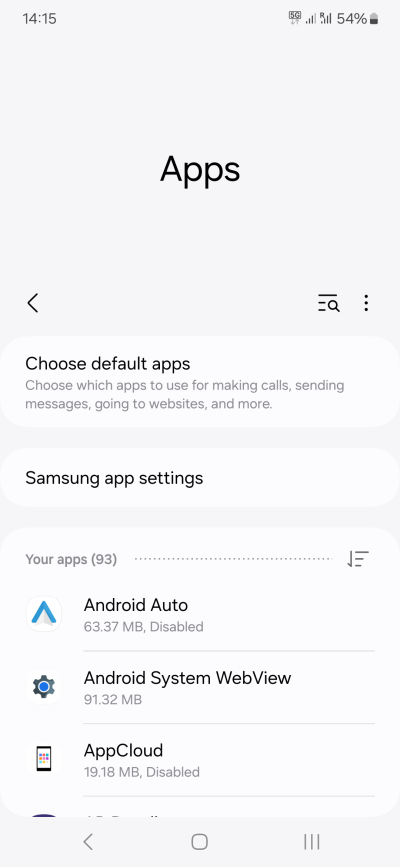
- Go through the list of installed applications, and remove any that do not meet your criteria.
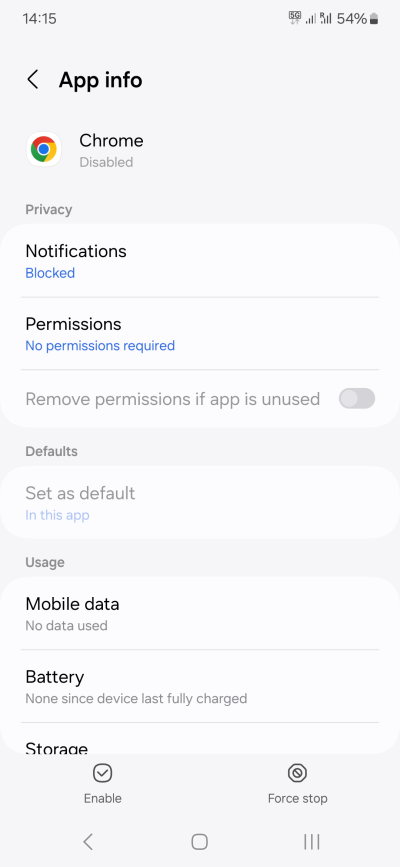
- If certain apps cannot be uninstalled, disable them.
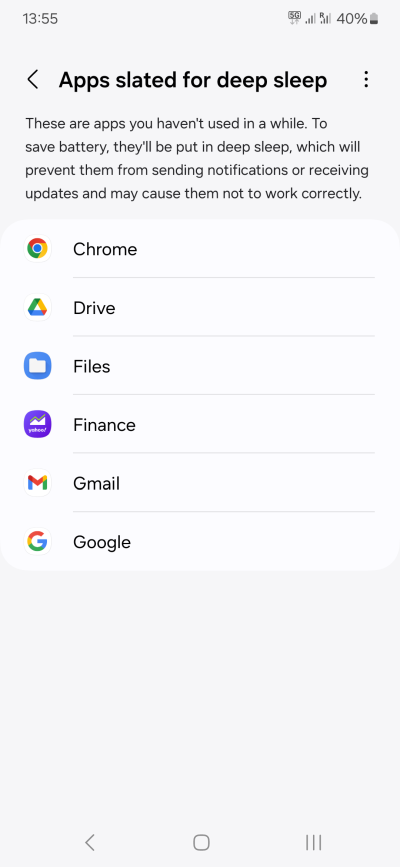
- If they cannot be disabled, on devices that support it, put them to Deep Sleep - they will not be updated or use any background data. Typically, you can also Deep Sleep disabled apps.
- If they cannot be put to Deep Sleep, remove all of their permissions, as much as possible. See above.
Recommended applications
Now that we've sanitized the list, let's talk about good, essential applications. The most important part of your application arsenal will be your browser - it's the portal by which you will use the Internet. Now, I am aware that there are people for whom social media is their life, and they will "exist" in this or that app. They are not the intended audience for this article, and I'm pretty confident they won't ever see it, read it, or want to read it.
The browser, yes. For me, there's only one choice. Firefox.
Here's why you should use Firefox (including the Android version):
- It's the only major browser not based on Chromium. The situation today is quite similar to the dark ages of the net (mid-2000s), when Internet Explorer ruled supreme, and there was "nothing else". Websites were hard-coded to this browser, and if you wanted to use something else, you'd get error messages or banners that said "Best viewed in IE". Today, there are sites that do the same thing with "Best viewed in Chrome" or similar. It's a travesty and shame for W3C standards.
- Firefox allows you to install extensions - make the browser richer, better.
- It allows you to install an adblocker - a critical lifesaver for the modern Internet. Adblockers are essential for many reasons. Ads have been used as a vector for malware, both passively and actively. Passively, by linking to malware. Actively, by using malicious fonts and other exploits in browser and system libraries that parse the content. If you block ads, you reduce the chance of being exposed to potential malware. You also save bandwidth, your battery, and improve your general privacy. Plus, the Internet-era ads are pointless. On the TV, back in the olden days, you could actually find a decent ad now and then, and admire the cinematography and whatnot. The Internet equivalent is a waste of everything.
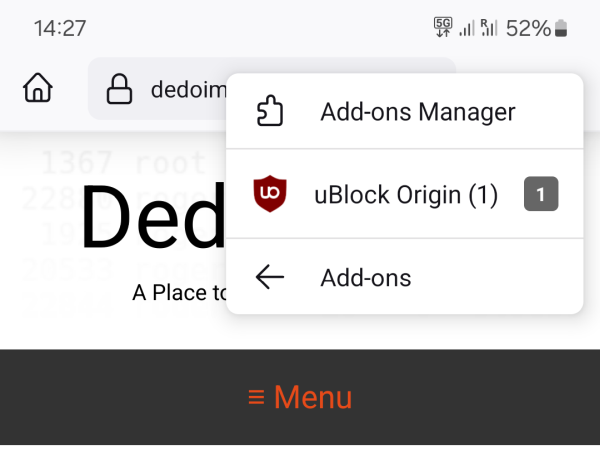
- Extensions + adblocker = UBlock Origin (UBO), a fantastic addition to Firefox (or any browser on the desktop). With UBO installed, you have a sane, quiet, privacy-focused browsing experience. Beautiful and elegant.
- Firefox also lets you installed Noscript, another amazing extension. I've written about it quite a lot over the years. It lets you block scripts, but also other Web elements, including WebGL (improves privacy) and remote fonts (improves privacy, security and good coding practices). You can, of course, whitelist websites, so if and when you do need WebGL or other functionality, you get it. Fonts wise, I hate the concept of remote fonts. Sites should not load remote content for essential components of its looks and functionality. This is a shoddy practice that needs to be abolished. If something breaks with a third-party script that resides on a different domain, your site and every other site that links to this resources will break as a consequence. In some scenarios, you won't have a choice. Fine. But fonts? Let the user load their own, available on the system.
- Firefox comes with tons of other perks, including a nice Sync service.
- Firefox is fast and stable and secure.
My first order of the business on any Android device is to install Firefox, UBO, Noscript, and then relax. Without these, the Internet is unusable. Now, over the years, I did encounter a few sites that would not load correctly in Firefox, due to the horrible coding practices by their developers. Those sites are permanently blacklisted from my usage, and the rest works great. Another major bonus is improved battery life. By blocking ads, conserving bandwidth and CPU (needed to process ads), the use of Firefox + UBO (even if you don't want Noscript) will help you gain more time in between charges. How much exactly, hard to say. But my general tweaking formula outlined here (which also includes disabling pretty much everything + Firefox as the default browser) usually leads to at least 20% improvement, often way way more.
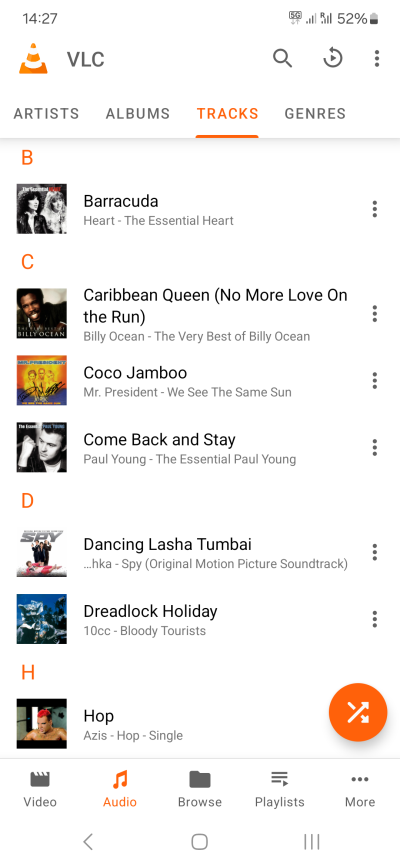
I also like VLC as my media player. Fast, elegant, with no ads or tracking. VLC can play pretty much any audio or video format, it supports subtitles, and you can even use it as a media server. I did that when I tested iPhone 13 recently, in fact, which allowed me to copy music onto the device without using iTunes. But that's a separate if fantastic topic.
As for the rest, it's very hard to say what you should use. However, here are some general recommendations that should help you decide what apps you may want to actually install and run:
- Follow the sanitation process we outlined above, and get rid of everything you don't need.
- Figure out what you actually want, check if you can do it through a browser, and it that works, stick with it.
- Only install apps that offer enhanced functionality and convenience compared to the browser method.
- If you already know which apps you like and trust, great.
- If not, be very diligent in your Google Play search.
- The number of installs and the star rating is only a potentially good start. You should spend time and carefully read the software reviews, especially those with the 2-star and 3-star ratings. As I've outlined in my article on how to handle fake reviews online, there are no shortcuts.
- Check whether the app display ads - try to avoid those if possible.
- Check whether the app requires an account sign-in - try to avoid those if possible.
How to configure newly installed apps
Here's my recommendation on what you should do when you install a new app.
- Install, but do not open it right away.
- Go into settings, and change the permissions to what you see fit - remove what you don't want or need, like certain resources, background data, etc.
- Open the app, and then open its settings.
- Make additional changes, with focus on privacy.
Use with or without an email/user account
It is quite common to be auto-signed into apps on Android, or to have the system ask you to sign in. This allows personalization and such, but it also potentially helps create a more accurate profile of your usage. While it is hard to know exactly how "the system tracks you", you can still be diligent and follow a simple process that ought to help minimize your data exposure.
- If possible, use apps without an account (either an existing or a new one).
- If you have been auto-signed in, sign out.
- If the app requires the use of an account, you usually have two options: 1) use your Google account that you registered on the phone 2) use a separate account. The latter may help reduce your data exposure and profiling, but it also increases your online presence. Every account you create with whichever service is potentially an entry in another database that could be hacked one day, and your data exposed. Since this happens all the time, the risks are real.
My suggestion would be, if you MUST use an account, then:
- For important apps, use your important accounts - whether the one you signed in on the phone, or a separate one (say like your tax-related email).
- For non-important apps, use a throwaway account specifically created for that purpose.
System applications
Warning: Changing permissions and settings for system apps CAN screw things up.
If you are skilled enough, and you understand the potential consequences, you can also make changes to Android system apps. You can even uninstall some, if you want. Just remember that you may lose functionality if you do so.
As I mentioned earlier, some phones show you everything, others have a toggle that lets you display system apps. Tweaking these is no different than what a PC user would do for their Windows services. You can turn things off, but you may also break something if you're not 100% sure what you're doing.
a
- In 99% of the cases, you should leave system apps be.
- However, there are some scenarios where you can make small, deliberate changes. For instance, since I have ZERO use for Bluetooth, I always disable is ability to change system settings. Whether this offers a genuine security advantage, as it's only a software toggle, I cannot really say.
Step 7: Analytics & diagnostics
Some phones may collect additional data - usage data, analytics. In some cases, this data can be beneficial, as it may help improve the product. However, my experience shows that despite enormous data collection over the years, the software products, by and large, aren't better than they used to be. I don't see a direct correlation between data collection and quality. In fact, it's the opposite. From a privacy perspective, you should turn telemetry off, where possible.
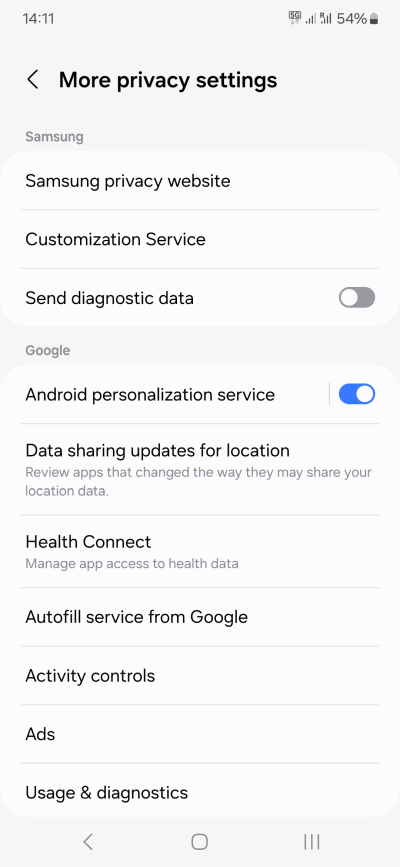
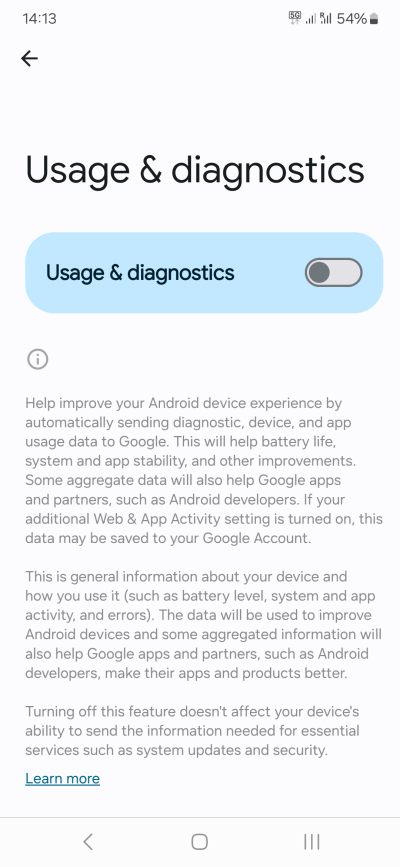
There isn't a single place where you can configure this, so you will need to go through every settings on your phone. You will need to check any mention of usage, diagnostics, analytics, user improvement, or similar. Furthermore, you should look at data sharing and any "connections" among apps.
Step 8: Personalization, Google account
One of the more appealing aspects of the Android ecosystem is that you use your Google account for your phone, and because it's connected to almost every activity and app on that device, you have a more personalized, more "precise" experience. This may be, but my personal take is that this isn't worth it. One, the actual results are not as good as they should be (because most services struggle with outliers, and nerdy techy types are a big outlier when it comes to mainstream consumerism). Two, from a privacy perspective, I don't see an obvious reason why I ought to share my activities with the device vendor or alike.
My recommendation would be to turn off most of the personalization features:
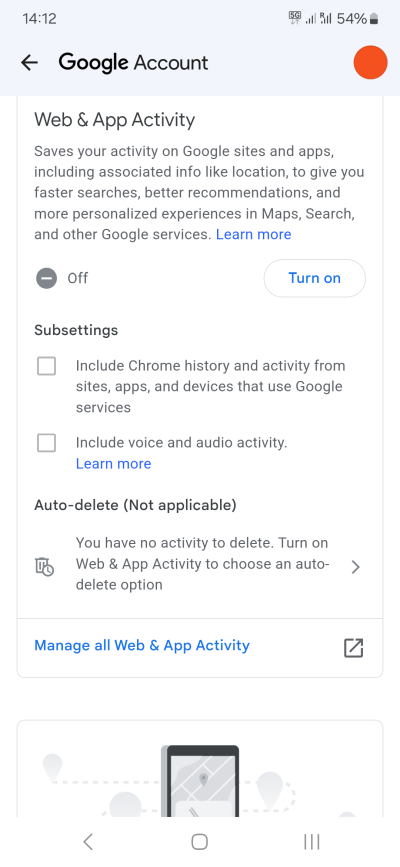
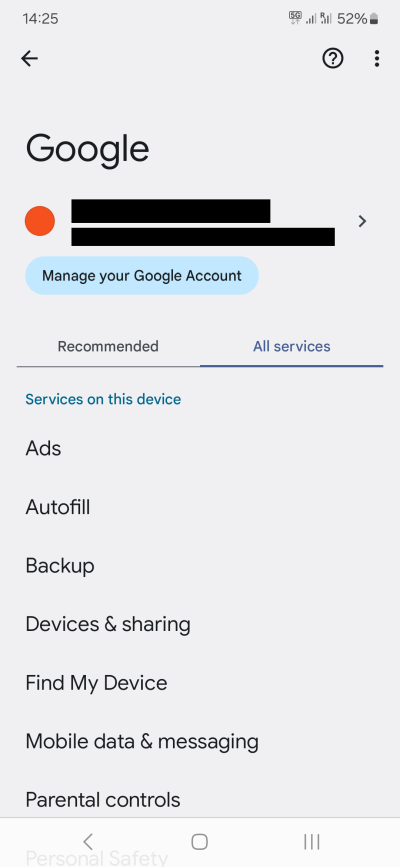
- Open your Google Account, and turn off various activities. This is entirely at your discretion.
- Click on All services, and then go through them one by one. These will include things like Ads, Autofill, Backup, Devices & sharing, Find My Device, Parental controls, and more. Not all of these are useless - far from it, some of these features are quite welcome. But in general, I would suggest: no ads, no autofill, no activity, no nearby devices or sharing, no personalization, and definitely no voice assistant.
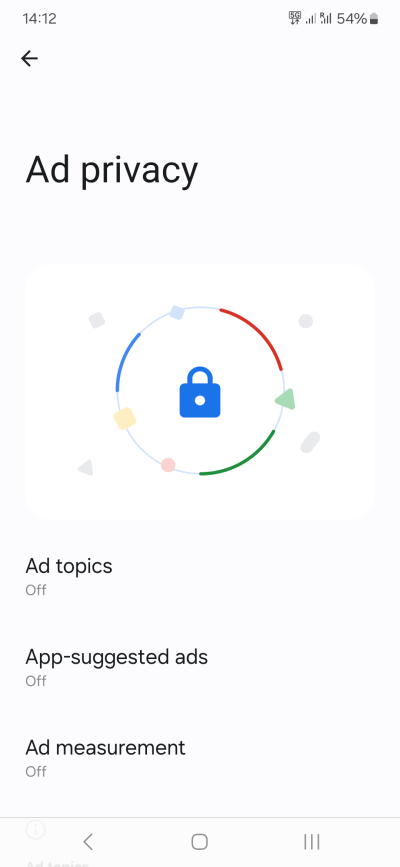
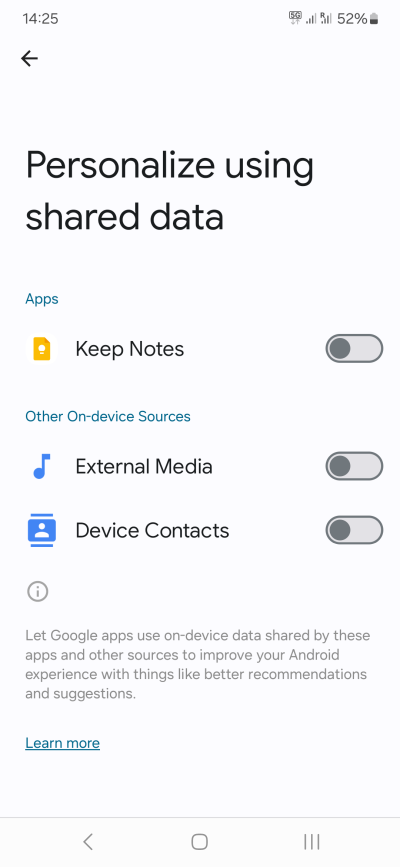
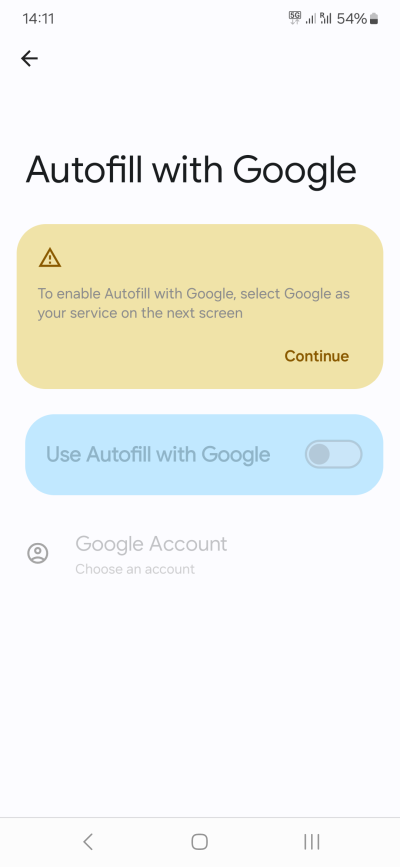
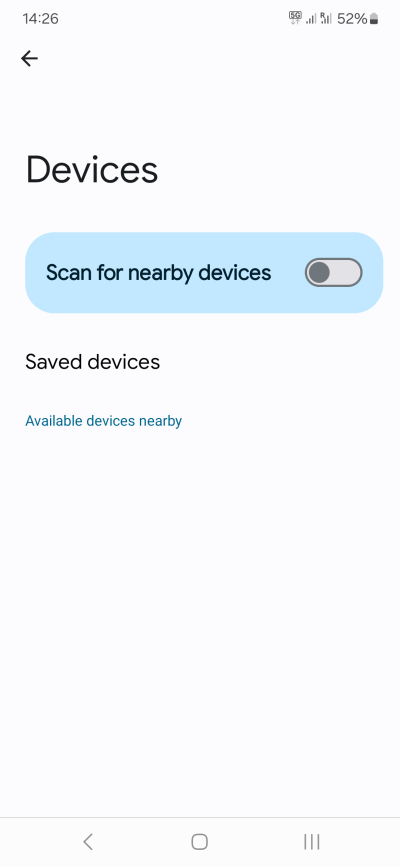
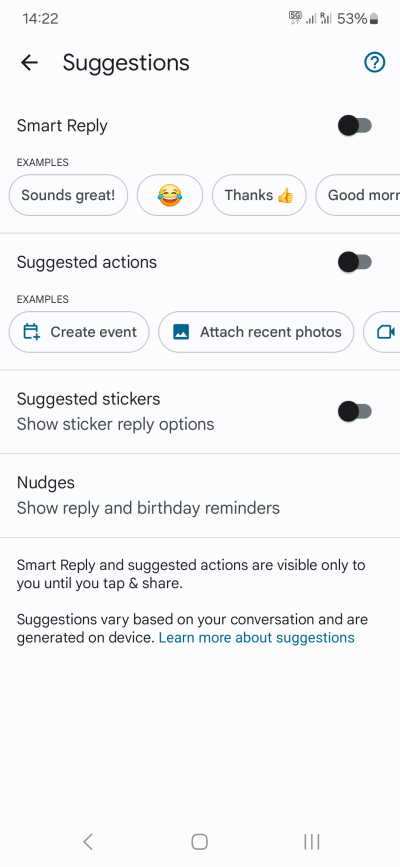
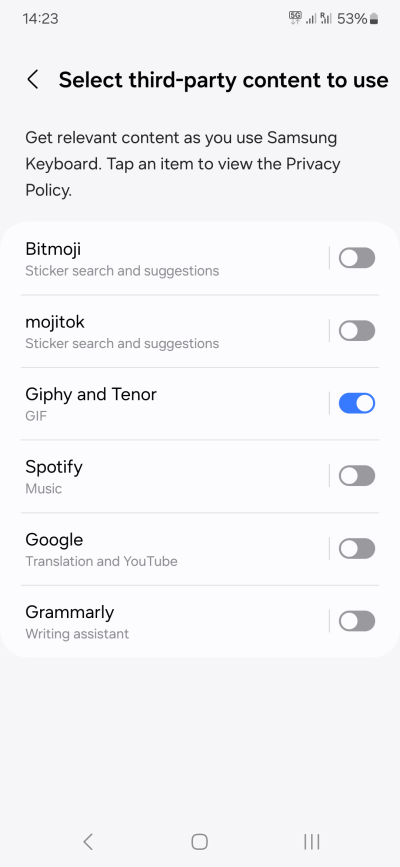
Some basic memeing is acceptable. We're all human, after all. Maybe.
Step 9: Messaging apps
A big part of device usage is messaging - people chat with friends and strangers using the likes of Messages, Viber, WhatsApp, Signal, Telegram, and other tools of this nature. All good, except these tools also bring in security and privacy implications.
If you've followed the tech news in the past two or three years, you must have come across articles talking about zero-day, zero-click exploits in messaging software. The main reason why the exploits worked was because the software didn't correctly parse media - usually images, to be more precise.
The problem is quite simple - messaging apps can display images and videos. To do that, they use various audio and video libraries. If there is a critical vulnerability in one of these, then potentially, it is possible to hack the system. Now, again, if you read these articles, you will note that this is some real James Bond stuff. In other words, not the focus of this guide. Finding exploits in media libraries is not everyday business.
The outcome of these incidents, James Bond aside, is that phone vendors had to rush out patches to their software, to mitigate the vulnerabilities. Once the problems became public, it wasn't a question of select individuals being targeted, it became a problem of billions of devices being potentially at risk. This ties into the patching regime for this or that Android manufacturer. Your phone may be out of the support cycle, and you may not receive important, perhaps even critical updates.
The second outcome of these incidents is that various phone vendors began implementing extra security, especially for people who may find themselves at extreme risk of being hacked. For example, Apple implemented the Lockdown Mode, which I checked and tested. For me, being a peasant, Lockdown Mode proved to be way more interesting as a tool that makes the phone usage quieter and cleaner rather than a security feature. Still.
With Android, there isn't a single Lockdown Mode functionality available. Every vendor implements their own security policy. As a specific example, I read that Samsung uses Message Guard, which processes and sanitizes images in a sandbox before showing them to the user. This ought to mitigate any such exploits. However, it seems to be only active by default for Samsung and Google Messages, and if you want to extend the functionality to other apps, you need to use Auto Blocker. I intend to review this in my third A54 report. But from what I see, it might not be worth activating, as it requires agreeing to a third-party EULA, plus the use of an anti-malware app, which is not something that I consider useful. Essential apps and all that. But that's a topic for the near future.
I am not 100% sure what tools other phone manufacturers use, if any. Where does this leave you? It would seem that there isn't a comprehensive solution to how you handle media in messaging apps, or the potential implications. Therefore, the next best option you can do is to try to minimize your exposure - not from being hax0red by Bond-level players, but from accidental encounters with potentially malicious content.
- MMS - If possible, do not auto-download media in Messages. This could prevent the parsing of potentially malicious "attachments" sent to your device. I am not aware of an Android-wide method that prevents people who are not in your contact list from sending you media.
- Other messaging apps (e.g.: WhatsApp, Telegram, etc) - If and where possible, do not auto-download media. This can also help conserve bandwidth, and again, it may help prevent the parsing of content on your device. The big emphasis is on the word may. Ultimately, it comes down to the security in these apps, and the underlying system (including any vendor-specific hardening and their patch cycles).
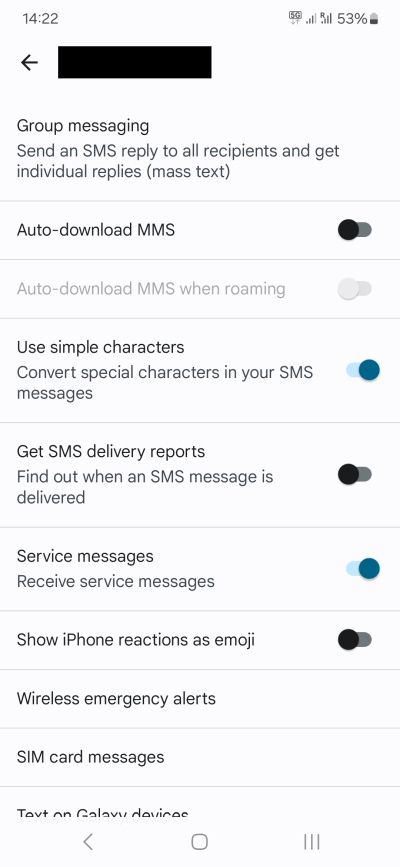
Similarly, where possible, disable Web URL previews. On one hand, a preview may help you decide whether you should "click" and follow the link, but on the other, for that same reason, if you actually need to decide, then, when there's doubt, there's no doubt. The simple answer is don't. Ideally, you will only click on links from trusted contacts - although that's no guarantee these are what you want. Your contacts may be "hacked", or they may send you pointless, malicious or undesired content by mistake.
- From a privacy perspective, you should not let your device parse link unless you actually intend to open them.
- From a security perspective, this may help a bit, in that you stop and think before you click a link. Maybe.
- Avoid having friends, and trust no one, and be forever alone. Optional life hack.
Step 10: Anti-malware software
Should you use any security software on your phone? My answer is: no. I don't see any reason to use anti-whatever on any devices, be it a Windows machine or an Android phone. By and large, if you don't install random software, you're not at any great risk (unless personally targeted, in which case you have a much, much bigger problem). On the phone, your "biggest" problem is a super-rare zero-day, zero-click vulnerability in one of the media libraries (usually images, as most software is designed to handle images automatically, as opposed to other file types). But that's about it. We've already discussed Bluetooth and adblocking, the other two major vectors of potential exposure.
Google Play comes with Play Protect, which will scan your device for (known) harmful apps and remove them if found. It will also remove permissions from apps you haven't used in a while. Those two methods are already robust enough when it comes to everyday usage.
Step 11: VPNs
Much like the biometrics, a lot of people mistake VPNs for what they are. The purpose of these apps is not to make you invisible. Their purpose is to allow you to establish a trusted network connection on an untrusted network medium. Say you're traveling, and you're now at some little hotel. You may not want to open your mail or whatnot when connected directly to their Wi-Fi. But then, you could launch your VPN, and then use that. Furthermore, in some scenarios, VPNs can allow you to work around geoblocks, and in some cases, they may be mandatory for certain activities (your workplace may require them for remote connections).
VPNs don't "hide" what you do. They shift the activity to the VPN provider. If you run a VPN tunnel, then perhaps your hotel or your ISP cannot see what you're doing (depends on how the VPN handles DNS leaks), and all they see is that you established an encrypted connection to a server somewhere, but your VPN company is the second endpoint of the secure tunnel, and they can definitely see what you're doing. Whether they log and keep that info is another manner, but you're definitely not invisible. Monty Python's How not to Be Seen.
Thus, the question is, should you use a VPN on your Android?
The simple answer is: maybe.
- If you use a reputable VPN, in some cases, it can be highly useful.
- If you use a "dodgy" VPN, you may actually give away way more personal info than you intend under a false assumption of security and privacy.
- Even if you use a good VPN, it all depends on how the operating system implements the network policies. Technically, some VPNs may block traffic to prevent data leaks, but ultimately, without a kernel driver for network, which apps cannot install on an unrooted phone, the actual network behavior rests on the system. This means that you may get all the benefits you expect, but it is also possible your device may do some E.T. Phone Home stuff, even when you're connected. I don't have any great conspiracy stories, so relax. What I do have is a simple tech explanation that says: your VPN may not be the perfect shield you expect it to be.
- Use VPN to establish a trusted connection where required - do not use it as a 24/7 tool that supposedly masks your every move. That's both counterproductive and technically incorrect.
Step 12: Data backups
Should you allow your phone to back up to the cloud? The answer isn't a straightforward yes or no. First, let's begin by discerning among different types of data backups that may be used on your phone:
- Your phone backup (apps and settings), sent to your Google account.
- Your photos backup, also sent to your Google account, but done separately from the above.
- Any app-specific backup, e.g.: WhatsApp backup, Firefox sync, etc.
- Encrypted vs. non-encrypted backups.
Each of these warrants a completely different approach:
- Google account backup - You already use the account. That implies a level of trust. Therefore, there's really no reason why you shouldn't back up some of your app settings, especially if you use good security for your Google account, i.e., a non-trivial, non-reused password and 2FA (preferably a time-based code app). I would suggest against password backups. Be aware that these backups may be incomplete. The restore may also not always work 100%. My experience shows that Google account backup & restore is a bit of a hit and miss. Not bad but not perfect.
- Photo backups - I would advise against this. Your photos contain a lot of personal information. Also, photos take a lot of storage, and unlike phone app settings, they are very easy to back up. Simply copy them. Done. The app settings change daily, and aren't trivial to parse and understand by humans. The photos, once taken, do not change, and come in a simple format: JPG. That's it. USB, connect, copy, problem solved.
- App specific backups - I would advise you use these ONLY if they come with encryption. Without it, you're uploading personal stuff (like messages, images and browsing history) to remote storage. Again, this means additional safeguards - these accounts also need security, 2FA, etc, plus you need to make sure the storage offers encryption. This isn't always the case. I don't have a simple recommendation - you can manually create copies of app databases, but this can be cumbersome. Alas, that's the best I can suggest at the moment.
Conclusion
And we've reached the end of this fairly long and exhausting (perhaps exhaustive) tutorial. As I said in the beginning, its purpose is not to make you "immune" to hax0rs. If you think you may be a target of some international criminal mastermind or alike, this guide isn't for you. My article focuses on simple, everyday usage, and convenient, practical security and privacy tips that should help you somewhat reduce your exposure to nonsense, spam, data leaks, and potential problems. The idea here is to make your phone use less battery, show fewer pointless ads, and reduce noise. You can somewhat improve your privacy and security stance, but you also need to be aware that perfection in any of these areas is not possible on this modern Internet.
If you're using a smartphone, that already is a choice, a compromise. It's not all bad, either. But the usage of modern technology comes with a price. You also gain convenience, perhaps even fun. That said, it does not mean you should succumb to stupidity, and just let things be. The Android operating system and its flavors come with a HUGE set of privacy options and tweaks. They aren't active by default, but they DO exist. Use them. The same goes for security. You can toggle things on and off, without any great tricks. Hopefully, this guide outlines the various steps you can try and implement, to make your online usage a bit nicer and more elegant, perhaps with an added dose of privacy and dignity. That would be all. See ya.
Cheers.