Updated: April 2, 2025
If you qualify for the serious amateur but still amateur class of digital media users, with only an occasional need for some polish and paint for your photos and images, then you're in luck. There are lots of reasonable choices out there. One of the programs you may want to consider for your arsenal is GIMP, a free, open-source image editor. In many ways, it's unto Adobe Photoshop what LibreOffice is unto Microsoft Office.
'Tis an alternative that should give you good results, especially if you're willing to make a bit of extra effort. Can it outmaneuver the big guys, though? Maybe, I don't know, I'm not qualified enough to make that call. But as the aforementioned amateur, I can surely get happy and excited about GIMP's latest, long-awaited third major release. Excited enough to write a review. Let's do it, then.
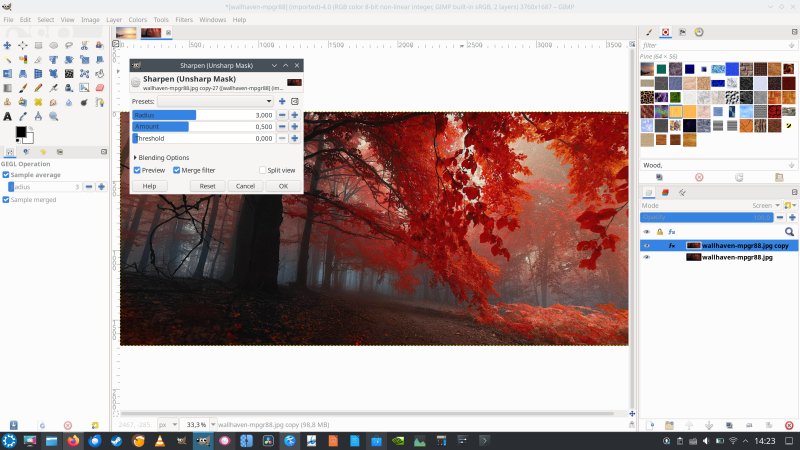
Getting underway
I decided to try GIMP 3 on my 10-year-old Lenovo Y50 machine, which I recently upgraded with an SSD, and had Kubuntu 24.04 installed on it. More importantly, the laptop comes with hybrid graphics. Intel plus Nvidia, and there's a 4K display. Despite its age, the system works fairly well. I also tried Upscayl and DaVinci Resolve on it, and both programs run just fine. All in all, it's a worthy candidate. As it happens, I also have GIMP installed there, the 2.X branch, so I'll also be able to compare the two versions.
Since we're in the Linux realm, I downloaded the AppImage bundle. A single file, get it, run it, and that's it. Easy peasy. Indeed, the program launched without any problems or errors. The visuals are pretty nice, and the GTK-3 UI renders with more flair than the older GTK-2 one. However, over the years, I've noticed quite a bit of discrepancy in how different GTK programs look on different desktops, and I can tell you that GIMP 2 on this particular machine doesn't have the same feel like GIMP 2 on some other systems. Go figure.
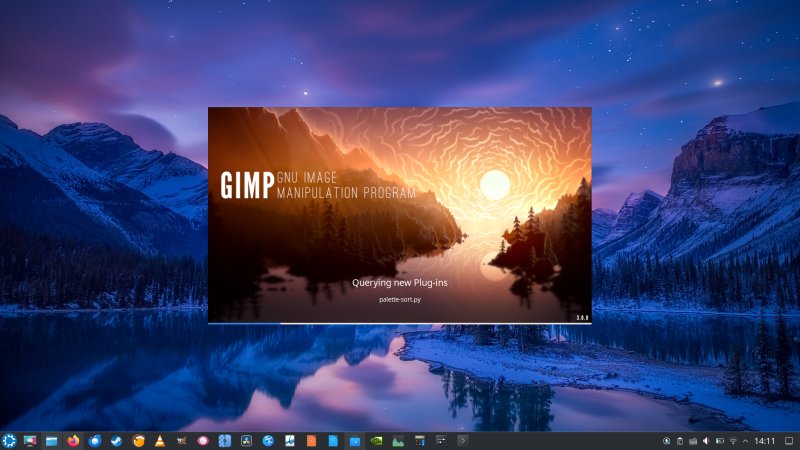
The splash screen reads 3.0.0, but it's actually 3.0.2.
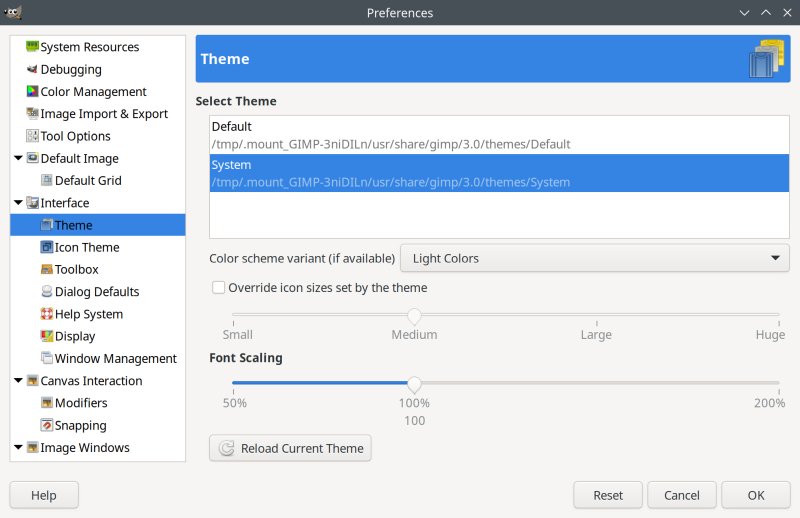
I wasn't happy with the default oppressive gray color scheme. Luckily, you can change both the UI theme and the icon theme. Here, GIMP 3 uses Legacy icons, which is nice. The system theme is also superior in terms of clarity and ergonomics to the one labeled Default.
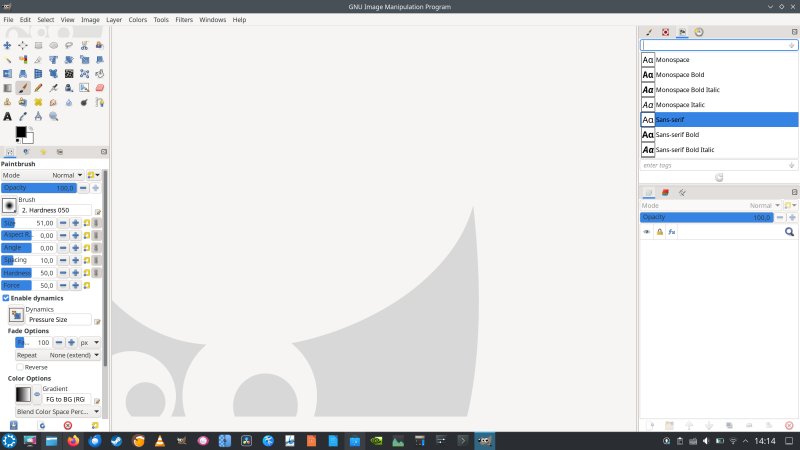
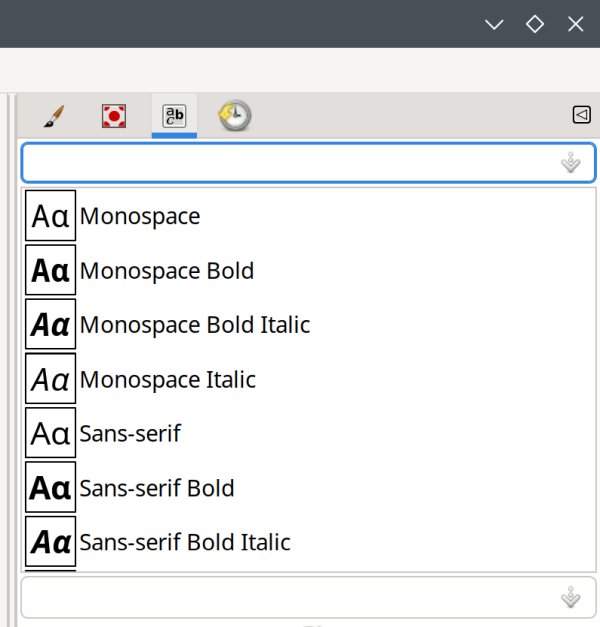
I did spend a few moments customizing the UI. By default, the left sidebar is too narrow, even with the default-size icons, and you need to widen it a bit to see the full Paintbrush set. On the right side, the font filter is confusing. The field lets you type in font names, but it's also highlighted by default, so if you do any copy & paste, the content may go "there", which will make you "lose" visibility of your fonts.
Finally, in the Plasma desktop, I wasn't able to pin the GIMP 3 icon to the task manager when launched from Dolphin. The reason is, the program lives in a temporary path, and it changes on every launch. You will need to manually create a menu entry, launch the program from there, and then pin that one, if you want to have a persistent launcher icon. Also, you can have both GIMP 2 and GIMP 3 side by side.
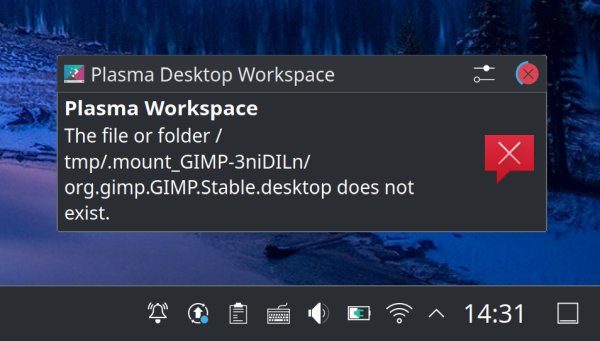
Pinning the AppImage-started icon won't work in Plasma. You need a launcher.
Workflow improvements
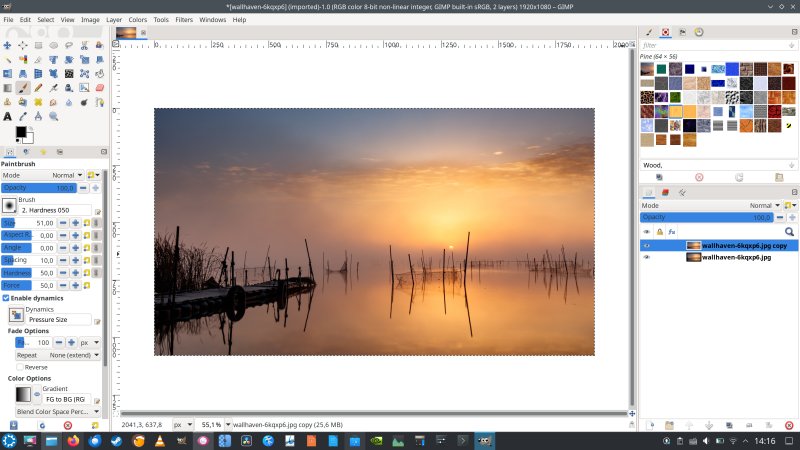
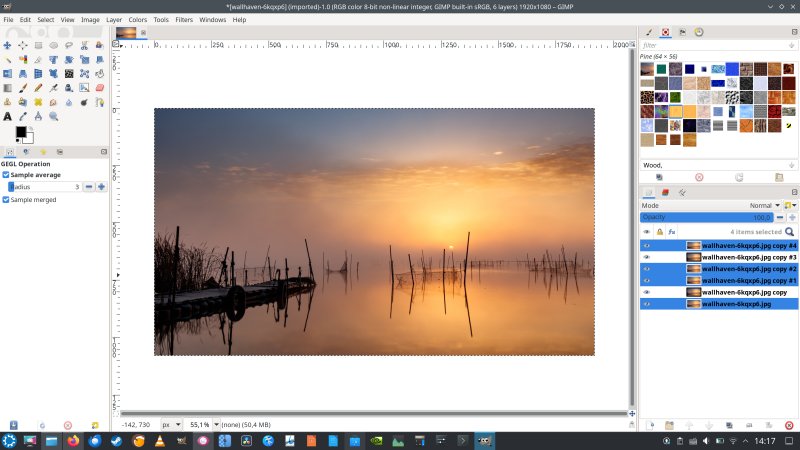
Now, I didn't expect any miracles, nor were there any. But overall, GIMP 3 brings a lot of little fixes that make everyday use more refined. For example, if you copy and paste layers, they "stay" as layers, you don't need to "convert" the floating layer buffer into one. A few mouse clicks saved. Then, you can also multi-select layers and make changes in bulk. More time saving.
GIMP 3 also no longer saves image metadata. This is a nice privacy improvement. In GIMP 2, you had to manually change the defaults, both for say JPG and PNG files, if you wanted those Exif, XMP and IPTC fields zeroed.
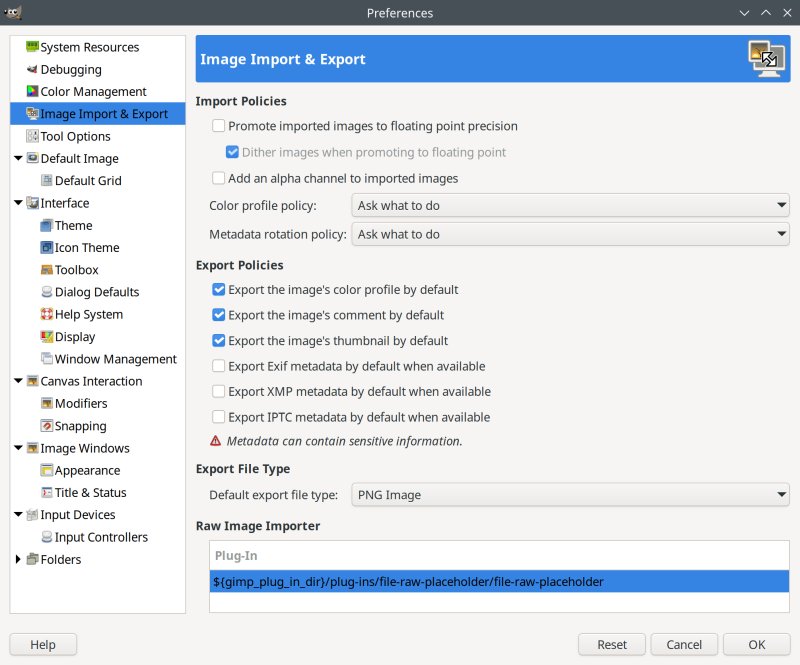
I am also happy with the fact that tools aren't grouped anymore, by default. I found this rather annoying in some of the later 2.X releases. The option simply introduced extra mouse clicks, without any actual workflow benefit.
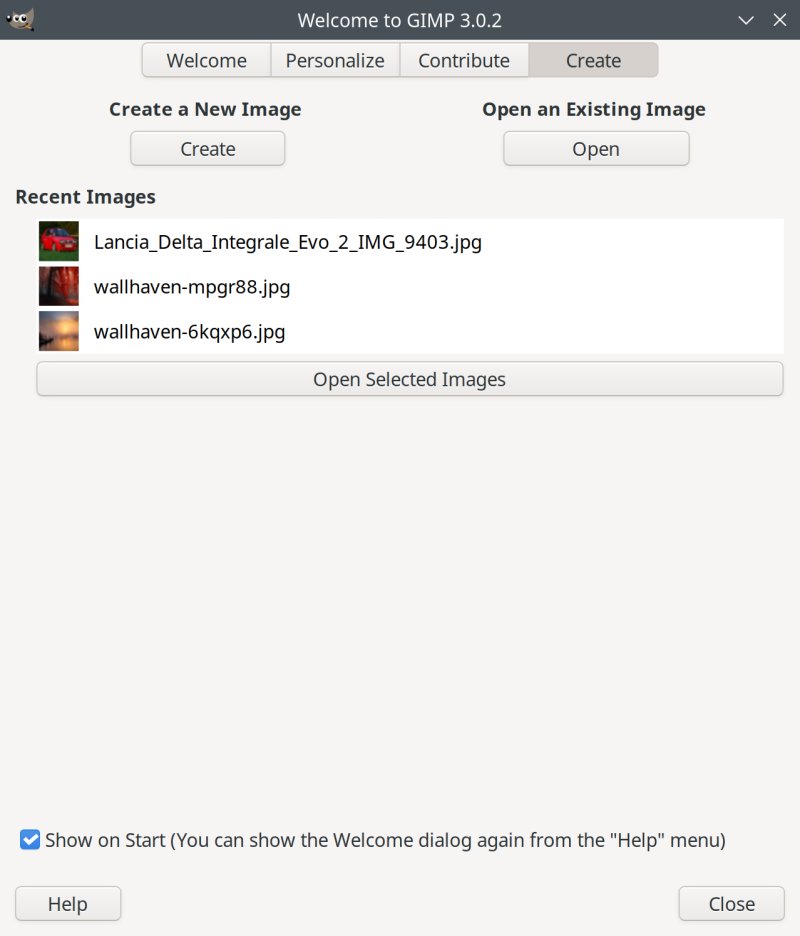
When you run the program, it will show you the On Start page (which you can dismiss, if you don't want it). Here, you can tweak the interface, support the developer, or open the images you used in your previous work session. This is very cool, because for me, GIMP never cooperated with the Plasma desktop restore functionality, but at least you can quickly reload the images into the program. Nice.
Using the program in earnest
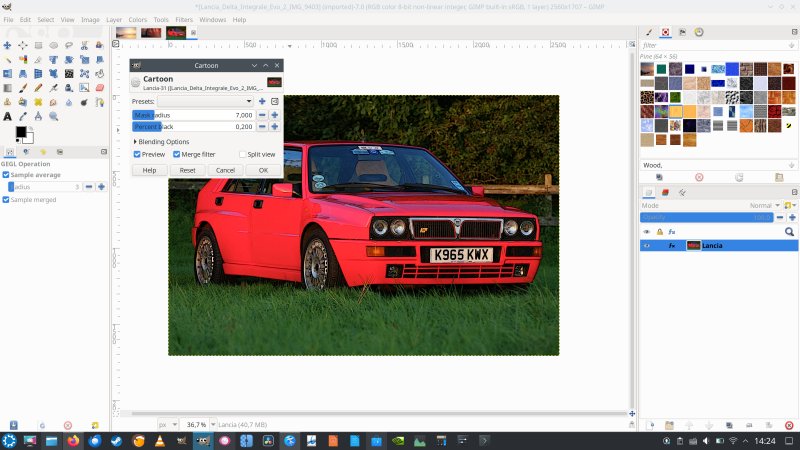
Well, I ain't no digital Picasso, so I can't say everything is peachy or not, but for everyday stuff, GIMP 3 was more than adequate. Taking into consideration the workflow improvements, overall, it was a good experience. You get stuff done, ever so slightly better than before. Overall, the UI is almost identical to version 2.X. If you know your way in the older tool, you'll be 100% at home here. I wish there were more filters and plugins available by default, so you don't need the GIMC toolbox. I also wonder how the AppImage tool would work with this extra, unless bundled.
Some potential problems
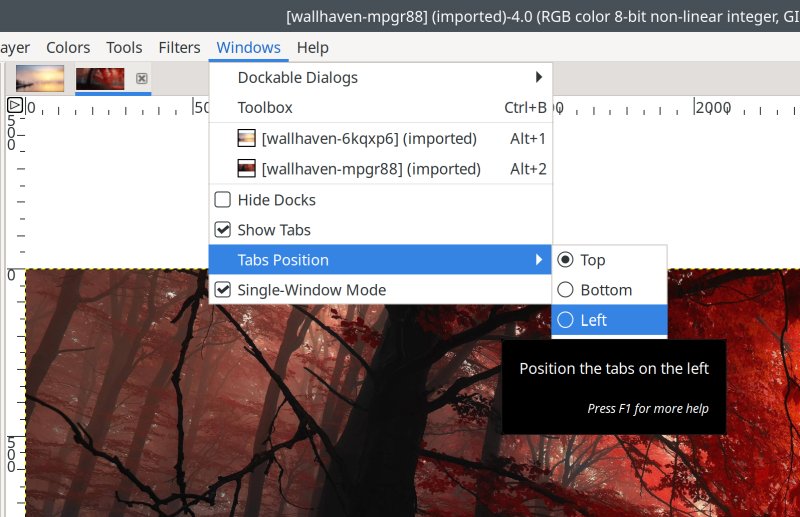
I noticed a few things still missing and/or not quite as I expected them to be. For example, the tab strip can be repositioned, but it cannot be resized. Perhaps this isn't an issue on large displays, but it can be tricky shuffling through images on laptop screens, were the tab (image) thumbnails are proportionally much smaller.
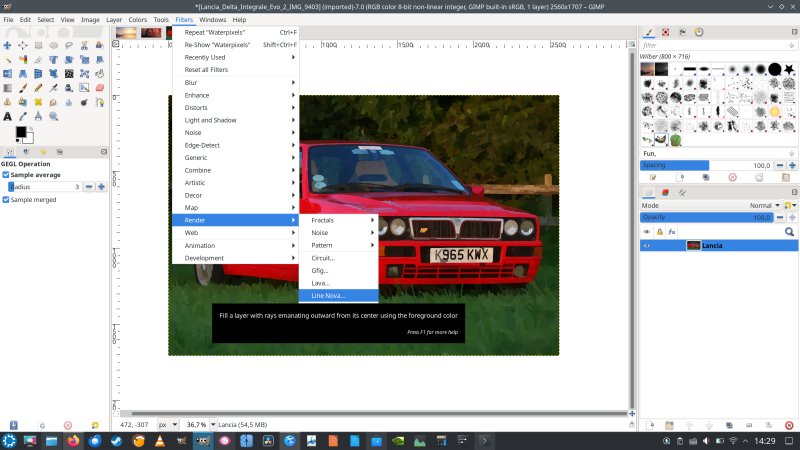
Then, some of the operations were quite slow. For example, Van Gogh (LIC) took a full 30 seconds to complete. I consulted the system process monitor, and GIMP was using a single core. This is strange, because the program is supposed to run multi-threaded, but it turns out, this is only true for operations that support the functionality. So some things may run fast, others may not.
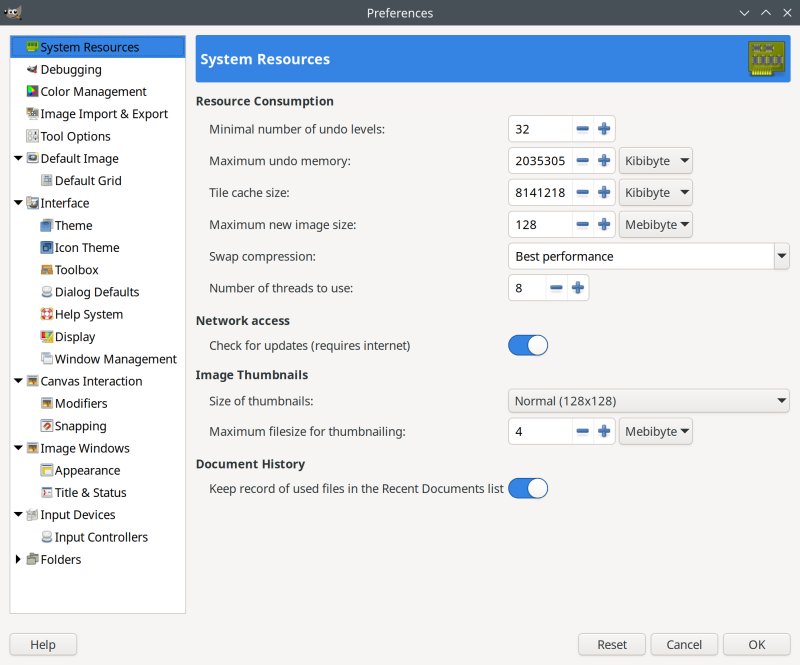
Now, the worst bit: the UI was somewhat sluggish. For example, click open any one menu, and then scroll through them - File, Edit, Select, etc. There's noticeable lag. About 300 ms or so. This could be because my laptop is quite old. But then, on this same box, GIMP 2 has no such issues.
I decided to try something bold - launch GIMP pinned to the Nvidia card (the whole PRIME thingie). I've done this with Steam, too, whereas I let the system manage Upscayl and DaVinci Resolve automatically, which it does, correctly. With GIMP, it was using the integrated card, so I had to force its hand:
__NV_PRIME_RENDER_OFFLOAD=1 __GLX_VENDOR_LIBRARY_NAME=nvidia "AppImage path"
This significantly improved the responsiveness of the UI. Everything else works like before, and the results are CPU-bound (and limited by whether specific operations support multi-threading or not). But the UI rendering does seem affected by the choice of the graphics card, and I got way better results with the discrete Nvidia card. Well, 'tis a 10-year-old device, but that's no excuse for a simple, static UI to be slow. Could this be a GTK thingie? In the past, the Gnome 3 desktop used to be sluggish, so maybe there may be a sub-optimized library or two somewhere in the bundle.
Conclusion
GIMP 3.0 is a nice, good update. First, it doesn't change the way it looks and feel, so there's none of that pseudo-touch modern trash break things nonsense. Second, it improves the workflow efficiency and productivity. Small, important things. Three, equally, it does NOT break things. Four, you get to use the program you're familiar with, ever so slightly better, and there aren't any deal-breaking negatives.
That said, there are things GIMP 3.0 could still do better. UI responsiveness (on the Plasma desktop, at least) on older systems. Better multi-core and multi-threading support. More filters out of the box. Slightly better tab management. Other than that, GIMP 3.0 is tight like a tiger. A good, neat program. You can use it across multiple operating systems, it does not cost money, and it delivers reasonable results. It took a while, but the wait was worth it. See you around, fellas.
Cheers.