Booting into live CD session & beginning of installation
Let's start. Make sure you have everything ready - your PC and the installation disk(s).
- If you are installing Kubuntu as a virtual machine, make sure your VMware Player or Server are properly configured and that you have the necessary .vmx and .vmdk files.
- If you are installing Kubuntu for real, make sure that you have dedicated the necessary space on your hard disk for the installation - it can be an existing partition or some free space.
To begin the installation:
- Place the Kubuntu CD in the CD-ROM tray.
- Start the VMware Player / Server and open the Kubuntu .vmx file (e.g. named kubuntu.vmx).
With the virtual PC booting, hit Esc button to enter the BIOS setup. Select option 3. CD-ROM Drive. Hit Enter to start booting from CD. After a few seconds, you will be presented with several options. Highlight the first option, Start or Install Kubuntu and hit Enter.
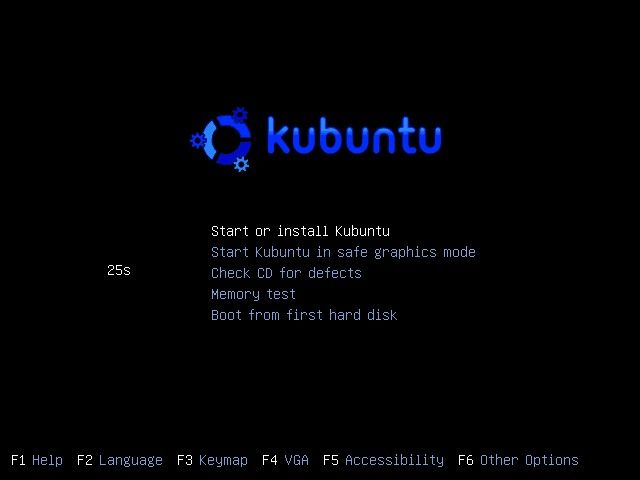
The Live CD will start loading. This will take a few minutes.

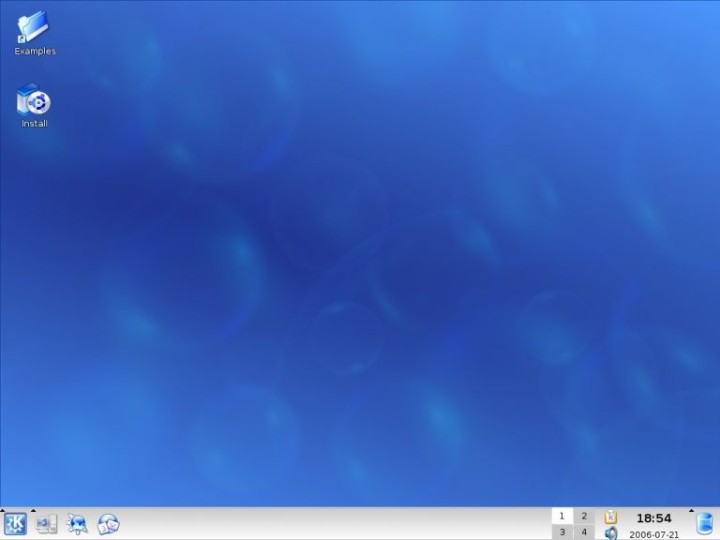
Soon, the Live CD will load into the familiar KDE desktop. At this stage, if you have never before experienced Linux, you might want to spend some time getting familiarized with the basics. For example, you may want to try the Open Office suite or Konqueror browser. For all practical purposes, you have a live CD, which you can use for safe browsing, backup or recovery of your data, CD/DVD burning, and more.
However, to install Kubuntu, single-click on the Install icon on the desktop.
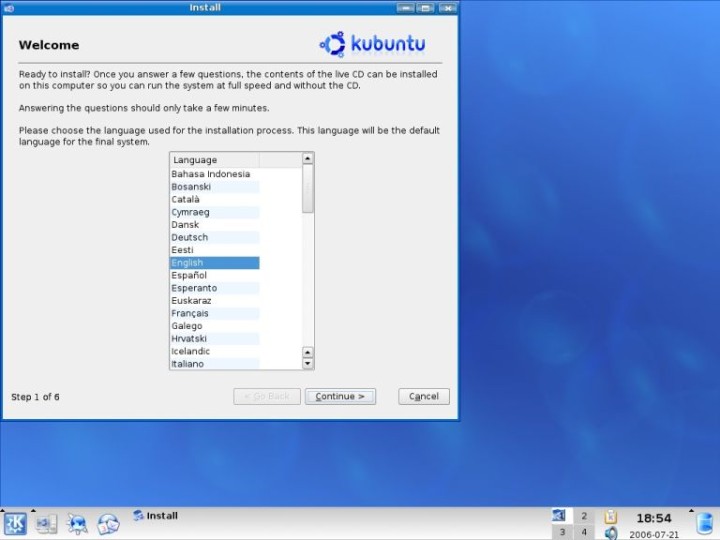
You will have to configure your installation in 6 easy steps. The first step is to choose your language. Although Cymraeg sounded tempting, I opted for English. Highlight your language and click Continue >.
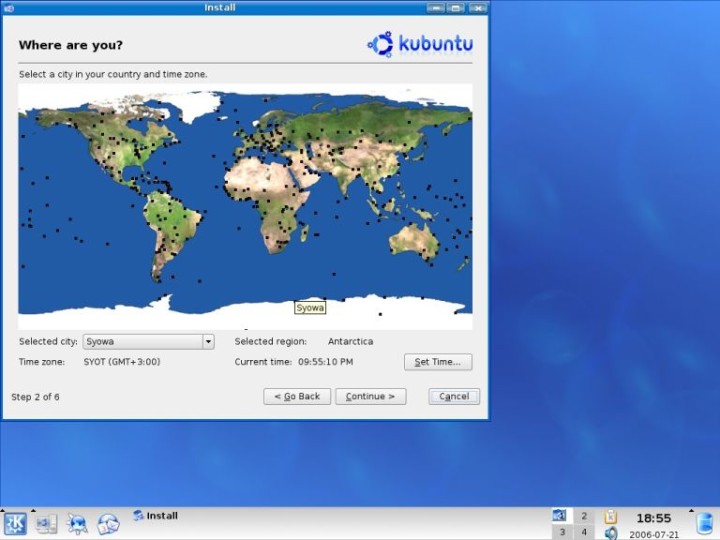
Now, select your country and time zone. This is done by clicking with the mouse on the desired location on the world map, or by using the drag-and-drop list below the map. Once satisfied with your choice, click Continue >.
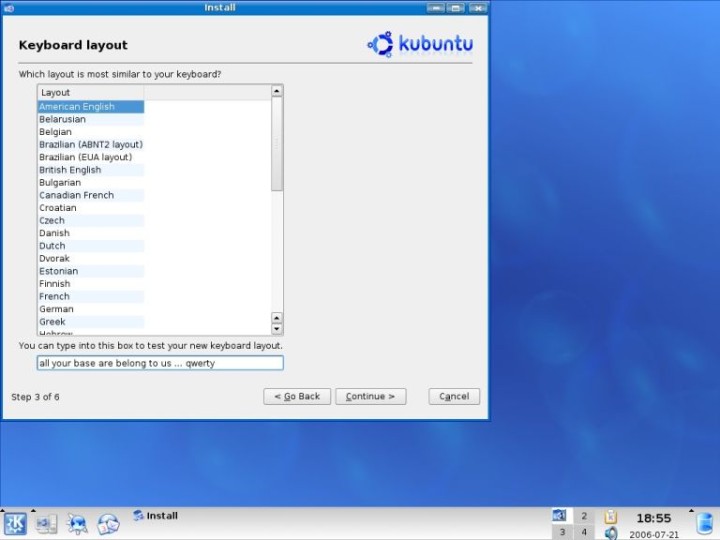
Now, select your keyboard layout.
User settings are next. Enter your name (real or fake), your preferred login name (username) and the password. Unlike SUSE, which requires a separate password for the root or superuser and the local user, Kubuntu will ask you for a single password that you will need to invoke actions that require administrative privileges. You should use a strong password that contains letters in lowercase and uppercase, numbers and alphanumeric symbols, like Tr#2o0We@. Do not lose this password! Without it, your system will be useless, and you might as well reinstall and start anew.
Based on your login name, the installer will suggest a computer name, e.g. name-desktop. You can change it or leave it as it is. Once satisfied with your choices, click Continue >.