Updated: October 16, 2009
This is a rather common need for many users - grab several PDF documents and merge them into a single file. The question is, how do you do that? In Linux? In today's tutorial, I will show you the tools you need for the job, as well as the few very simple commands required for the task. Follow me.
Name of the game: pdftk
pdftk is much more than just a tool for merging documents. pdftk is a self-proclaimed electronic stapler-remover, hole-punch, binder, secret-decoder-ring, and X-Ray-glasses. It is capable of merging and splitting PDF documents, decrypting and encrypting files, filling PDF forms, adding background watermarks, edit PDF document metadata, and more.
It is the one tool you want when fiddling with PDF documents.
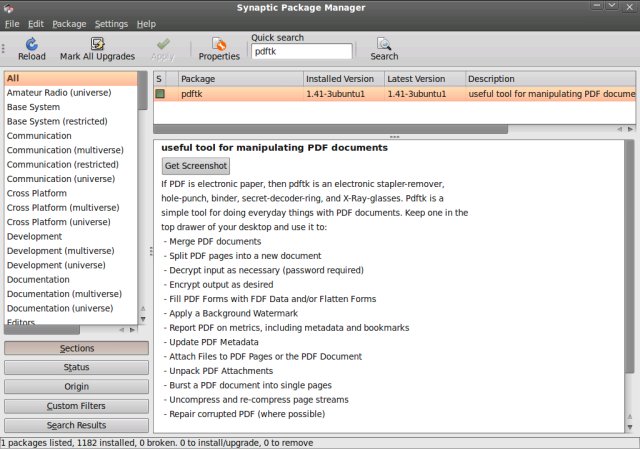
Use pdftk to merge documents
pdftk is a command line tool, but the usage is quite simple.
pdftk A=<file> B=<file> output <file>
What do we have here?
A and B specify the input files you want merged. output signifies the ... well, output. It really can't get any simpler than that. And here's an example; I split the lines for clarity.
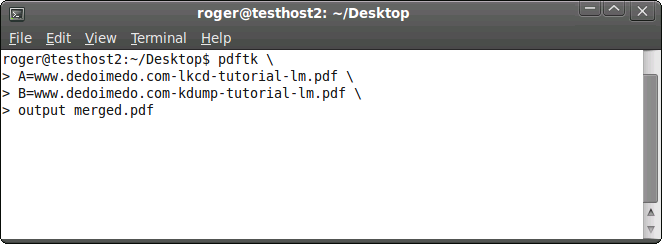
I'm going to merge my two extra-geeky tutorials on Linux kernel crashes, LKCD and Kdump into a single file called merged.pdf. Of course, you can merge more than two files, if you want.
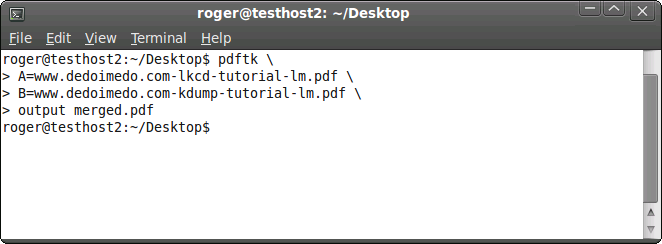
And that's it! Job done! If the command completes without errors, you'll get the shell prompt. Browse into the destination directory and examine the newly created file; in our case, it's merged.pdf.
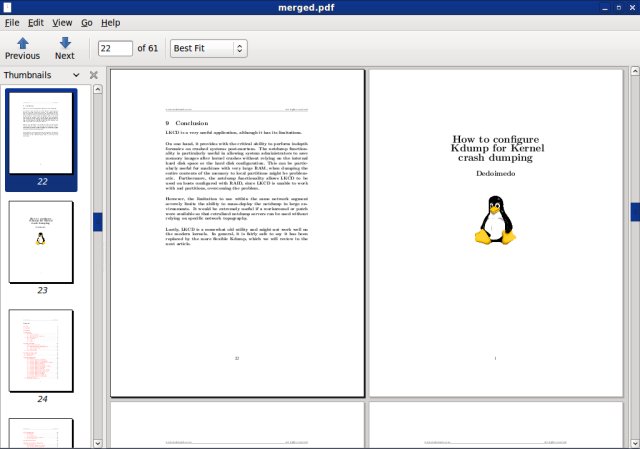
Let's see what the file looks like: On page 22, we have the LKCD conclusion. On Page 23, we have the title page of the Kdump tutorial. The merging task has completed successfully.
For many more usage cases, simply type:
pdftk --help
pdftk comes with extensive help, plus an example for each and every task it can perform. This is very helpful and useful, allowing you to master pdftk almost instantly.
Conclusion
Working with pdftk is simple. It does require that you open the terminal and punch in a few commands, but this should not be too much of a hassle. We will also have a similar article for Windows users, where we will learn how to achieve the same, using freeware tools. I hope you enjoyed this.
Cheers.