Updated: October 13, 2025
Dramatic intro. Long story short, after I upgraded my system on the Slimbook Executive, and after I correctly configured the VirtualBox repo, I decided to upgrade my virtualization tool from version 7.0 to 7.2. Indeed, the installation went smoothly. But thereafter, things did not. Namely, not a single virtual machine guest had networking. It simply did not work, at all.
I quickly reverted to version 7.1, and everything was peachy. All the guests had proper networking. I then upgraded a second time, same problem. I then went reading through VirtualBox bug reports, and found some rather interesting issues raised for version 7.1, which are, apparently, still applicable to the latest edition. So, let me show you how you can fix and work around the broken networking issue in VirtualBox 7.2. After me.
It's an old problem, a regression
I am not going to claim any genius for this issue. There's a ticket, now a year old, which details the exact same problem, except my host is Linux, not Windows, but it makes sense, as the problem seems to be contained in the VirtualBox network driver. The issue was resolved, but for some reason, it seems to have been reintroduced in the latest version. Effectively, DHCP and DNS do not work correctly.
There are three workarounds:
- Manually fill in your network configuration.
- Change the adapter type from whatever it is to something else (while the guest is running) - and back.
- Create a new network, and use that.
Manual assignment
If you use NAT, which you most likely do, then you need the following details for your guest:
IPv4 Address: 10.0.2.15
IPv4 Mask: 255.255.255.0
IPv4 Default Gateway: 10.0.2.2
IPv4 DNS Server: 10.0.2.3
Adapter type
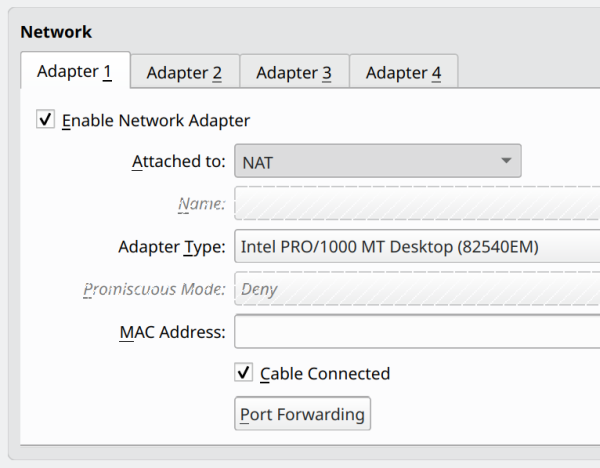
Open the settings for your virtual machine while it's running. Go to Network. Click on Attached to: and change from say NAT to Bridge or Internal. Click Apply. Wait a second or two, then revert back to NAT. Click Apply. Your guest will re-lease its IP address, and everything will work just fine. This is cumbersome, though, as you will need to apply the change every time you launch the virtual machine (any one).
Create a new network
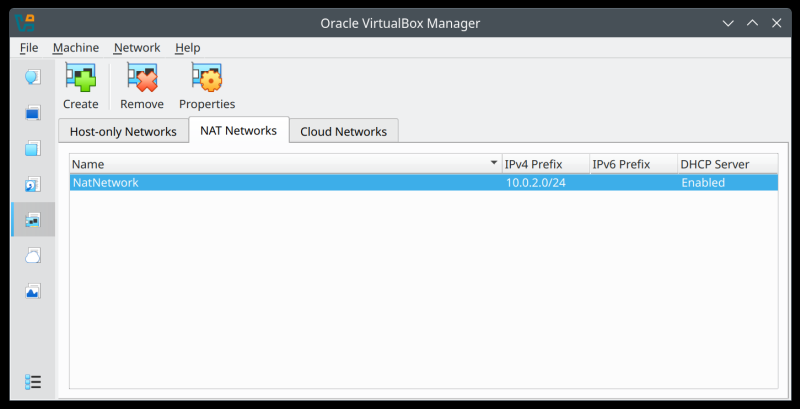
In the sidebar (new 7.2 interface), click on Network. Here, under NAT Networks, create a new one. By default, it will use the 10.0.2.0/24 prefix, but you can choose any private address range you like. You can also give it any which name you like. Then, go to your virtual machine, and under Attached to:, select the name of your newly created network. This will also work, and allow your guests to have normal networking, with the added benefit of not having to do make any additional changes on every machine startup.
Conclusion
I am quite baffled why a year-old bug would be reintroduced into production. I am also baffled by the lack of reports on this issue. It is quite likely the issue will soon be permanently fixed, and you won't need this tutorial at all. For now, my suggestion is to actually use VirtualBox 7.1, unless you have pressing issues for trying the latest one, at least until the problem gets resolved.
If you must run 7.2, then you have three separate methods to get things working. I can't claim credit for any, except the fact I was diligent enough to go through a pile of old tickets, and look for something that would ring a bell. And ring it did. Manual IP assignment, live network type change, and a new network. All work fine. Well, that would be all for now. Happy virtualization, and see you around.
Cheers.