Updated: June 22, 2009
If you're using virtualization, you know the drill: you open your favorite product and then fire up virtual machines as you see fit. But what about skipping step 1 and just launching virtual machines like any other application? Why not, indeed?
VirtualBox is a friendly product and will let you do just that. You can use your guest operating systems like you would use any other program. Let's see how this can be done.
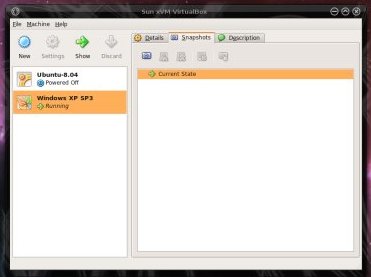
Step 1: Open VirtualBox and locate your virtual machines
You will need to know what they are called in order to invoke them from your desktop using shortcuts. For example, our test case machine is called Windows XP SP3.
Step 2: Create shortcut
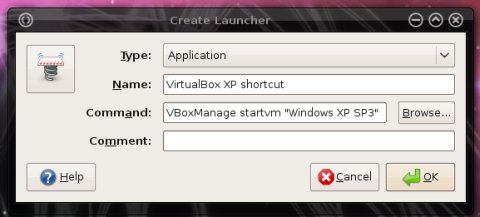
This is as simple as it gets. Just like creating any other shortcut on any other desktop, be it Linux or Windows. One thing you need to know is the exactly VirtualBox command that is used to start virtual machines.
In this case, it is VBoxManage startvm <name>. On Windows, the command is exactly the same; you may need to specify the full path, something like C:\VirtualBox\VBoxManage.exe. Use quotation marks for names that include spaces.
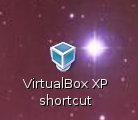
And we have our shortcut:
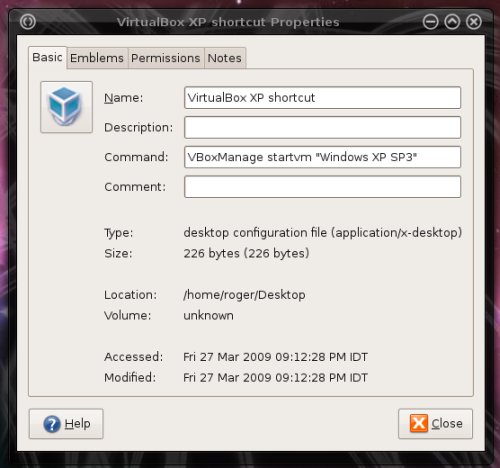
We can check that properties are OK:
Step 3: (Double) click on the shortcut to launch the virtual machine
That's it! Enjoy!
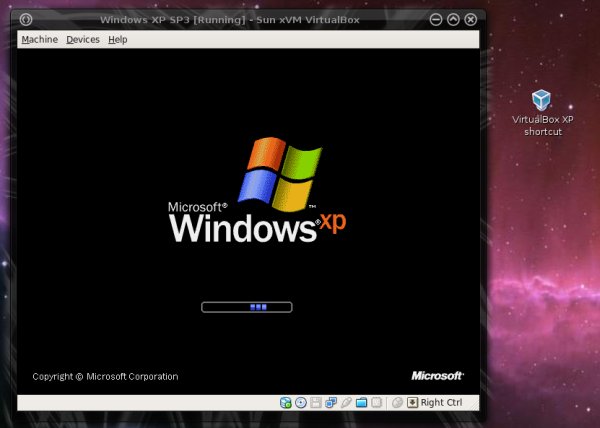
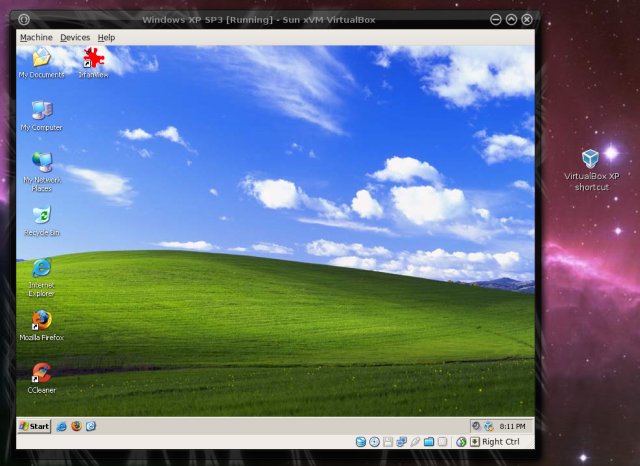
When you're finished with the virtual machine, just exit the guest as you normally would. It's really no different than using any other application. By the way, the specific virtual machine resides on an external USB disk, but this is entirely transparent to the user.
Conclusion
Creating individual launchers for virtual machines is dead simple. It is also quite useful, as it allows you to skip going through the management console menus, something can take time and possibly confuse users. Which makes shortcuts feature valuable in an environment where clueless users are utilizing your desktop.
In fact, if you want your users to run other operating systems without bothering with complex concepts like dual-booting or hypervisors, this is the right way to do it. They need not know the mechanisms of virtualization. The other operating system just magically spawns there.
For Linux users who still require the occasional service of Windows applications and share them with less knowledgeable peers, launching virtual machines via shortcuts is the most sensible solution available.
Cheers.