Updated: March 8, 2024
If you're old enough to have purchased music on CDs and alike, then you probably care about having and do have an offline collection of songs, usually in the form of MP3 files, on your computer somewhere. It ain't all about the streaming, right guv. Well, some of these songs may have incomplete metadata - they may not have cover art, the artist or the album information may be wrong or missing. This is often the case with songs bought a long long time ago. Or perhaps you've ripped your own CDs for backup, and didn't care about all them extra fields. Whatever the case, we want to fix this problem. Add, edit metadata and cover art for our music. How do we do that?
VLC. It's always VLC. No matter what media task you may have at hand, you should always ask yourself, can the lovely, free, open-source player called VideoLAN (VLC) do it? And by and large, the answer is yes. This phenomenal piece of software has been in my arsenal for a good two decades, and recently, I had a chance to try yet another superb feature it has. Let's continue.
Media information feature
Start the playback of a song in VLC. Click on Tools > Media Information.
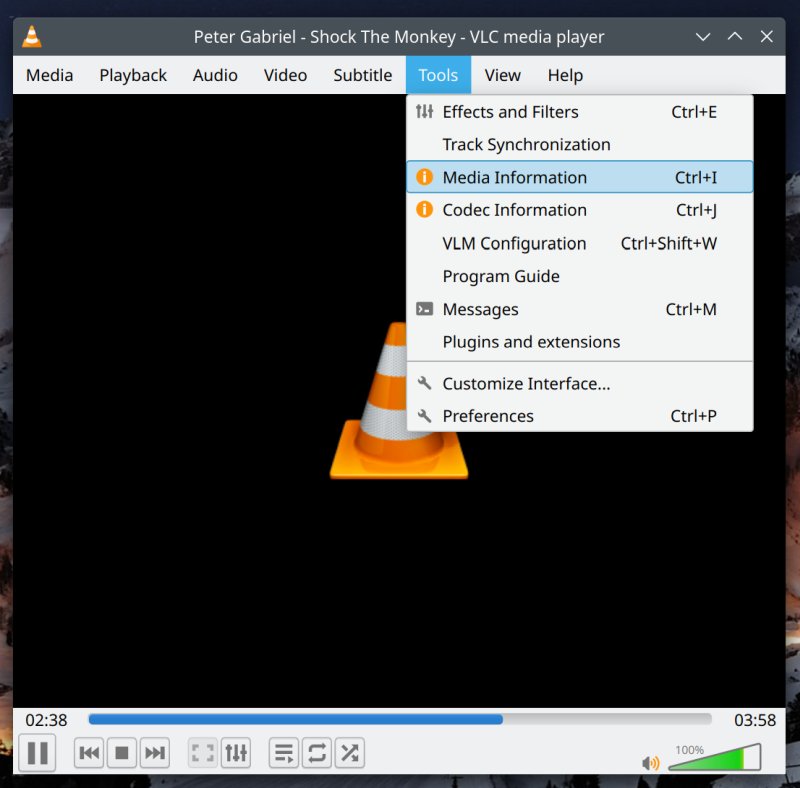
This will open a window with four tabs. The first one, General, details the metadata for the particular file. Hint, there's also the Metadata tab, but surprisingly, that's not the one we need. We want this first one, only.
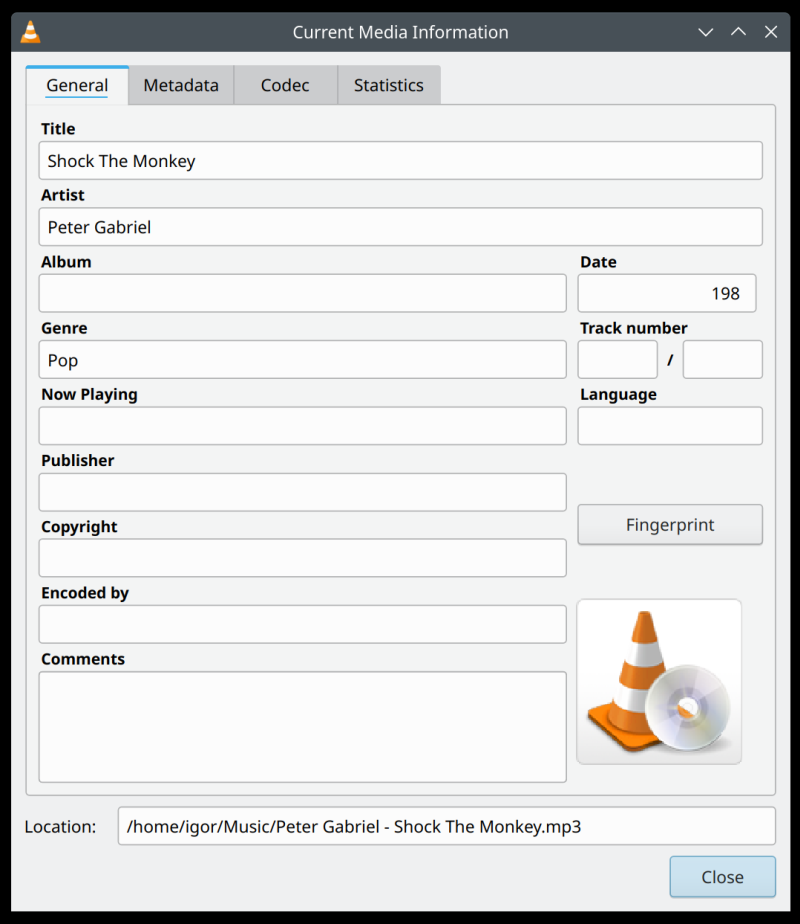
Now, populate the fields. You can specify - or amend - the song title, the artist's name, the album, the genre, the year of the release, track number data, publisher, and then some. You can also add cover art, either from an online source or manually. There's also a button called Fingerprint. If you click that, it can try to automatically guess what your song is, and populate the fields for you. Might not work.
In my testing, the Fingerprint utility was not reliable. It didn't work correctly for most of the old songs. BTW, to make it work, you do need to allow VLC to access network for metadata. If you've not done that when you launched the program the very first time, you will need to fix that in the Preferences.
Manual work it is, then. Using various online wikis, forums, music repositories, and the plain ole search engines, you should be able to gather all the required information, including perhaps the relevant cover art images. But technically, you can use any which image you like. But I guess if you're trying to organize your music library, you will aim for authenticity.
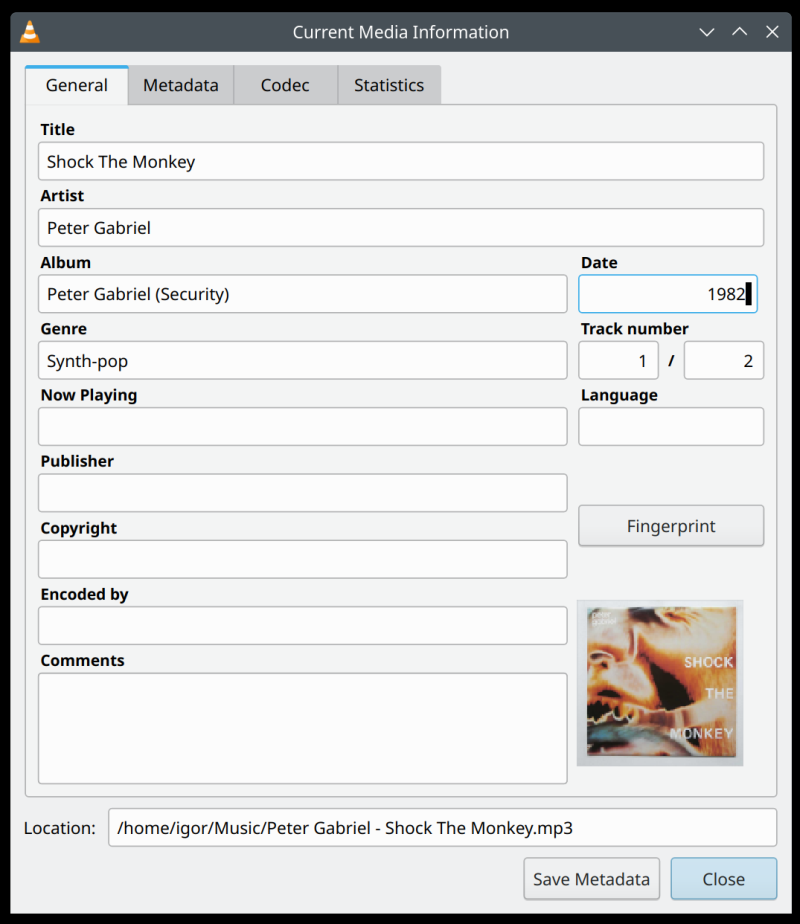
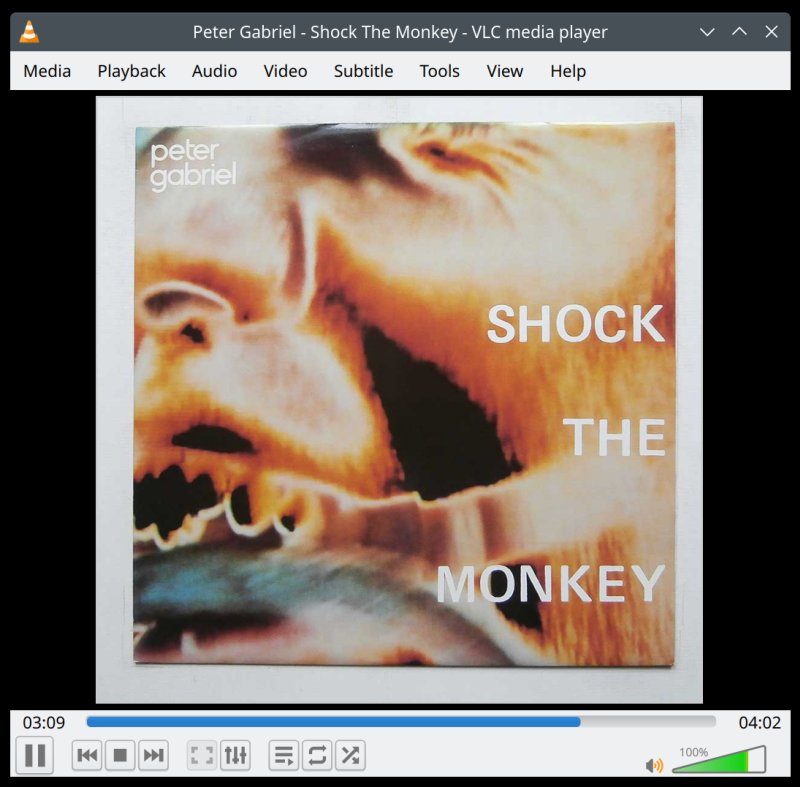
Click Save Metadata. You do not need to exit the program, or relaunch your song. VLC will handle that automatically for you. And from that moment on, there you have it, your song(s) will now have all the right information, and look pretty, too.
Conclusion
VLC is a phenomenal media player. Today's guide proves it, once again. If you recall, I recently solved another major obstacle using this spectacular little program. On the iPhone, I was able to sync my local music onto the device, without having to use the iTunes app. This has been an outstanding problem for me for roughly a decade, if not longer, and with VLC, I had finally overcome it.
With VLC, you can now brush up and polish your catalog. Before you say it, yes, I know, there are programs that can do this work for you in bulk. In fact, I've reviewed and written articles about a bunch of these tools on several occasions in the past. The only issue was, they never worked quite as I liked, and they used a weird sorting mechanism that simply didn't appeal to my organization hierarchy. I also had the same problem with movie indexing using Kodi plugins and such. Thus, unfortunately, I always ended up doing manual cleanups and metadata edits. That said, I may revisit some of the other utilities, they may have improved in the past few years. In general, though, when it comes to music (or videos for that matter), VLC does everything - I have tutorials for file format conversion, effects, subtitles embedding, and then some. All there. No need for any extras. Have a browse, you might like what you discover. Farewell, for now.
Cheers.