Updated: August 6, 2025
In a few short months, Windows 10 will reach the end of life (EOL) of mainstream consumer support. Without additional steps and remedies, by October 2025, roughly 50% of all Windows machines out there will no longer receives updates and patches. Yes, almost half of all boxen running Microsoft's operating system will become proverbial e-waste. If there's a better indicator to how much of a failure Windows 11 is, I can't name any. Never before has a "dying" version of Windows held such massive market share come its end of life. For that matter, the good ole Windows 7 was used by about 25% of all users when it was retired.
The reason I decided to write this tutorial is to help you with the conundrum. What do you do come October 2025? Should you upgrade to Windows 11? What if you cannot upgrade? Or don't want to upgrade? Are there any extended support options available? Should the end user be worried about the security implications of this change? Well, let's talk about all this, and then some.
Official options
For the first time ever, Microsoft is offering Extended Security Updates (ESU) to its non-business users. You have three possible choices:
- Purchase an additional year of patches for USD30 (or equivalent), plus tax.
- Sign in with a Microsoft account and back up your user settings to the cloud.
- Earn Bing rewards.
Alas, there are several caveats:
- You will need to use a Microsoft account on your device for any of this. If you use a local account, and you don't want to use an online account (rightly so), you won't be able to utilize this feature. Well, you could, but it means signing in, later on deleting your cloud data and whatnot. Or creating a brand new user account. A big, messy hassle.
- The program will end of October 13, the day before Windows 10 EOL, so you won't be able to enroll later on, unless Microsoft changes the wording on their page.
- I haven't seen any details about differences between Home and Pro versions, and potential implications. The above support page says that you cannot use ESU for commercial purposes, but the Windows Pro version does grant you commercial use. So, from that clause, you may actually be (legally) restricted to "Home" use.
Should you do it?
My take is, no, unless you really have to, don't do this:
- The requirement for an online account on a desktop system is a sad joke, in my book. There's no reason for this, other than to "lock" the user into a cloud ecosystem. But, I don't want to speculate or get into any conspiracy nonsense or such. A local system is a local system, and it shouldn't have to do anything with any online platform unless the user wants to, not because the company wants the user to do so.
- The fact you can "earn" points to get SECURITY updates is an even bigger joke. Security is: either you get patches or you don't. Making the user do certain things or rituals makes this into a circus. This is similar to people paying for "extra" airbags or special sensors in their cars. Nonsense. You either get it by default, or it's just a nice-to-have option. For that matter, you could have people pay for brakes or seat belts. In the same vein, software security should be the same. All or nothing. Otherwise, it's not security.
- You shouldn't "reward" Microsoft (or any corporation for that matter) for making a new operating system with hardware requirements that exclude 50% of all computers out there, by default. I talked about this multiple times, both in relation to the CPU generation requirement and the TPM chip requirement. For the former, there might be some (small) sense, as in performance and all that. But for that latter? Absolute, absolute nonsense. And since enterprise versions of Windows 11 have actually lower hardware requirements than consumer versions, you cannot not feel cynical about it. In other words, if Microsoft wanted, they could solve the problem tomorrow. If.
What if you do nothing, what happens?
Well, nothing. Your Windows 10 system will not suddenly explode or become super-vulnerable to hax0ring. Nope. Over time, perhaps months or even years, there may be some new vulnerabilities that may somewhat degrade the security posture of your operating system. Maybe. The thing is, the whole security drama on the desktop side is quite overblown, and it also depends much more heavily on your usage patterns than any specific software. In essence:
- Network threats? Use a firewall. If you have a router, you're pretty much covered.
- Internet threats? Use an up-to-date browser. For example, Mozilla still patches Firefox for Windows 7. Yup.
- Malware? Don't download nonsense programs or install random things.
Believe it or not, that's the gist of it. But let me tell you some more. To wit, some security tips ...
How to stay protected
Okay, so, if you have a Windows machine, be it 10 or 11 or any, with or without patches, you have tons of tools and options to secure and harden your system. Practically, if you don't do stupid things with your computer, you won't experience any big problems. Here's how you may end up hax0red:
- You are being individually targeted - this is a high-risk scenario that few people will ever experience, and in most cases, no combo of software will truly protect you. TL;DR: you have much, much bigger problems than whatever version of Windows you use.
- You encounter an exploit in an Internet-facing program, like a browser or a chat client. This is rare, the programs do get patched, and as long as they get patched, you are covered, for the most part.
- You deliberately interact with malicious content, e.g.: you download some random program or open some random attachment. There's no software that can protect from this kind of mindset and behavior.
- Some site or company out there leaks your data all over the Internet. This is the biggest threat to your security and privacy really. This happens all the time. Companies neglect IT security, get pwned, bad guys steal data, and then, they use this data to conduct further attacks. Over the course of your life, you can expect this to happen dozens of times.
That's the general overview. Now, if you use Windows, here's what you can do:
Run a standard user account
Rather than being signed in as an Administrator all the time, use a standard account, with lesser privileges. You can always elevate privileges when needed. This reduces your attack surface. If you do encounter problems or exploits, they may fail or have lesser impact.
Windows hardening
One of the most overlooked tools available in Windows is the fantastic Exploit Protection framework. A successor to the equally amazing EMET, which still works for Windows 7 as it happens, is that it allows you to block entire classes of security risks by activating mitigations. These rules don't differentiate between good and bad programs per se. They simply block any bad or illegal instructions, whether they originate from benign or rogue software. If you apply mitigations for various programs, you can block or prevent most potential security risks.
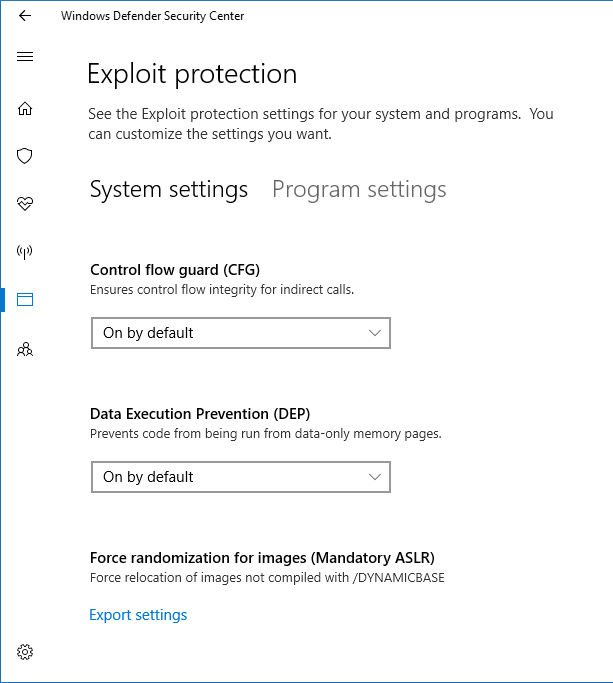
I am always shocked and dismayed by the fact so few people talk about this superb toolbox. It's effective, light on the resources, and it does the job. Yes, your legitimate programs, due to sloppy coding, may also experience problems with mitigations in place. And yes, you do need some system understanding to utilize Exploit Protection effectively. But if you do, Bob's your uncle.
Use a good browser
Any of the modern crop will do, but Firefox is extra good. Why? It supports Manifest V2 extensions, including the amazing UBlock Origin (UBO), which lets you block ads, trackers, and then some. Not only will this make your Internet usage safer, it will also make it less stupid. You will use less data by not displaying crappy content, which includes pointless ads. And often, ads have been used as malware vectors, by either serving dangerous payload directly, or linking to suspicious or infected sites and software. Using UBO is a win win win on all fronts. Similarly, you can install the Noscript Security Suite (NSS) in Firefox, another amazing extension, which lets you block scripts, remote fonts, and more. With these as your default security tools, you're far less likely to see any Web exploits, let alone interact or activate them. Very neat.
If you use a mail client ...
Do you open your mail in a dedicated program like Thunderbird or Outlook? Well, then, you should:
- Show email messages as plain text. No fancy HTML or embedded images.
- Never preview email messages.
- Never open suspicious messages. Don't be tempted. Just don't do it.
- Never auto-open or auto-download images and attachments.
- Don't open attachments unless you 100% expect someone to send you something.
Various other Internet-facing programs
The rules are quite similar to email clients, as the concepts are the same:
- Don't preview Internet links.
- Don't auto-download, auto-open or auto-play media files.
- Don't share too much personal information (like status, bio, birthday, etc).
- Stranger danger.
Attachments and media
By and large, try to use these as sparingly as possible. If you must, then:
- If you have to "open" a file, and if that file does not contain personal data, you could scan that file through an online multi-engine scanner like VirusTotal. This service allows you to upload files and have them examined by, depending on the file type, some 50-70 different security products. It can also scan IP addresses and URLs. Not foolproof, but it can be a good starting point.
- Open suspicious files in an "isolated" environment. We will cover this shortly.
Backups, snapshots
Always keep backups of your personal data. Multiple, verified backups. No matter what, no matter who, no matter when, at some point, you will encounter some form of data loss, through accident, negligence or whatever. Make sure you can recover from such problems, quickly and painlessly.
You can also create snapshots of your operating system. If something goes wrong, you can roll back to an earlier point in time. Cheaper and faster than reinstalling the entire operating system from scratch.Social engineering
Most people won't ever be victims of brute-force attacks. Instead, they will fall prey to social engineering, to tricks of the mind designed to make them lower their guard. A combination of greed, haste, fear, and ignorance. The ways around the problem are:
- Be aware that you could be duped by someone smart. No one is immune. Remember this, all the time. Even if you think you're the smartest human in the universe, you can still be pwned given the right circumstances.
- Reduce the number of people you communicate with online. A person with no friends cannot be betrayed by said friends, cor, innit. And you can only truly be betrayed by people you trust. Logic.
- There are no shortcuts in life.
- If it sounds too good to be true, it cannot be true.
- Even if it sounds meh, remember rule no.1.
So why even bother with updates?
Aha! Truly, for the common user at home, there's only one "real" reason why they should bother with updates. The word of the day is: compliance. You may be required to use a specific operating system, or a specific version thereof, to qualify for the use of certain online services.
For example, financial institutions or government portals may mandate that you use an up-to-date system when accessing their services. The requirements will usually be vague, on purpose, but they may read something like this:
- Use an up-to-date operating system.
- Use an up-to-date browser.
- Take necessary security precautions to ensure your device is safe.
- Never disclose personal information, passwords, one-time codes or other data to anyone.
The first bullet is what may "trip" you, if you're a Windows 10 user who intends to keep using the system after October 2025 (without ESU). You may use say a bank portal, and something goes wonky with your profile. The bank could make your life difficult if they insist you didn't follow their rules or guidelines. This scenario isn't very likely, but it COULD happen.
To that end, you may need to use an up-to-date operating system. That would mean, in October:
- Windows 10 with ESU, but if you can't or won't, next.
- Windows 11, which you probably don't want to or cannot use, next.
- Mac OS, which sounds ideal, but Macbooks are expensive. If you have the money, and Macs can replace your Windows needs, bon voyage.
- Some flavor of Linux, usually free of charge, sounds interesting, we shall explore.
Enter virtualization
All right. So, we want to stay compliant. What's the quickest and easiest and cheapest way to achieve this, without any great changes on behalf of the user? The answer is: virtualization. This technology boils down to the following:
- Virtualization software "virtualizes" entire computer systems on top of your existing operating system.
- It can create non-physical (ergo virtual) machines, with their own processor, memory, disk, and other resources. You basically create a computer, without actually putting physical components together. No real cost is involved, except a little bit of disk space.
- You can then run these virtual machines on top of your system. From here, you refer to your actual operating system as HOST, and to the virtualized one as GUEST. Case in point, your Windows 10 operating system, installed on your desktop, would be a host. And whatever system you spin up virtualized would become a guest.
Why is this good?
Well, because you can run a COMPLIANT guest operating system on top of your Windows 10 machine, and inside the said guest, you can do all sorts of activities that require said compliance.
- You don't change anything on your host, other than to install a program - virtualization software. Minimal fuss. No actual disruption to your existing setup. You merely add to it.
- You gain extra security - the virtualized guest is isolated from your host. If something happens inside it, the problem is contained.
- Most virtualization programs allow you to snapshot your guests. You can easily revert to older points in time, usually within seconds. Hassle-free flexibility.
- Your only constrain is your own hardware. Technically, you could have dozens of virtual machines installed, and even run several of them together, in parallel. Your cost comes down to disk space and memory. Usually, most desktops are idle, and they don't really utilize their resources, so this way, you put your hardware to some honest work.
- And for the most part, you can achieve all this with zero extra financial cost.
Choice of virtualization software
In the past 20 years, I've written a lot on tons of topics, including an entire section on Virtualization. Hop yonder for lots of useful, detailed tutorials. Now, specifically, if you need to narrow down your search for one particular piece of virtualization software (called hypervisor in technical parlance), then I would recommend you try VirtualBox. It's good for many reasons:
- Licensed under GPLv3, and to my non-lawyery eye, this translates to: you're free to use and redistribute the software as long as you abide by the license terms. HOWEVER, please note, this applies to the core product only, but it does NOT apply to the VirtualBox extension pack.
- Cross-platform, and will run on Windows, Linux and Mac OS.
- Supports complex networking, device passthrough and snapshots.
Furthermore, if you enable Guest Additions, VirtualBox also gives you 3D acceleration, to some extent, and you can use shared folders for host-to-guest sharing (although this lower security). There's also USB 3.0 bus, and as I mentioned earlier, you can "pass-through" your peripheral devices into guest systems. For example, you can let the guest use your USB drives (including hardware tokens and security devices). For additional functionality like RDP and encryption (by VirtualBox itself), you will need to install the Extension Pack. This component of the program is proprietary and optional, and it is only available for free for personal and educational use.
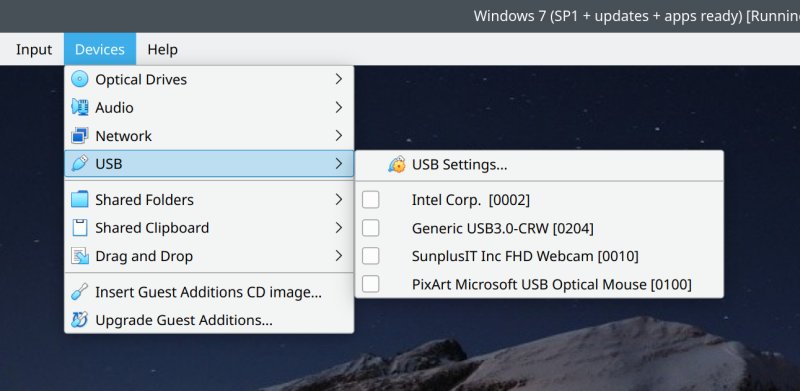
You can "forward" your peripherals into the guest operating system.
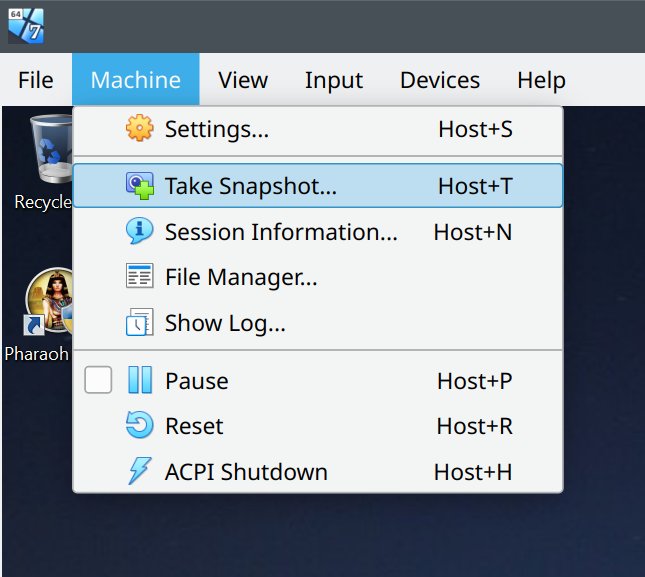
Taking an operating system snapshot.
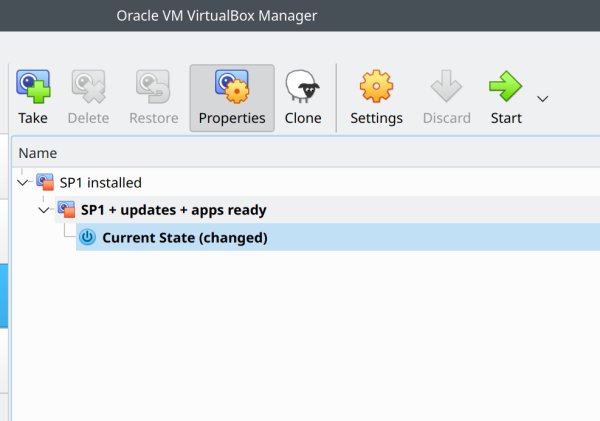
As a nice nostalgic example, here's Windows 7 guest with a couple of snapshots.
And so, you can keep using your Windows 10 machine, install VirtualBox in it, then, inside VirtualBox, configure one or more guest operating systems, all of which will be compliant - fully supported, with available patches, and up to date. Bob's your uncle!
What should you choose as your guest operating system?
There's no one answer. But there's a zero-cost answer. Linux.
Linux is an operating system, much like Windows. Long story short, as I will demonstrate shortly, you can have a full Linux desktop installed as your guest, and inside it, you can do various activities like banking, work with government portals, browsing, and more.
There isn't one Linux. There are many implementations of Linux. Each of these implementation is called a distribution, and they have names like Ubuntu, Kubuntu, Fedora, etc. My guide for newbies explains this some more.
- In the vast majority of cases, Linux distributions are 100% free for end users.
- In the vast majority of cases, Linux distributions allow unlimited personal and commercial use.
Dedo, are you trying to make people use Linux?
Slow down. I am NOT trying to convert anyone into Linux, nor do I say it can replace Windows. Quite the opposite. The reason I'm suggesting virtualization and the use of Linux as a guest is exactly because I don't expect people to change their habits overnight, nor should they.
- In fact, you should read about my journey away from Windows. It's a long, complex process. I am still not fully done with, but I'm very close to completion. Still, it took me three years to get it done, and I actually do know my way around. I definitely don't expect ordinary users to be able to achieve the same.
- You should always focus on functionality first. What systems and tools support your needs? If it's Windows, so be it. Indeed, you want to keep using Windows 10 because it works (for you).
- You should not use Linux for the sake of it. But it can nicely complement your Windows usage. If you take a look at my Steam gaming compatibility report from a while back, and my last report on how I use my Titan laptop, which runs Linux and has a hybrid graphics card, you will notice that there are still certain scenarios where Linux cannot fully meet Windows needs. That said, for at least 95% of common use cases, you can happily run Linux without any compromise or loss of functionality.
All that said, please note:
- Modern browsers almost all run natively in Linux - Firefox, Chrome, Edge, Brave, Vivaldi. Therefore, pretty much anything Web-based, you can do here.
- Many games run well in Linux, thanks to Steam's awesome Proton layer. But virtualization is not a good method of playing games. Remember, we want Linux for compliance purposes, not for fun. Therefore, ignore this specific element for now. Just something for you to know, should you decide to actually install Linux on your actual hardware, and not through virtualization.
Which Linux distribution should you select then?
My take is, anything Ubuntu-based, preferably Ubuntu itself or Kubuntu. It really depends on what sort of visual layout and workflow you prefer for your desktop. The former has a more Mac-like setup. The latter has more of a classic Windows setup. I use Kubuntu, as I like it more.
The main reasons why I would recommend these two, among many dozens of Linux distributions are:
- Ubuntu is the most popular Linux distribution out there.
- It has the best overall hardware and software support for home use.
- You're most likely to find answers to any tech questions related to Ubuntu.
- Canonical, the parent company behind Ubuntu, allows you to freely subscribe to its PRO offering, which lets you get security patches for 10 or 12 years, at no cost. By default, Ubuntu gives you five years of support. Thus, for instance, if you grab the latest Ubuntu's long-term support version, Ubuntu 24.04, you will get patches until 2029, and with pro in place, until 2036.
- Ubuntu offers DISA-STIG, FedRamp, NIST, SOX, HIPAA, FISMA, CIS, Common Criteria, PCI, ISO 27001, FIPS 140, and Cyber Essentials compliance levels. More than 25,000 packages are covered, and there's also live kernel patching. All for free for home users! Yes.
- You can use PRO on up to five machines.
- Good, innit.
What can Ubuntu do?
Well, lots and lots. I've done tons of testing compliance wise and compatibility wise, and I've yet to encounter a serious obstacle. I tried various government and banking portals, including a service that requires the use of a hardware token (with certificates). I was able to use payment systems like PayPal and friends. Funnily enough, you're more likely to have problems with such tools based on your browser (e.g.: Firefox vs. say Chrome) than you are with an operating system choice (Windows vs. Linux).
Now, let me tell what Ubuntu cannot do (and neither of these affects our need for compliance):
- You won't be able to run certain programs, like Microsoft Office (although the online version works fine). Specifically, this is the one big limiting factor for using Linux in general, but not security wise.
- Some Windows-only games won't run, although Steam is working hard to fix that. Ironically, some Windows games actually work better in Linux than natively. Again, this is not what will "mandate" your compliance after October 2025. A nice to have.
Effectively, if you fire up an Ubuntu system, patch it up, and then use Firefox, Chrome, Edge or Brave inside it, you are going to be compliant with any modern security needs. Perhaps a service here or there may mandate Windows only, but I've yet to encounter such a scenario. Up to date system, up to date browser, and you're golden. For free.
Virtualization: Windows 10 host, Linux guest
This is your ideal setup. Minimal hassle, minimal change. You have everything you need in your Windows 10 box, check. You can still run programs and games as you did before. Now, you need to do something a bit more serious, with security and compliance? No problem. Fire up VirtualBox, launch your Ubuntu or Kubuntu, make sure they are up to date, and then do your banking or whatnot.
In fact, this usage scenario is way more secure than default Windows!
- Due to its design and usage model, your typical Linux box is less likely to be affected by malware than your typical Windows box.
- Most Linux distributions, Ubuntu and Kubuntu included, run with standard user account by default.
- You don't even need a firewall (in Ubuntu), as all Internet-facing ports are closed. This is only relevant if you were to expose Ubuntu to the Internet directly, but it's still a noteworthy element of its security posture. In other words, even if you were not to run through Windows, and even if you had no firewall, your Ubuntu would still not be affected by network-based attacks.
- Your virtualization program provides another layer of isolation. Properly set up, it's almost hermetic. You can provide access in and out, through shared folders or by using a combo like port forwarding + SSH, but this is an advanced concept beyond the scope of this article. By default, your virtual machines will run in their own isolated network (prefixed 10.0.0.X), and they won't be able to communicate with your host, or any other machine on your network. They will only have Internet access. Your guest won't know what it runs on, and your host could be any operating system, for that matter.
- If something "bad" happens, you can revert to an earlier system snapshot.
- You have almost infinite flexibility, as you can have multiple virtual machines for different purposes. One per financial institution if you like. One for testing. One for general surfing. Whatever. While Windows licenses cost money, Ubuntu and/or Kubuntu are free, so you can use one or 30 instances, it's your choice. You're limited by disk space, your imagination and time.
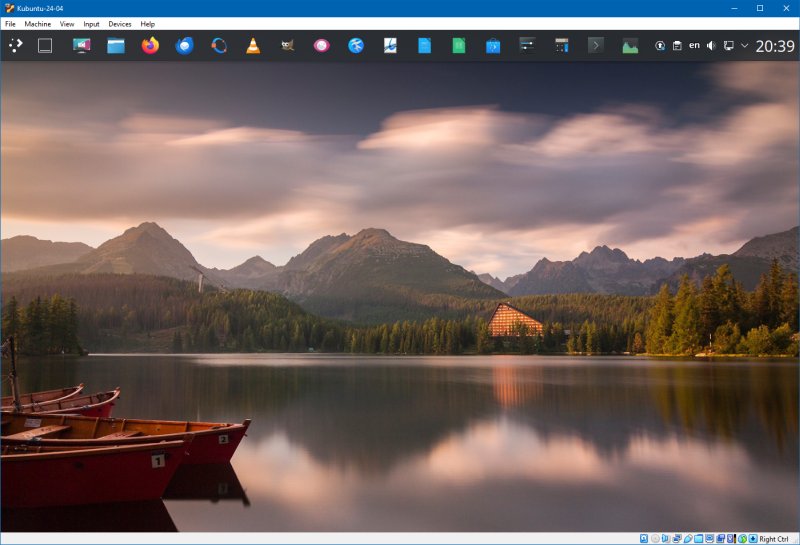
VirtualBox running in Windows 10. Here, I have a Kubuntu 24.04 installed as a guest. Fully up to date, usable, compliant, you name it. I have several browsers available, including two versions of Firefox (from a tarball and as a snap) plus Chrome and Edge. I can access and use any online service without any issues. I've created several snapshots of the guest operating system, and I frequently take new baselines, so if anything goes wrong, I can easily revert.
Security risks?
What I'm going to expand on below is almost sci-fi level of impossible, but I want to bring it up so you have a total and full understanding of the compliance implications of your setup:
- In the scenario above, the only part where Windows participates is to route network to and fro. VirtualBox uses its own network adapter for traffic, which is then forwarded to the Windows host, which is then forwarded to your router, and vice versa. Technically, if there were to be a super-super-serious vulnerability in the Windows network stack (like say this one), and your perimeter router actually allowed specially crafted Windows-targeting packets intended for your Linux guest through (extremely unlikely), then in such an improbable scenario, your Windows host could perhaps be "infected", but there's more chance of you doing damage to your own machine than this occurring in the wild.
- For Windows to go awonk under these conditions, there needs to be a critical vulnerability in the network driver(s), and there needs to be malicious network payment (packets) that can successfully trigger the above. But the outgoing traffic does not really originate from a Windows system, nor is the incoming traffic first filtered and parsed by a Windows system. It would take superb hax0rology to get this working (any which way), in which case you might as well do a Ron Burgundy "I'm not even mad I'm impressed" kind of reaction for the level of sophistication exercised here. No one is going to bother with something like this for ordinary peasants like you and me. Being a peasant already grants you a high level of security.
- Secondly, there could also be potential vulnerabilities in the (VirtualBox) hypervisor, which could allow infected (emphasis on infected) rogue guest operating systems to access memory of other virtual machines or perhaps even your underlying host. But this would require your Linux system to be infected in the first place, and the hypervisor to be vulnerable. It would also require your Linux guest to be aware and capable of providing payload to the Windows host. Possible? Yes. Likely? No. Again, you are 1,000 more likely to cause damage yourself than see this happen. On paper, this could happen. But on paper, you could also die from a lightning strike.
- If you ask me, if you were to run Windows 11 and whichever browser, there's more chance of potential exploits in that operating system and the browser than there is of your Linux guest + same browser ever being infected, period. And then, you would also need for that infection to be carried through onto the host through the virtualization layer, or for your firewalled Windows 10 host to somehow get tripped by ordinary network packets flowing through ... Nah. Unlikely.
And that's about it, for this particular use case. Let's move onto a more exotic scenario.
Virtualization: Linux host, Windows 10 guest
This is a more advanced scenario. It actually implies you can install and run Linux on physical hardware, but you still have some Windows-related needs. Indeed, I have exactly that. As an author, who writes books and often needs to send manuscripts and proposals to publishers, I must use Microsoft Office. Lots of these publishers require that the material be sent in DOCX format. That's life.
So, I am "blocked" from using Linux 100% of the time by my Office needs. No problem.
- On my Slimbook Titan, I use Kubuntu (with pro). Fully up to date and compliant.
- I use Linux for everyday tasks, including say going to go government portals or alike.
- I have Windows 10 Pro installed as a virtual machine.
- Inside it, I have Microsoft Office 2010 Professional installed. This program is out of support, but it doesn't matter. It can still open and create DOCX files. And so, if I need something, I can use it, create files, save them to a shared folder, and then grab them inside Linux.
- And thus, I don't care what happens after October 2025. The said Windows 10 machine currently has but soon will not have any network access. So as a fully offline system, it's completely secure from any Internet threats. But it will run all sorts of programs that have no equivalent in Linux.
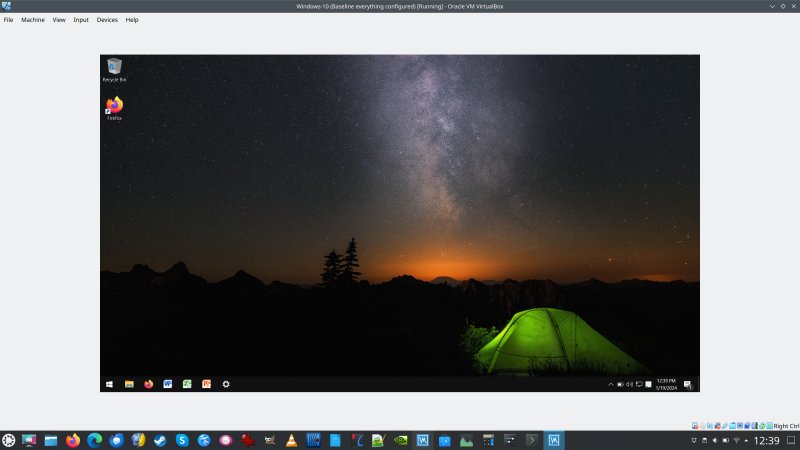
Windows 10 running inside VirtualBox on top of Kubuntu. The Windows 10 machine has Microsoft Office. And it can be set to fully offline use, with no network, providing excellent security without any loss of expected functionality.
Other, more advanced scenarios: dual boot, native Linux
Let me emphasize, I do not say that you ought to do or that you can do this. I am under no illusion that switching to Linux is easy, or that Linux can satisfy your actual usage needs. But if you can switch, and you're not limited by software or your ability to install and configure an operating system, then please consider this option as your Windows 10 legacy, if you will.
Dual boot
The idea is as follows: you install a Linux distribution alongside your Windows 10. You do some repartitioning of the hard disk, and set up the other operating system in the freed up space. Thus, you can boot into either one instance as you see fit. But this also requires more maintenance, some disruption to work, and you need to be extremely comfortable with this sort of configuration. There could also be hardware-related issues, like drivers and such. Not for the faint-hearted.
I have written several guides on how to accomplish this. They are for Windows 7 and Windows 8, but they are still 100% applicable. In particular, everything related to disk management hasn't changed. Even if you only wish to read these two tutorials as exercise, the lessons are practical and useful. The second guide also covers the UEFI boot scenario, which is what you would/will face today.
Native Linux
If you have a spare machine, you could try Linux fully natively. Burn/copy a Linux distribution ISO to a USB drive, then boot it on that system. Most Linux distributions come with a live environment, that is, you can test how the distribution looks and behaves before you decide to install it. Thus, if you try any one particular distribution, and you don't like it, you can try a different one, without making any changes.
This way, you can have a dedicated box running Linux, and use it for any compliance-related purposes, with a full up to date system and modern browsers and all that. And you can continue using your Windows 10 for other tasks, like say gaming.
The installation on physical hardware may be somewhat daunting, but you can practice with virtualization first! You can create any number of virtual machines, configure any number of Linux distributions, play with disk management and partitioning, even create dual-boot scenarios! Once you feel comfortable with the notation, the commands, and all the steps needed to safely handle a new operating system, you can then move on to real hardware in earnest. I've written about this dozens if not hundreds of times before. You can check my Linux distribution reviews, or any hardware-related article on the same topic. For instance, I also use one rather phenomenal Slimbook Executive, also running Kubuntu. Very neat.
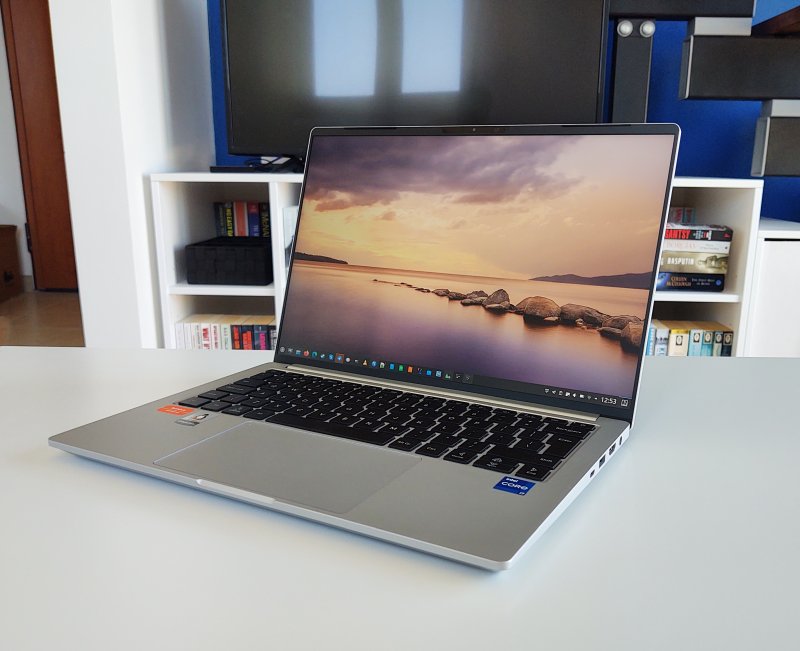
My Slimbook Executive, another Linux-native system that I use.
Conclusion
The end of life of Windows 10 is not the end of the world. Far from it. One, you're less likely to be pestered by pointless and nonsense upgrade nags. Two, various enterprise versions of Windows 10 will persist and remain supported until 2031/2, perhaps even longer. With 50% of all Windows boxes still running this version, you can bet your left kidney there will be awesome software and game support for the '10 for many years to come. Three, with good hardening and smart browsing, you're not in any great danger.
If compliance is what bothers you, then you can try Linux, for free, and with minimal changes. With virtualization in place, you can merely add to your setup, lose no functionality, and even gain security. For that matter, if you need to do "risky" browsing, do it in a special Linux virtual machine. If you make a mistake there, and there's no personal data inside, no big deal. Erase it, revert to an older snapshot, whatever. For that matter, even if you use Windows 11, if you spin up Linux guests, you will gain on security!
My testing over the past three years is positive. Linux never tripped the alarm sensors doing online things and services. Browsers did, on the other hand. Since many (crappy) sites are coded for Chromium only, similar to the situation we had with Internet Explorer 6 back in the day, some online services may fail in Firefox. But not because of Linux. Because of bad programming, and the browser requirements. And since all modern browsers work fine in Linux, this shouldn't be an issue. I even tested security hardware token passthrough in VirtualBox, and that worked like magic. Personal experience.
And those are your options for October 2025. Security hardening, smart use, virtualization, up-to-date browser, and you don't need to pay a tithe to Microsoft, or use its pointless Windows 11 system. You can be compliant and secure. In fact, by mixing Linux into the equation, you can be more secure than Windows alone can ever do. So, lament not, keep your Windows 10 boxen if you want or need to, and just do some extra work and experimentation with Linux. I think you'll be pleasantly surprised.
Cheers.