Updated: November 26, 2025
Visual bling-bling and raw speed are usually opposing forces. Sure, if you have a super-duper computer, you can probably run the system with all the settings on ultra, and everything shall be jolly. If you have an average machine, or a potato machine, you might want to dispense with some of the cool visual effects and focus on performance. But here's a twist. With ALL modern operating systems, Windows, Linux or even Android, if you disable all these fancy effects and transitions that make the experience more "vivid", you gain on performance, no matter how beefy or powerful your machine is. Boom! And we represent.
I have written about this in my Nvidia Wayland vs X11 piece. With compositing off and all the desktop effects disabled, the Plasma desktop (X11) flies even on 11-year-old hardware. The article above even includes a mini video of the result. I then also showed what happens when you disable animations in Gnome. Then, I also showed you how you can achieve better responsiveness and greatly improve your battery life in Android, by, yes, you guessed it right, disabling animations and transparency. Today, we shall do the same thing in Windows 11, with the same expected benefits. After me.
Visual effects
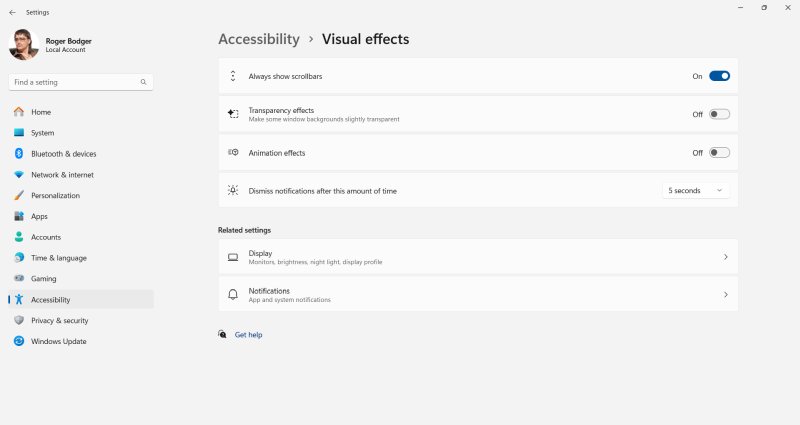
Open Settings > Accessibility > Visual effects. Here, you can disable animation effects, and also transparency. I would suggest both. You will instantly experience improved responsiveness. Windows will minimize, maximize instantly, or render instantly. No more delay. Click, done.
System properties, performance options
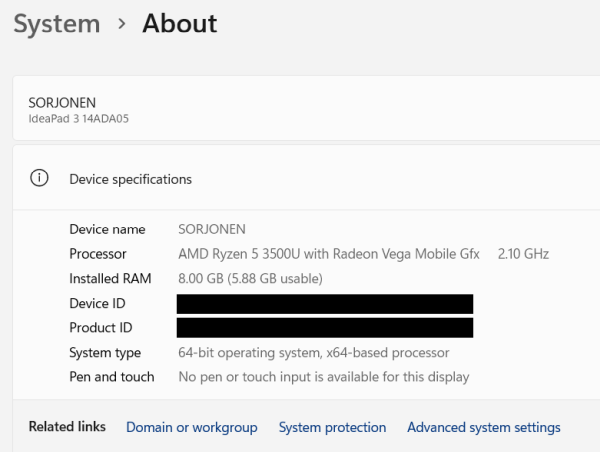
The above should handle it all. However, because Windows 11 is such a fragmented operating system, you can still access the performance settings through Control Panel. Actually, the flow is as follows: open Settings, click on System, go down to About, click Advanced system settings. This will launch the old menu.
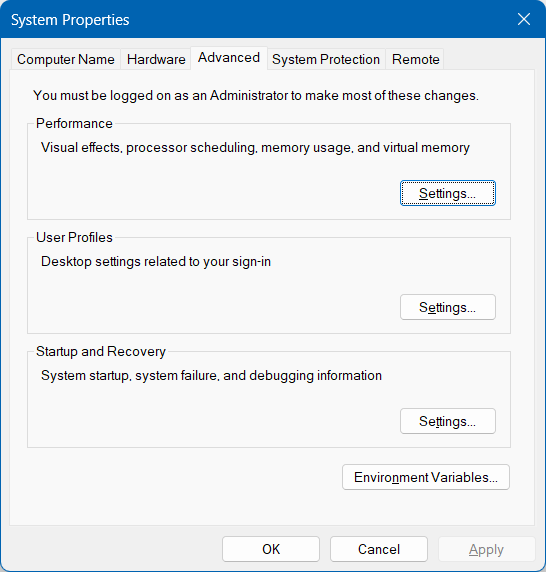
Here, under Advanced, in the first section (Performance), click on Settings. To be on the safe side, uncheck the first three boxes that say: animate controls and elements, animate windows, plus animations in the taskbar. Apply, and exit this wizard.
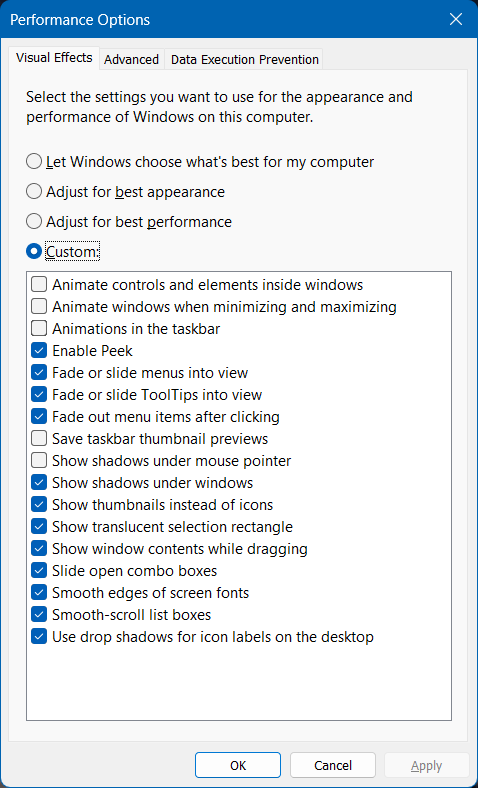
Does this last step make any difference? Maybe. It is quite possible that "modern" apps obey the Settings changes, whereas the old, classic programs obey the Performance Options. Thus, it does not hurt to apply both.
Regardless, the effects are immediate and noticeable. Windows 11 now works much more smoothly, quickly. All the programs launch faster. Windows animations are gone, so window actions are instantaneous. This is like infusing the operating system with several years worth of hardware improvements, only through simple software tweaks. This may also result in a tad better battery life. Winning.
The only downside is that some elements may now look less pretty than before. In Windows Explorer, which we also recently tweaked for speed, the pinned shortcuts in the sidebar may be crudely bracketed when selected, as there won't be a nice semi-transparent frame around the chosen item anymore. But this is not unlike the older versions of Windows, and it's tiny price to pay.
Conclusion
I have a need, a need for simple, quick interfaces. And speed, too. Two things. Latency, speed, and stability. Three things. Well, you get the gist. Windows 11 proves the same lesson as Linux and Android. Turning off the animations offers a massive speed boost. More correctly, it's the UI responsiveness, the most important thing in interactive utilization of computer systems. This is partly why old operating systems seem so snappy, and you remember them as such, despite lowly hardware, simply because they did visual things without any great fanfare or effects. The computing power was reserved for, well, that, computing. Not to do fireworks, just because one can.
Play around, see what gives. The effects are immediate, so no need to reboot or anything like that. I believe you will be pleased with the results. There's also the added bonus of not doing what "modern" systems expect, which is lots of shiny nonsense. You basically tell Microsoft (if the telemetry is enabled, of course, hi hi) that you don't care about all these flowy visual things. You undo the last decade of pointless. Even on a small scale, but it counts. We're done for now. I shall report soon with yet more tutorials intended to make the pointless Windows 11 slightly less pointless, not that you should use it, mind. Take care.
Cheers.