Updated: July 11, 2025
Here's a wee situation you're facing. You want to change the run state of a Windows service. For example, you wish to change a specific service to be started manually rather than automatically when the system boots. Or you may want to disable it. You launch the Services tool (services.msc), you open the desired service, you change its state, and you click Apply/OK. You see an error: the parameter is incorrect.
I've encountered this issue when trying to disable the Windows Defender Web Threat service. This is a real-time component of Windows Defender, which I don't use, don't want to use, and refuse to use. On any Windows box that I have, it's disabled, any which way. If I can't do it through group policies, then I fully and complete delete the relevant program folders, as I mentioned multiple times. But even with Defender gone, the Web Threat service kept running, and I couldn't toggle it off using the Services utility. Let's rectify this, shall we.
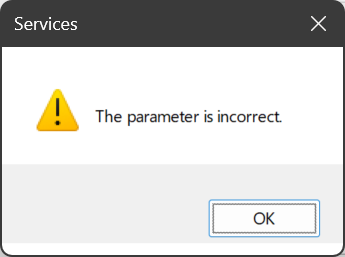
We need to go into registry
The solution to the problem is to launch the Registry Editor tool (regedit.exe), navigate to the right path, and there, manually change the service state value. Actually, I've shown you exactly how to do this when installing Windows software through WINE in Linux. Go figure.
Before you proceed, please be aware that you could mess things up. If you disable a critical system service, your machine might become unbootable. You should only do these steps if you are confident using regedit, and you fully understand what each service does, and how it impacts system behavior.
Now, open regedit (as Administrator), and navigate to:
HKEY_LOCAL_MACHINE\SYSTEM\CurrentControlSet\Services
Here, in the left pane, there will be a long list of services. Select the one you need. In the right pane, look for the object called Start (REG_DWORD). If it does not exist, create it (right click). Change the value from whatever number to whatever else you need. For me, it's 4. This is the disabled state value.
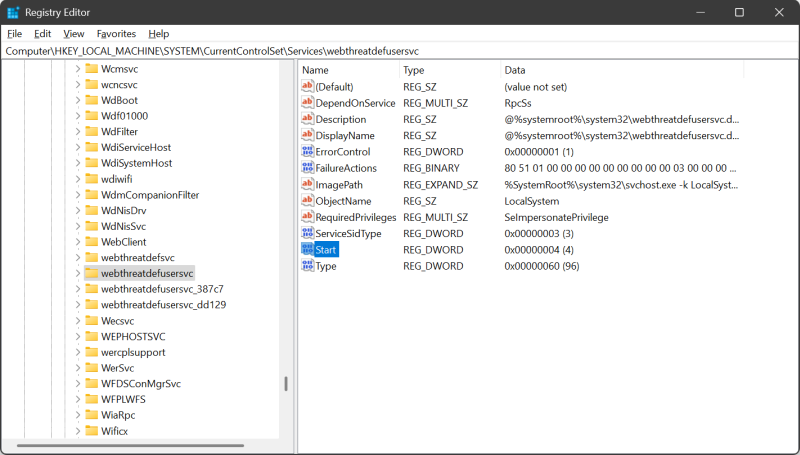
The available states are:
0 = Boot
1 = System
2 = Automatic
3 = Manual
4 = Disabled
For me, I had to repeat this for no less than four listed service that reflect the unneeded functionality. Once the changes are made, close regedit, and restart your machine. Once you log back on, open Services, and you will see that the services that refuse to change their state are now indeed changed. Job done.
Conclusion
There you go. Should you want to make system changes, and for some reason, you get the "parameter is incorrect" error, the fix is to manually alter the service state through registry. This is not the ideal way of doing things, but sometimes, it is necessary. In my case, after I did a Windows 11 reset test, my system was all too full of nonsense, and part of the remedy was to disable a dozen services or so. A couple of them threw this stubborn error, which the above trick resolved. Easy peasy.
All that said, I would not recommend you use Windows 11. It's an invasive, annoying operating system, it's anti-user, and you need to spend a lot of time pruning and taming the stupid bits, so you can use your hardware without being profiled and/or treated like a chimp. My interest in Windows 11 is comic, tragic, and I'm here to do all these pointless rituals so you don't have to. Hopefully, this will help you get past some weird problems. Stay cool, fellas.
Cheers.