Updated: July 5, 2019
Several months ago, I wrote an article on how to backup your Linux home directory, including data and application settings plus encryption. This was done using some rather simple tools present in every Linux system, making it usable anywhere, anytime. Then I got your emails and suggestions, calling for an equivalent tutorial for Windows.
At first I considered writing a command-line guide, with Windows shell scripts, but I decided to do something simpler. Most people use Windows visually, so we will do a visual article. I'll show you how to backup all your user data, application and program settings, create a zipped archive and then encrypt it, so you have a portable copy of your stuff should you ever need - perhaps when migrating to a new machine. Let's start.
Overview of the necessary data
A typical modern Windows machine has several user-specific locations where your data will accumulate over the years. By this, I'm referring primarily to what sits under C:\Users\Your username. So if your user is called Dedo, then data will sit under C:\Users\Dedo. But there's more. In fact, the two primary locations are:
- C:\User\Your username - Various folders, we shall review shortly.
- C:\ProgramData - Folders containing some settings and logs for many of your programs.
Now, please note that I personally do NOT use my user folders, and by that I mean My Pictures, My Documents and alike. I always keep data on separate partitions (drives like G: or K:) so that system stuff and personal stuff are separate. That said, generic data related to my user account and program data still sit under their expected C: locations. So let's examine what we have here.
User data
Under your user account, there will be many folders. Some of these are hidden by default. If you allow Explorer to show hidden files and folders - as you definitely should, they will be listed with a semi-transparent shade. Please note you won't necessarily see all the folders I have listed in the screenshot below. Some of these will be specific to your choice of software.
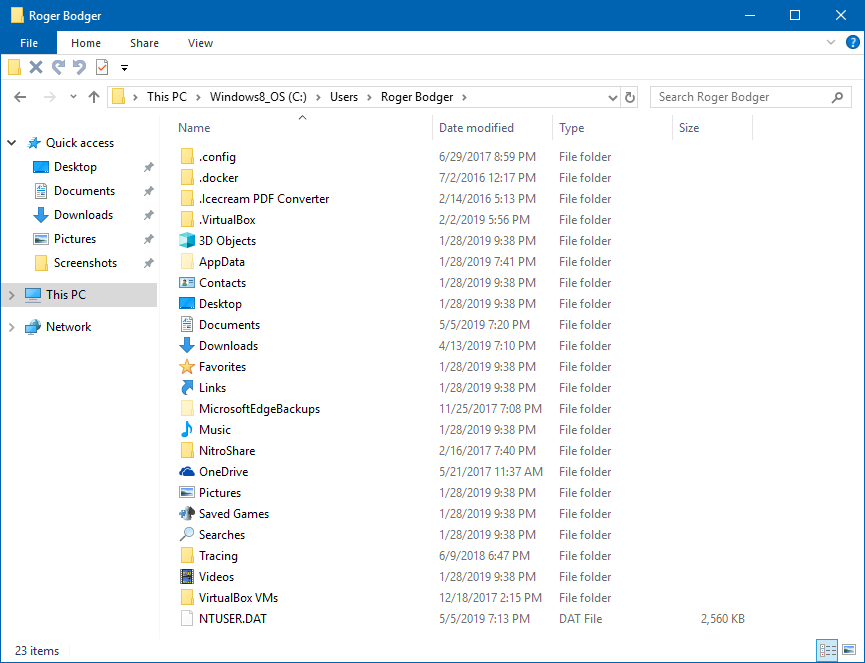
In general, this is what you will have under your user:
- 3D Objects - a list of existing 3D objects for 3D design in Windows 10. You can ignore unless you created and placed any objects of your own in there.
- AppData - Super important. This contains configurations for most of your programs, like the Firefox and Thunderbird profile, Skype profile, Notepad++ settings and plugins, and more. If anything, this is the most important folder to back up.
- Contacts - If you keep your contacts in your Windows contacts app, they will be saved here.
- Desktop - This is your desktop with shortcuts to applications, links and any other file you keep there.
- Documents - My Documents, essentially. Even if you do NOT keep any files of your own there, many programs and games will still use it as their default location. For example, SimCity4 and ArmA 3 keep maps, gave saves and other assets here.
- Downloads - If you use the default download location, stuff goes yonder.
- Favorites - Any locations you saved in Internet Explorer or Window Explorer.
- Links - Similar to the above, these show in the sidebar in Window Explorer.
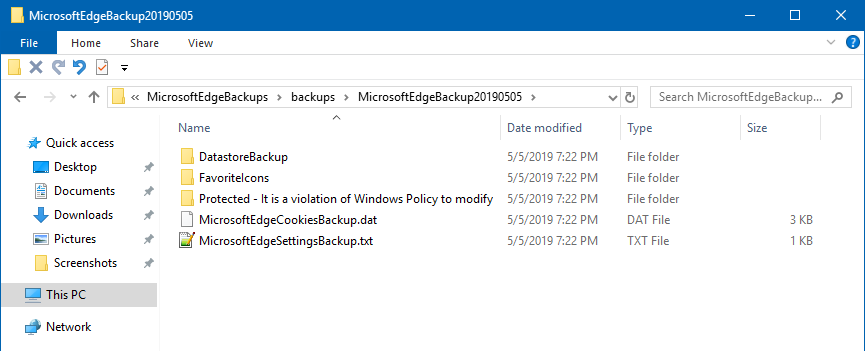
- MicrosoftEdgeBackups - Windows 10 only, as the name implies. This folder contains dated backup archives, which come with a bunch of items including a folder with a silly name like 'Protected - It is a violation of Windows Policy to modify' - this totally inspires users and does not look odd at all. You can back this up if you like, perhaps if you use Edge, but the app settings are stored elsewhere, so this is a backup of a backup.
- Music - As the name says.
- OneDrive - If you use OneDrive, files replicated to the cloud will be here.
- Pictures - As the name says.
- Saved Games - Some games may use this instead of whatever other location they choose.
- Searches - Offline search results will be saved here.
- Tracing - If you have tracing enabled in various Windows programs, log will be saved here.
- Videos - as the name implies.
In my case, there were some usage-specific folders, like .docker and .VirtualBox. If you don't use these products, you won't see them. For that matter, VirtualBox VMs will contain your virtual machine configurations and virtual hard drives, but this is not a good location to keep them, because it clobbers the C: drive, so if you want to keep a system image, it will be bigger than necessary, and also because it will share the same disk as your host, so if you're running a virtual machine, you may have reduced performance. Just an example.
Program data
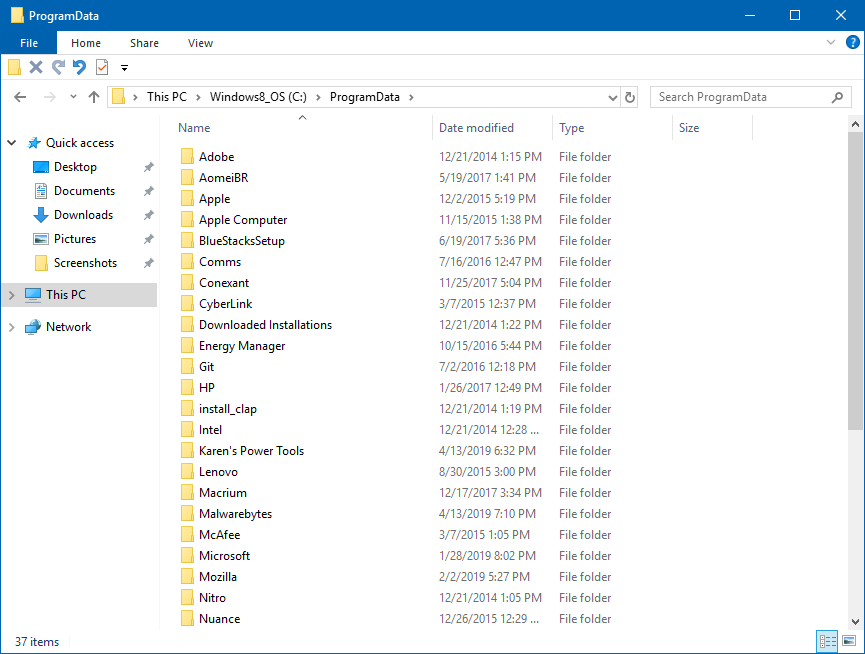
The other important location is ProgramData, which has your program settings and logs - not necessarily specific user overrides but things that apply to the specific software globally. Note that this location will list all software, often including stuff that came preinstalled with your machine (if any), plus programs you may have also removed. This is less critical data than your user stuff, but still for the sake of consistency, it might be worth backing up now and then.
Backup tool: Karen's Replicator
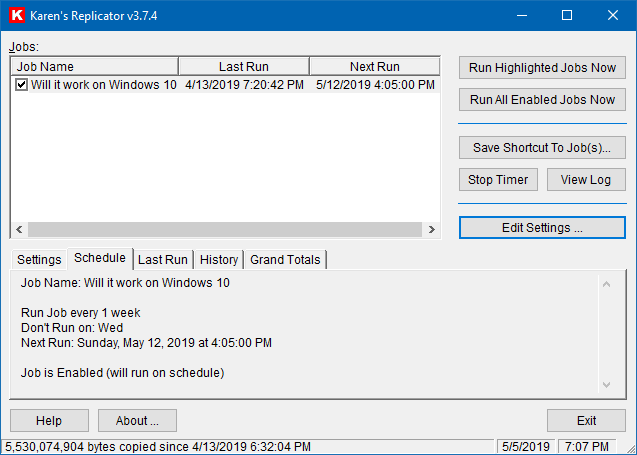
Now we need something to move all this data to a backup location. My preferred program for this task is the good ole classic named Karen's Replicator, a simple, robust and elegant data copy and replication tool, which has also recently been updated to support Windows 8.1 and 10. You can read my article on this topic, if you like.
I've talked about this program in the past, including the overview of its capabilities, but let's just briefly touch on what settings you need to edit and change to create a replication task. Step one, in the main interface, click on Edit Settings. This will take you to a separate view where you can edit existing jobs, create new ones, or alter program's global settings.
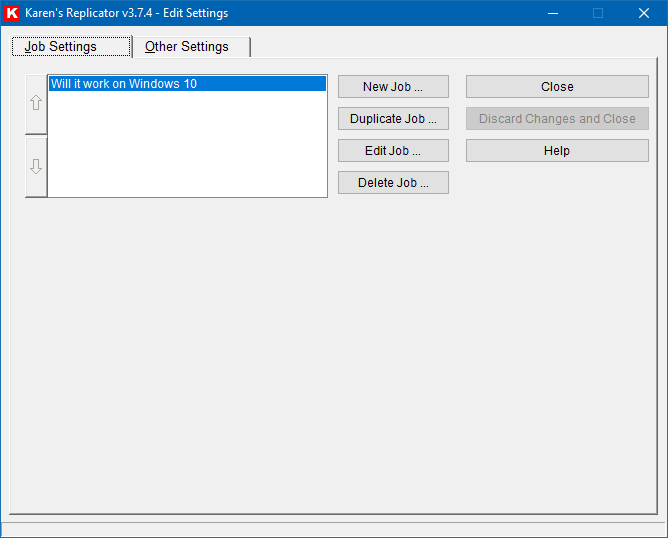
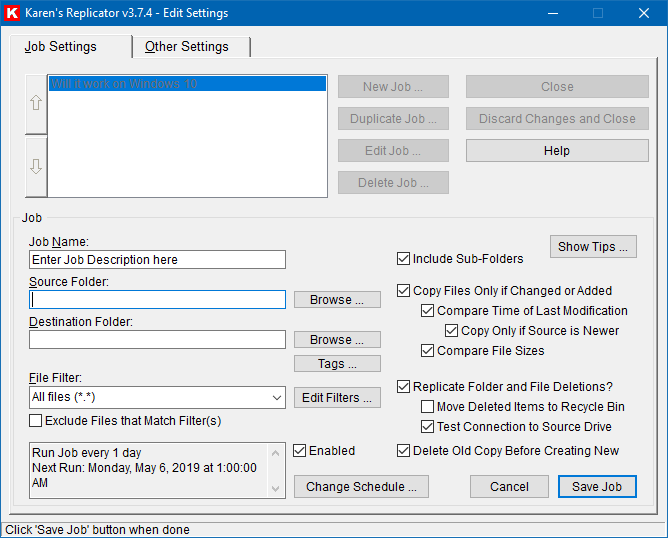
After you click New Job, you now need to fill in the details. Job name, source - this will be your user account top-level folder (C:\Users\Your username) or ProgramData (C:\ProgramData) or anything you like. You can also always back up subsets of data inside these folders. But for the task at hand, we want these two, with the user data as our first priority. The destination folder will be any location you like - it can also be a second hard disk, a different machine on the network.
By default, a new job will be configured to include sub-folders and use several file change detection methods. A new job will not be configured as a replication, so you should select the right box for that. This essentially means it will delete any file in the destination that does not exist in the source. The default is backup, and it accumulate files as you copy them over, and overwrite existing ones, but it will not delete any that have been removed in the source. I would recommend using the replication method. The job will also have a default schedule - daily run at 0100 hours (mind them Active Hours). You can alter this to whatever suits you best.
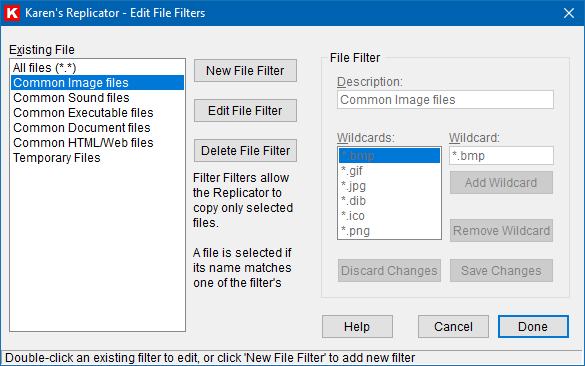
Then, you can also configure filters. By default, filters tell the job which files to include - unless you tick the box that says Exclude, in which cases only files NOT matched by the filter will be copied. The default action covers all files except global exclusions (like temporary files, trash, etc). You can use presets or create new filters of your own. My recommendation is to leave this as is, i.e. all files, because you don't know what you might need one day, and if a files exists in your user folder, then having it backed up won't hurt.
Password protection: 7-Zip
Once the files are successfully replicated to the backup location, let's say D:\Backup, you can now create a password-protected (encrypted) archive, the same we did with gpg when using tar in Linux. This allows you to copy your archive to external disks or other (less safe) locations, maybe even an email inbox or wherever you think is suitable, but the files should be reasonably safe from accidental, incidental or deliberate access.
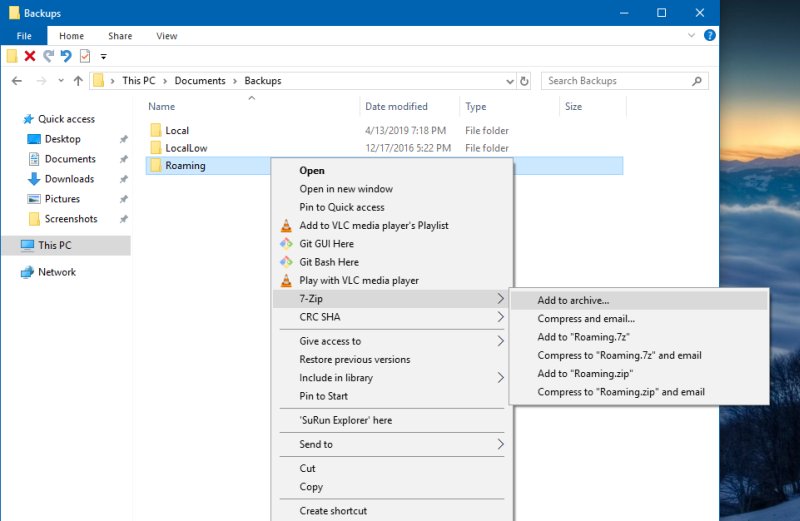
7-Zip is a super-handy program for this job. It can create archives in many formats, including zip and 7z. With the latter, you can encrypt the archive as well as the names of the files inside it. Right-click on your backup folder, then select Add to archive. In the window that opens, provide a password in the Encryption section, and tick the box that says Encrypt file names. You can leave the existing AES-256 encryption method, as it's considered a secure industry standard.
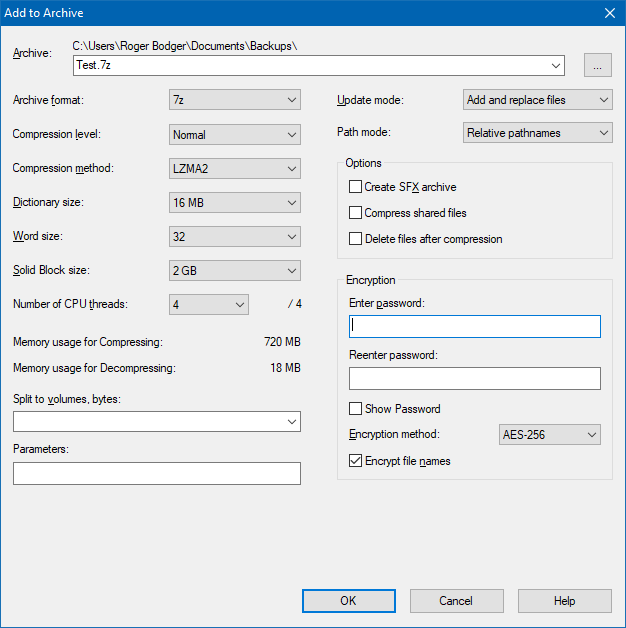
And that's it. You can repeat the process for your program data, too, but the most essential part is done. You have backups of your important user data, including application settings, game saves, and possibly even documents. And you also have encrypted, portable archive that you can store safely, and then use to restore your system, or migrate to new machines. Saves a whole lot of time and headache.
Does this work?
I've tried this method countless times, from XP to Windows 10 machines and everything in between, and each time, the replication as well as restore have worked reliably. I was able to create identical or near-identical setups within minutes, with applications using existing setting from other systems as though they had always been there. You really have a lot of freedom and flexibility. Much like the Linux example, this allows you to tinker and configure your user as you like, and if there's even an issue, you have backups. Prevents tears and hear loss all at once!
Conclusion
Hopefully, this is a useful, practical guide. It's not a command-line tutorial like the Linux example, because I felt most people would spend more time putting together the necessary scripts than focus on backing their data up. The use of Karen's Replicator and 7-Zip provides most users with simple, straightforward utilities to create encrypted backups of the user account data in Windows.
Now, it does not stop there. If you want to expand your work, 7-Zip does have command line, so in combination with Replicator's scheduled tasks, you can have a fully autonomous, independent and secure backup scheme. Then, when you feel you're all comfy, you can perhaps experiment with Powershell. But I believe the tools you have here are more than adequate for most if not all scenarios. There. Backups of essential data are extremely important - personal files and user account information, which can make recovery from bad situations and migration to new systems a quick, painless exercise. And that would be all.
Cheers.