Updated: May 21, 2025
Me likey obscure, complex challenges. As it happens, I have a physical Windows box with two network cards, one wired, one Wireless, both used at the same time, with different IP addresses and LAN segments and different routing priorities. By and large, the setup works fine, but there are issues, mostly because Windows assumes there ought to be perfect Wi-Fi signal strength, because these corner cases aren't that well tested, and because the operating systems believes it knows better than the user.
Namely, I noticed that the Wi-Fi connection occasionally drops. It never happens during the use, only while the system is idle. From what I've been able to gather, Windows decides to disconnect the Wi-Fi network when it deems it no longer necessary, or when it detects no Internet. This can happen, considering the fact the Wireless signal isn't that great. But what I'd expect to happen is - nothing. I want Windows to keep the Wi-Fi connected, even if there's no Internet. Just as it does with wired. Anyway, I had to troubleshoot this, so I'm sharing my findings.
Make Windows not disconnect Internet-less Wi-Fi
There are several ways you can work around this problem. If you're using a Pro version of Windows, then you can configure two network-related policies that will prevent Windows from being smarter than thou when it comes to network usage.
Launch Group Policy Editor > Administrative Templates > Network > Windows Connection Manager. Here, in the right pane, take a look at the following two policies: Enable Windows to soft-disconnect a computer from a network, and Minimize the number of simultaneous connections to the Internet.
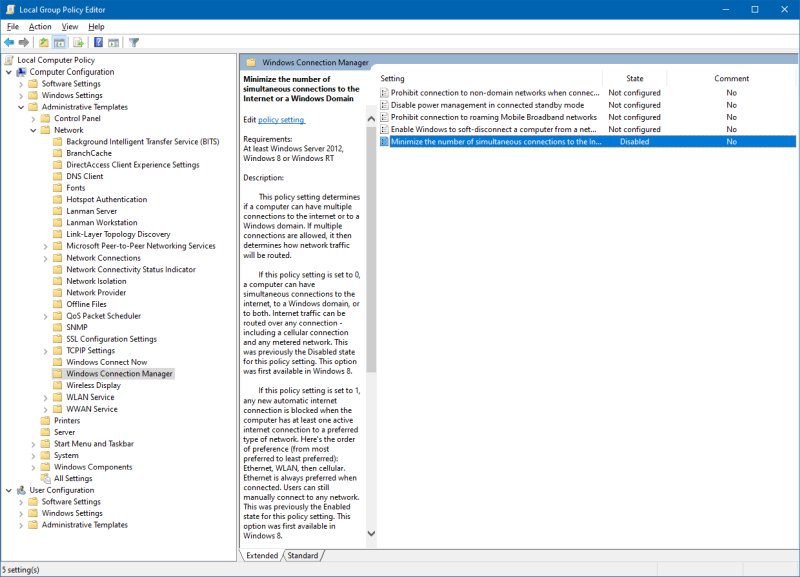
For the first one, Enable Windows to ... you will notice that Windows does not have an option not to do anything. You can either disconnect from a network immediately (when no longer needed), or keep active connections and then disconnect once the running tasks complete. Infuriating and meaningless.
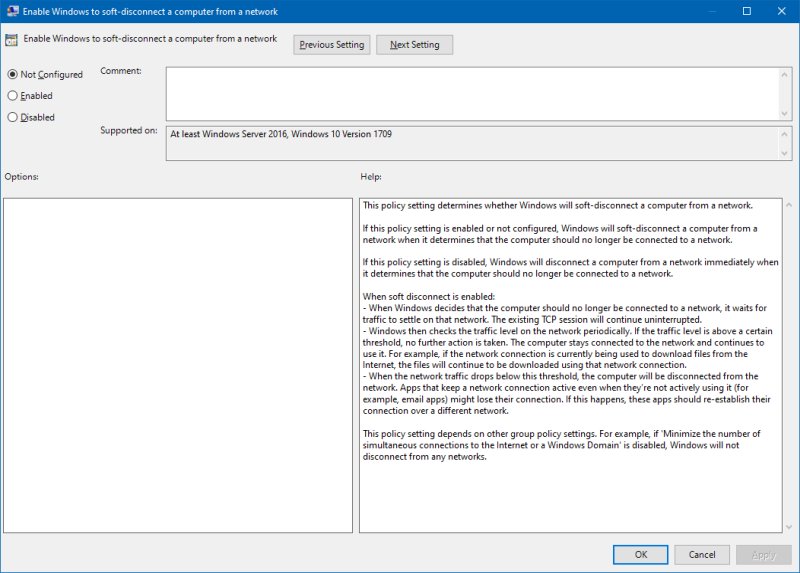
But then, if you check the last paragraph in the description, the soft-disconnect option will be complete disabled (and Windows will not disconnect from any network) if you activate the second policy we mentioned, which is the Minimize the number of simultaneous connections ... one.
If you look at this policy, the wording is misleading, also, because the policy tries to reconcile legacy usage and the new changes added in Windows 10 onwards. Enabling the policy and setting the value to 0 is equivalent to Disabling the policy. All other values under Enable will create annoying scenarios whereby Windows will try to disconnect certain networks, or will interfere with how you manage them.
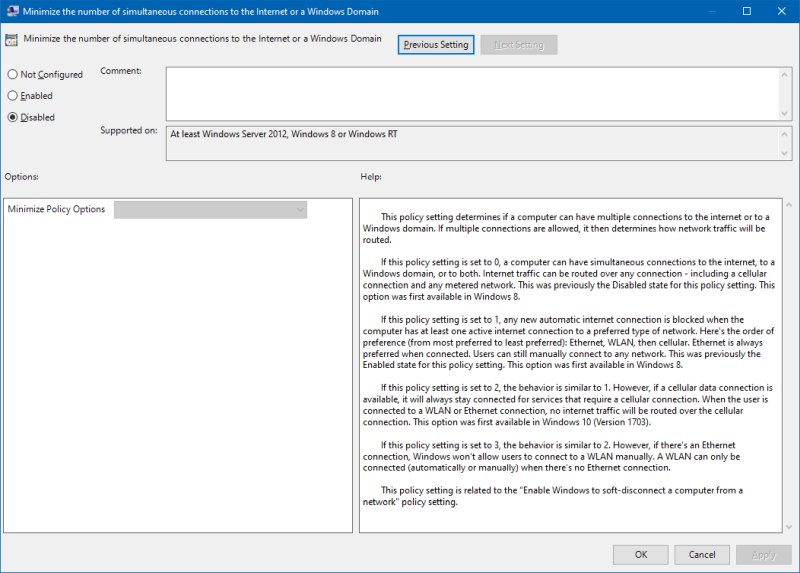
To that end, the best solution is to Enable this policy and set the value to 0. Alternatively, you can also try the Disabled state. In both cases, it's best to reboot, so you clear the various network caches, and reestablish the connections to your networks. This ought to solve the annoying disconnects.
Disable active probe
Another way to stop Windows from disconnecting your Wireless, if it detects no Internet, is to tell Windows not to check whether there's Internet connectivity. This has drawbacks, in that your network icon may not change whether your have network or not, and some programs may think there's no Internet, even though you may very well have full connectivity. I would not recommend this option, but this may be an alternative if you don't have a Pro version of Windows, and cannot use the policies shown above.
Open the registry editor (regedit), navigate to:
HKEY_LOCAL_MACHINE\SOFTWARE\Policies\Microsoft\Windows\
NetworkConnectivityStatusIndicator
In the right pane, right-click, create a new DWORD named EnableActiveProbing, set the value to 0. Reboot. Observe the results, and revert if you encounter unexpected problems or difficulty using your networks. Simply delete the DWORD you created.
Signal strength & Wireless conflicts
If you don't have the most ideal radio signal configuration, for whatever reason, be it distance, wooden or concrete walls, multiple floors in your living space, electromagnetic clutter, or else, you may experience network degradations, including intermittent loss of Internet connectivity, which could trigger Windows to misbehave. Similarly, Windows will also stop automatically trying to reestablish Wi-Fi connections (even if set up so) if there are several quick connect/disconnect attempts in a short time, usually 3-5 within 30 seconds.
The obvious solution is to boost the network signal, to use powerline adapters if possible, Mesh devices, additional access points, better and/or more powerful devices with stronger or bigger antennas, to move equipment around, and many other workarounds of this nature. However, if you cannot do any of those, there's still one possibility to consider. And that's to change the Wi-Fi channels for your 2.4GHZ and 5GHZ networks.
Not all routers have this option, but many do. If you can, in the right part of the router's UI, experiment with the selected Wi-Fi channel. For example, for the 2.4 GHz band, there will usually be 11 channels, numbered 1-11, with two optional channels (12 and 13) available for some devices. Most household routers usually choose 1, 6 or 11 as their preferred channel. Most routers are configured to automatically select and some are capable of scanning and occasionally switching channels if needed, if they detect too much clutter and noise. However, since you cannot control your environment (like your neighbors), there just may be way too much change for your router to adapt, which could lead to certain channels being saturated or over-utilized.
If your router can show you the current state of channel utilization in your environment, great. You can then choose the channel with the least usage, that is, with the fewest networks using it at that moment. Set your router to only use that channel, for better or worse. This means the other routers, if they can, will change their own frequencies automatically. You may end up with far less noise, which could mean the critical difference between no signal and some signal. More importantly, Windows won't disconnect you from the network.
Conclusion
I told you. An obscure problem. Few people have or use more than one network at the same time, mostly because few people have the right skills to configure these devices correctly, set the right priority, and route the traffic in an efficient way. For this reason, most likely, you may encounter weird corner cases with your wired and Wireless network mix. In Windows, the operating system may choose to disconnect your Wi-Fi. Because.
There are some clever workarounds to this phenomenon. While none is perfect, you may want to play with the group policies governing soft disconnect and the number of Internet connections, then test whether having active probe or not helps, and lastly, pinning Wi-Fi channels to the least used frequency band, to improve your signal, so you won't give Windows any chance to disconnect you. I purposefully avoided the all too obvious solutions like: update your drivers, move your gear, etc. For anyone reading this guide, that's the first thing they would have considered, and they would have long done it, if possible. The reason you're reading this piece is because the obvious things aren't applicable. Duh. Anyway, if this helps, you're welcome.
Cheers.