Updated: October 15, 2025
Modern displays come with lots and lots of pixels. Old programs were built before this plenty existed. End result, quite often, various programs look "bad" on HD+ monitors. Sometimes they are too tiny, sometimes they look blurred, and sometimes both. The problem exists in Windows and Linux. For the latter, I've actually written a very long and detailed tutorial on how to scale most applications for 2/3/4K screens.
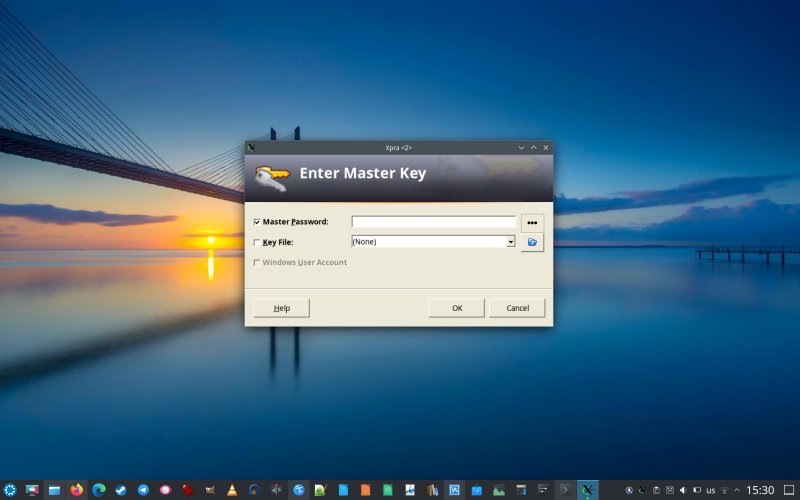
Then, I launched KeePass2 in Kubuntu 24.04, and it was all too small. To make things worse, before the upgrade, in the previous LTS, everything was all right. The program had decent scale. Indeed, my migration from 22.04 to 24.04 on my Slimbook Executive has resulted in lots of bugs and problems. And no matter what trick I tried, this little utility would not budge. It refused to scale up, and it stayed tiny. So I spent hours and hours digging. To wit, a guide that will fix that.
First, a wee explanation
KeePass is essentially a Windows program. But, it has lots of nice ports, including Linux builds. In the Ubuntu family of distributions, you can use the built-in package manager (apt) to install KeePass from the archives. No need to go hunting around the Web. You have two options:
- KeePass2 - This is the Windows program essentially, built with Mono (dotNET). So like WINE but not quite.
- KeePassXC - A fork of KeePass2, which does not have any scaling problems in modern distros.
The nice thing is, you can use both these programs. But if you want KeePass2 itself, then you will need to contend with the scaling issues. And this is another regression, which did not exist in Kubuntu 22.04. For some reason, the mono stack for the 24.04 release does not offer the same experience as before.
Alternative: Run KeePass2 through WINE
At the time of writing, the KeePass build available in the repos was 2.47. If you download the program from the official site, you will have version 2.59. You can install this program through WINE, and you can set a high DPI value through winecfg (as outlined in my tutorial earlier) to run this program scaled up.
What I did was something similar to my Pharaoh guide, at least in terms of WINE:
- Set up a new WINE prefix, e.g.:
WINEPREFIX=~/.winekeepass2 wine "KeePass2 installer exe"
- Run the program, and that's it! Properly scaled.
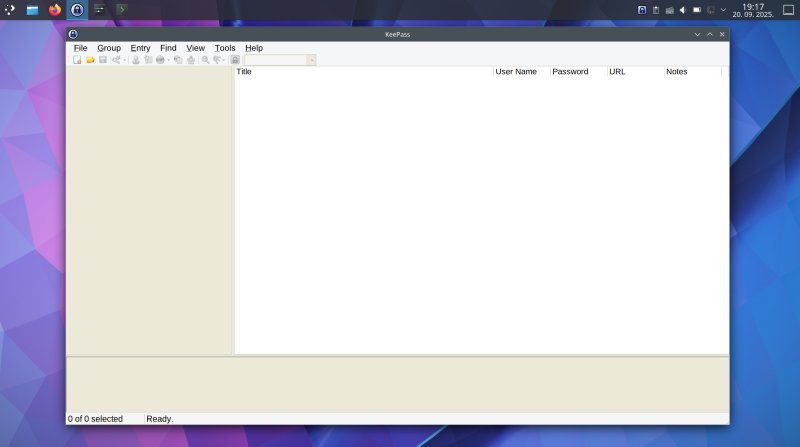
Kubuntu 24.04, with the desktop scaled at 175% on a 2880x1800px screen. WINE is configured with 192 DPI setting. KeePass2 runs properly scaled, and all the menus are clearly and easily readable.
If you don't want to run the Windows version, for whatever reason, you might be stuck. With the repo-available KeePass2, I tried using every available trick, I even tried adding declarations into the program manifest (after reading the Microsoft dotNET documentation for hours), but nothing worked.
Xpra to the rescue
Your salvation comes in the form of another awesome for-X11 program called Xpra, which lets you run multiple persistent rootless applications either on your local machine or remotely, through the combination of Xvfb server and Xpra clients. Not only does this offer amazing flexibility, it also addresses potentially security issues that one may bring up in relation to X11 (totally overblown). Furthermore, this is functionality that only works in X11, and you cannot have this in Wayland. Why do I bring this up? Well, because the Linux world is doing its best to sabotage its success by adopting new tools, which are inferior to old tools, including the most contentious issue of them all, the forced migration to still-beta-quality Wayland. Thus, if you care about old games or weird programs with weird scaling issues, you won't really be able to use them with the "new" display protocol. Oh, there could be a speed penalty, too, right. But "progress" must be hand, whether you like it or not.
So, if you want to scale a stubborn Mono-built program like from-the-repos KeePass2, the only way this will work is by using Xpra. The only question is, how simple is Xpra to set up and use for ordinary people?
The answer is: it's quite difficult. For me, as a nerd, sure, it's relatively easy. But for most people, Xpra could potentially be cumbersome. In essence, you need to start an Xpra session with a desired program and a scaling factor, if you like. For instance:
xpra start :544 --desktop-scaling=200% --start==/usr/bin/keepass2
And then, you either run xpra to launch the UI and attach to a running instance, or you use command-line options. Either way, you need some understanding and expertise to get this going robustly.
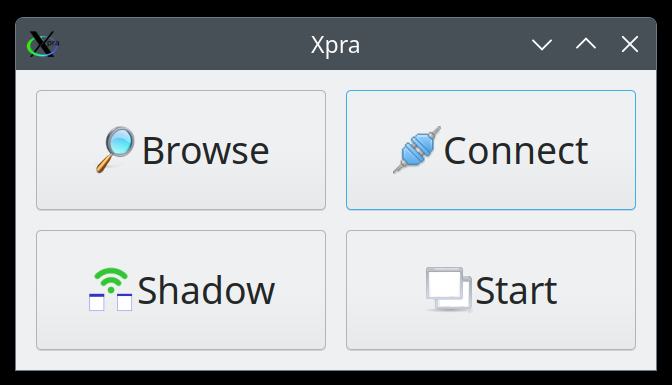
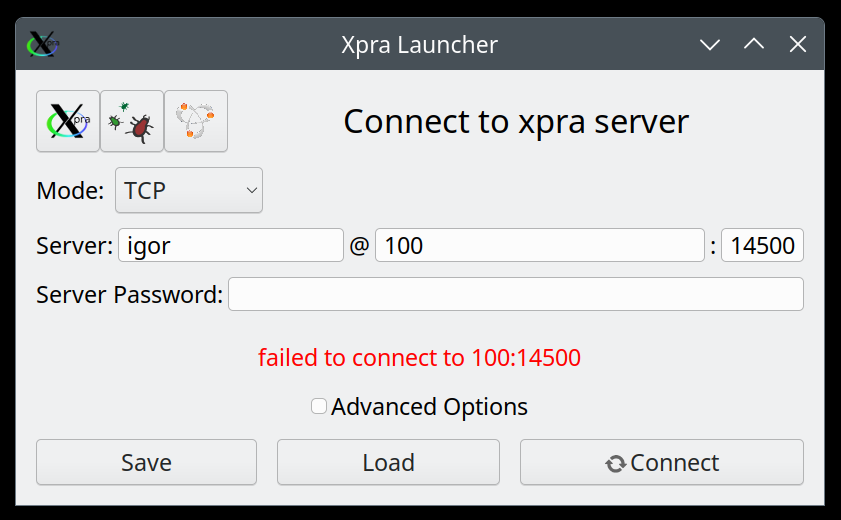
You can try to do everything through the GUI, but in all likelihood, you will encounter various errors. Most likely, you won't be able to connect to your spawned clients. If you open the Xpra log file for the particular instance, e.g.: /run/user/1000/xpra/:544.log (or any number), you might see something like:
...
Errors from xkbcomp are not fatal to the X server
2025-09-15 14:20:14,864 created unix domain socket '/run/user/1000/xpra/exec-544
2025-09-15 14:20:14,864 cannot create group socket '/run/xpra/exec-544
2025-09-15 14:20:14,864 [Errno 13] Permission denied
...
Run_scaled to the rescue
Instead of using Xpra directly, you could try a BASH script that does the hard work for you. Indeed, many years ago, there was a script called run_scaled, which did exactly this. The creator of the script has archived it, and some of the options in that script (like the scaling factor calculations) can be now done directly with Xpra. However, despite its age, the script works perfectly fine in modern X11 desktops.
Go to the GitHub repo and check the script. You will see that it merely calculates the scaling, and then launches an Xpra session for you, including a bunch of flags and options that make all the difference in whether your session will work or not. In my testing, the script worked seamlessly, with no errors of any kind.
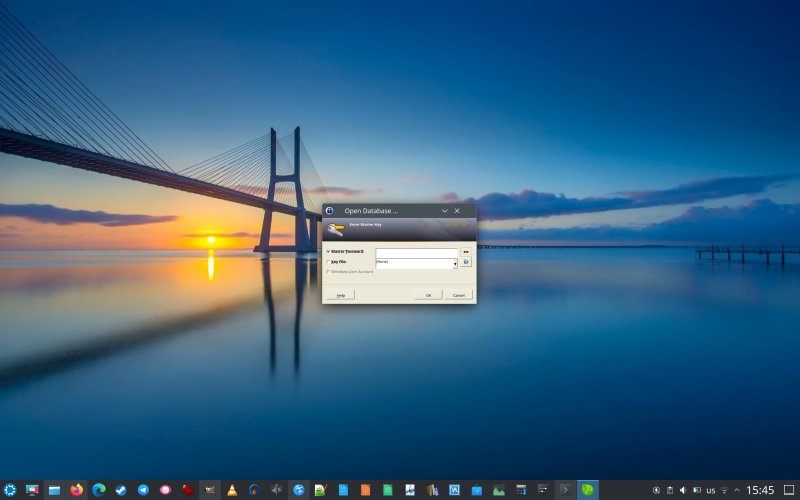
And so, KeePass2 before run_scaled:
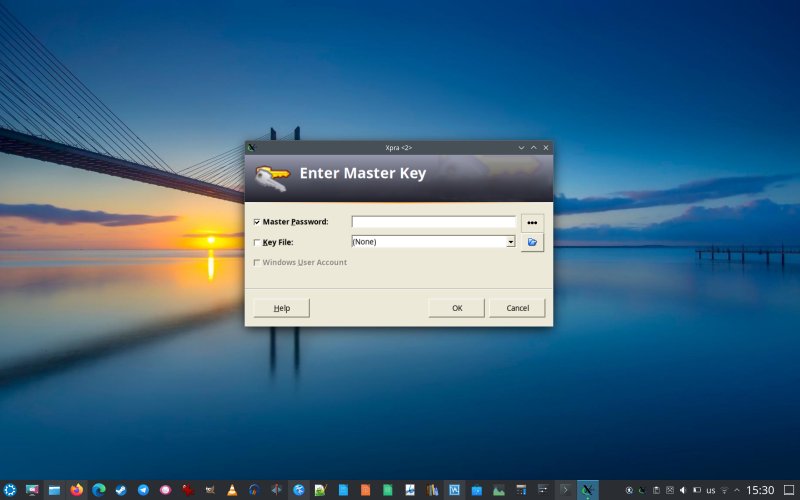
And then with 200% zoom:
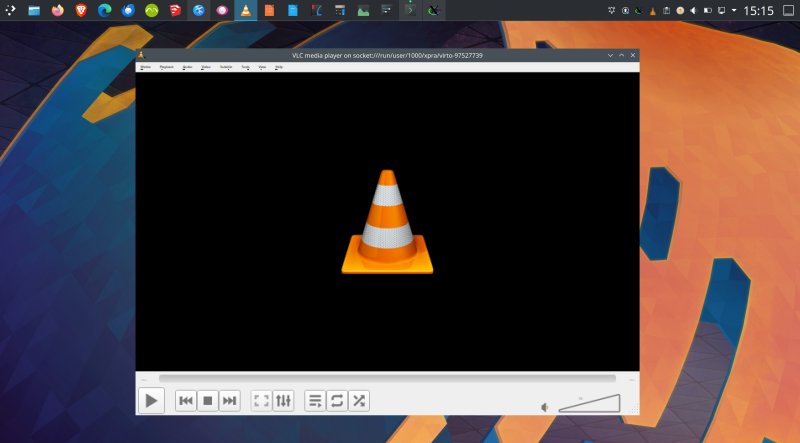
The script works with all sorts of programs, even those you can scale up natively. I tested the script both in Kubuntu 22.04 and 24.04, with and without composing and OpenGL, natively and virtualized, and the results were good. Low latency, reasonable performance and stability, minimal scaling artifacts. For all practical purposes, you can do whatever you like.
Conclusion
I hope you like this tutorial. One, we fixed our problem - the repo-sourced KeePass2 now opens with good scale, and it's usable on UHD screens. Two, I showed you several options on how to run the password manager, including the XC edition and the WINE setup, both of which scale nicely. Three, we explored Xpra and run_scaled, and these utilities offer excellent results. They also highlight the pointless tragedy that's the forced retirement of X11 tools, because the "modern" replacement has nothing of the kind. Most people probably don't care that much about old games and tools, but Linux folks should know better, especially with the whole mantra of reviving and rejuvenating "Windows" hardware with Linux. We tell people how they shouldn't throw away their Windows 10 boxes, right, but then we ax our own software support, rendering entire classes of awesome programs and games useless. Does not compute.
To that end, regardless of what your goals and aims are, I'd recommend you keep at least one physical and one virtual Ubuntu 24.04 machine for posterity. If we're lucky, then 26.04 will still properly support X11, and you won't need to worry about Wayland nonsense until 2034 or 2036 or such. And you can always keep virtual machines running forever, so you can enjoy old games and esoteric programs. Anyway, Xpra is superb, and run_scaled is a nifty, clever implementation. Despite its age, it works, something that cannot be said about most modern software tools. With those words, I bid thee farewell. Oh, and may you enjoy KeePass, because it's better than any passkey nonsense. We're done here, then. Bye bye.
Cheers.