Updated: April 5, 2024
DOSBox is one of my favorite programs out there. I still remember the colossal thrill I felt when I used it to emulate the Serial connection between two LAN computers and play an ancient F-16 simulator, something I had waited for, almost twenty long years until that moment. Ever since, DOSBox is a loyal, trusted friend in my arsenal.
I still play DOS-based games now and then. But the computers of now ain't the computers of yore. With mighty resolutions, the tiny 320x200px DOS equity can be problematic if shown in true 1:1 scale on modern displays. Today, I'd like to show you a handful of tricks on how you can enlarge DOS games but also play them with a reasonable level of clarity on a typical HD/UHD screen. Follow me.
Configuration tweaks
Everything you need to make DOSBox behave resides in the dosbox.conf file. The Wiki explains it all. However, technically, we just need four specific directives to properly scale up the DOSBox window AND also make sure things don't look blurry or pixely.
- windowresolution - Whatever resolution we want, it should be 4:3, ideally. It's weird, because native DOS resolution was 320x200, which translates to 16:10 ratio, however the actual CRT monitors had the 4:3 aspect ratio.
- output - The method by which the "picture" will be drawn on the screen.
- scaler - The method by which the "picture" will be enlarged.
- aspect - Whether programs should preserve their aspect ratio when running.
So, if you want an HD setup, then you probably want something like:
windowresolution=1920x1440
output=openglnb
scaler=normal3x
aspect=true
What do we have here?
We set the windowresolution parameter to a 4:3 ratio. On my Slimbook Executive, with a 3K display, I chose the above resolution as it fits nicely in the center of the screen. You can choose any resolution you like, and you may even choose to run DOS programs in full-screen mode. I'd recommend a window. I also experimented using the 16:10 ratio, as this matches the laptop's screen geometry, something like 1920x1200, and this works fine, too.
We set the output to openglnb - this means OpenGL with no bilinear flitering. This means the pixels will be pixely, and won't be smoothed, resulting in a less blurred and more DOS-like experience. This resembles the old CRT monitors more accurately, and you won't feel like you're playing a super-low-res thing that has been artificially over-smoothed.
The scaler is used to scale the window to a larger size. You can try any which one you like, but normal3x is probably the best, easiest choice to begin with. DOSBox 0.74 supports 3x. A newer version (like 0.75, still in development) supports 5x. Try, see what gives.
Finally, we set aspect to true - this means that DOSBox will resize its window for any game that runs in a ratio different than 4:3 or 16:10, so you won't end up with bad proportions (vertically or horizontally stretched elements). But you will need to handle game screenshots separately - an article on this coming soon, too.
Results?
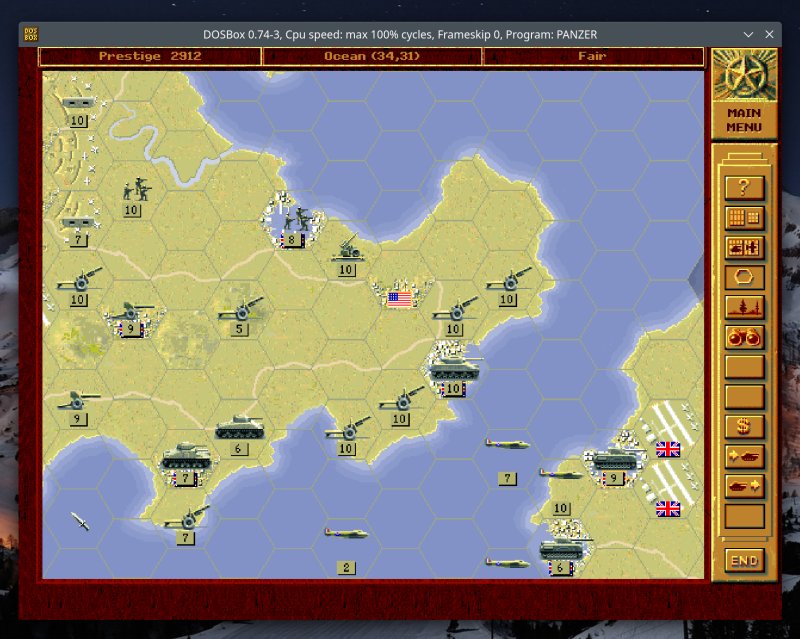
Pretty solid, I must say. Behold, Panzer General, a fantastic turn-based strategy:
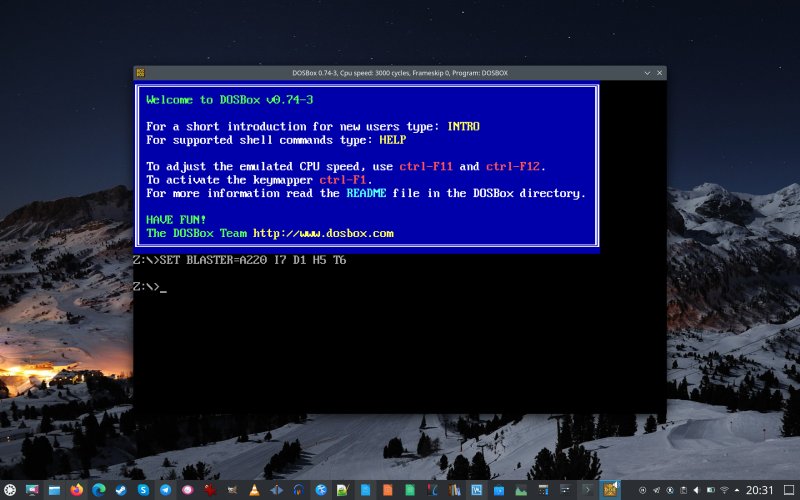
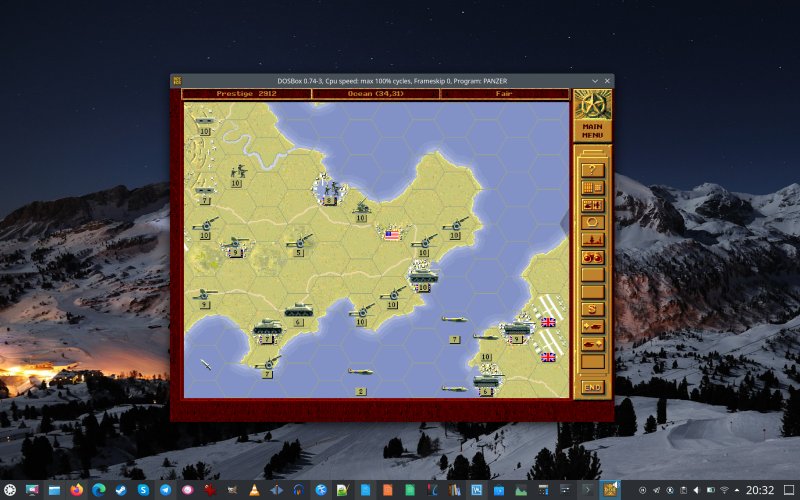
Things look reasonably sharp, a roughly 1K window on a 3K display. Considering the actual game "screen" space has been increased roughly x10 times, this is extremely impressive. Specifically with Panzer General, DOSBox resized the game window, to match the aspect ratio (640x480 originally).
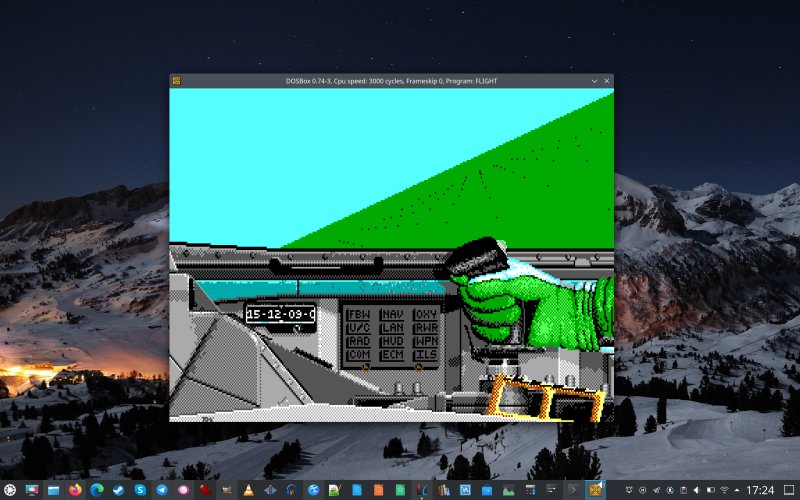
This is the aforementioned F-16 simulator, running in HD. Here we have a 36x scale change.
Conclusion
This would be my fourth of fifth article on HD tweaks (for Linux), as it happens. We talked about basic HD scaling and tweaks for the Plasma desktop several times, I showed you how to scale snaps, how to scale Steam, and now we have DOSBox. All of these tutorials are available in my Linux section. Hop yonder and enjoy.
Hopefully, this little guide brings you joy. While DOS as an operating system is long gone, it has left behind a wealth of amazing content, especially games. There are still fantastic titles from the late 80s and early-mid 90s that are just phenomenal to play, graphics notwithstanding. Even so, you can still enjoy games as well as programs from this era with a reasonable level of sharpness on modern displays. If I helped, you're welcome. See you around, and may your nostalgia run true.
Cheers.