Updated: December 17, 2025
Every few months (or years), I get a bout of nostalgia, and I revisit my old DOS classics. More recently, I've played the lovely Panzer General turn-based war game and the spectacular F-16: Combat Pilot simulator. In both cases, I used DOSBox installed in Linux. While the former doesn't really change much, Linux distros come and go, and they bring somewhat different levels of support for the emulator along the way.
Just days back, I decided to strap myself into the cockpit of WW2 planes in the amazing 1942: PAW simulator. In 2007, it worked splendidly. In 2025, I encountered a multitude of issues with both the sound and actual performance, which may sound surprising, but here we are. In today's tutorial, I would like to give you some tips on how you can enable music and sound in various games, especially if they have a somewhat flaky out-of-the-box experience. So let's commence.
Veni, Vidi, MIDI
In the Pacific Air War simulator, I discovered that sound either comes through in erratic, jarring bursts - or not at all. Trying to change things inside the game's settings didn't help. I even tried the INSTALL.EXE program, which lets you configure all sorts of aspects of the game, including the sound, but no luck.
Then, I noticed a funny little error on the command line, related to DOSBox itself:
ALSA:Can't subscribe to MIDI port (65:0) nor (17:0)
MIDI:Opened device:none
Enable MIDI sound and choose the right sequencer port
The DOSBox configuration (dosbox.conf) specifies the default devices for sound. For the most part, the settings are good, but not when it comes to sound. Indeed, you can actually check what the configuration file says, and what your system offers.
In the DOSBox configuration file, the port config will be empty, so when started, the program will assume its own range, which won't match anything, hence the error outlined above.
mpu401=intelligent
mididevice=default
midiconfig=
Whereas on your system (for instance, mine), the actual MIDI port will be:
aplaymidi -l
Port Client
name
Port name
14:0 Midi
Through
Midi Through Port-0
Therefore, step no.1 is to change the configuration file:
mpu401=intelligent
mididevice=default
midiconfig=14:0
However, most likely, this still won't really work.
Timidity to the rescue
You may want to configure your own MIDI server. In Linux, or Ubuntu (Kubuntu) 24.04 family, the necessary utilities reside in the repos. You want the timidity tool, plus something to check which ports to use. There are tons of programs that get the job done, including aplaymidi or pmidi.
sudo apt install timidity pmidi
Now, start a new Timidity server:
timidity -iA
TiMidity starting in ALSA server mode
Opening sequencer port: 128:0 128:1 128:2 128:3
You want to specify one of these sequencer ports in the DOSBox configuration file:
mpu401=intelligent
mididevice=default
midiconfig=128:0
Also, you can always check what gives. For example, with pmidi:
pmidi -l
Port Client
name
Port name
14:0 Midi
Through
Midi Through Port-0
128:0
TiMidity
TiMidity port 0
128:1
TiMidity
TiMidity port 1
128:2
TiMidity
TiMidity port 2
128:3
TiMidity
TiMidity port 3
Test, reconfigure sound
Once you've made the necessary changes, fire up DOSBox. If everything is cushty, you will see no errors on the command line. Instead, you will (hopefully) see a correct initialization of the MIDI sound device.
DOSBox version 0.74-3
Copyright 2002-2019 DOSBox Team, published under GNU GPL.
---
CONFIG:Loading primary settings from config file /home/igor/.dosbox/dosbox-0.74-3.conf
ALSA:Client initialized [128:0]
MIDI:Opened device:alsa
Mount your game directory, and rerun your game sound setup:
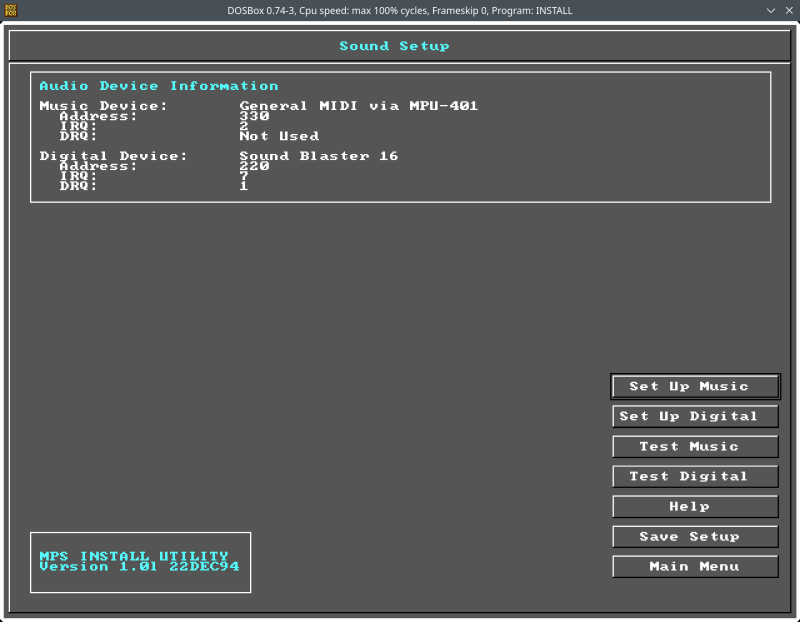
And now you should be having fun.
Conclusion
There you go. Hopefully, this wee tutorial will help you sort out your some of your sound woes in DOSBox. Old games can be quite finicky, and it can take a bit of time sorting them out. Luckily, DOSBox offers quite a bit of flexibility, so you can try all sorts of tricks. When it comes to music and sound, you should set up your own MIDI server, and rerun any game configuration script or program.
Technically, a lot of DOS games had relatively simple sounds, but they are still quite charming to play, and the sound element adds to the overall feel, regardless. But, as it happens, there are yet other layers of complexity that we should address. Namely, I also noticed relatively "low" FPS in some of the DOSBox games, which sounds quite surprising, considering how powerful new processor are. Yet here we are. Furthermore, emulation speed may ALSO affect sound. So, in a sequel, I will try to cover and resolve all sorts of weird, unexpected performance issues with games pushing into their fourth decade but hey. See you soon.
Cheers.