Updated: December 31, 2012
All right, a few days ago, I showed you how to install and setup the Steam beta client for Linux on Ubuntu Pangolin, the current Long Term Support (LTS) release. As you recall, there was one relatively big issue when browsing the game store. Videos were not available, because Steam thought that Flash was missing from the system. It was indeed there, but it could not find the player and use it as needed.
In this guide, we will resolve the problem. We will learn a bit about Steam client internals, we will learn how to fiddle and manually tweak Flash for Linux, although we have done this on many occasions before. And most importantly, we will restore the missing functionality to our Steam software. After me, gents.
Symptom
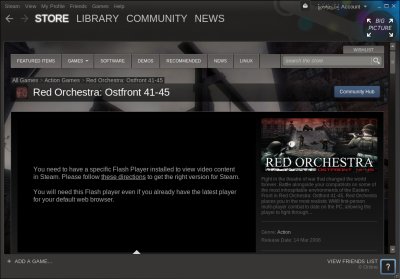
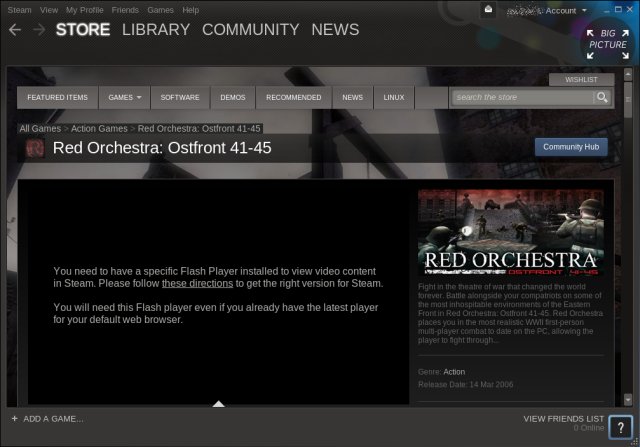
You go about checking cool videos for the available games, and Steam complains that you do not have a Flash Player on your box. Yet you do. Then, there's a set of instructions that could help you restore the missing functionality. Bother not. Those directions only work for Windows.
Solution and why it happens
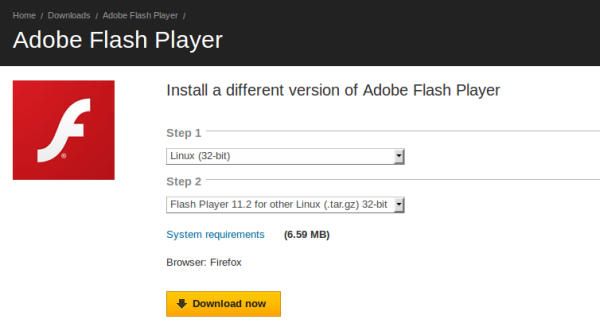
The reason why Steam failed to find Flash on my box is because my system and Flash are 64-bit, whereas Steam client is 32-bit software. Thus, the player is not available for it. You will need to manually download the plugin from the Adobe site, extract the archive and then place the shared object file into a relevant directory. Let's do this step by step. First, head over to the Adobe website and download the 32-bit Linux .tar.gz archive.
Then, extract the file somewhere.
tar vzfx <downloaded archive>.tar.gz
One of the files in the archive will be libflashplayer.so. Verify that this is indeed a 32-bit version by using the most handy file command. We have discussed this at length in my highly useful Linux commands & configurations article.

Finally, you need to copy this file to one of the several locations that Steam queries for the plugin. Most commonly, these are either /usr/lib/mozilla/plugins or /usr/lib/firefox/plugins. You will need sudo permissions to copy the shared object there. Moreover, it will not be updated with the system periodically, so make sure you occasionally download a new version and place it there.
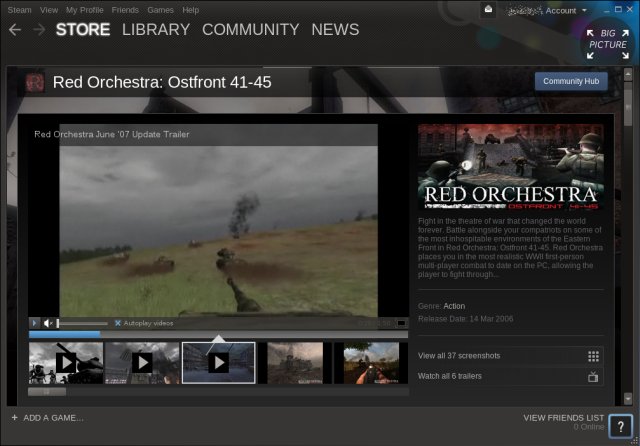
And that's it, restart Steam and you will have your Flash - just like any browser. Resolved.
More reading
You may also like these or need these articles:
Linux Flash Player setup
Flash Player privacy settings
Flash Player protected mode thingie
Google Chrome Flash issues
Conclusion
There you go. This is a fairly simple tutorial, but it has a lot. It introduces the gaming platform, it explains how Steam works and where it expects to find its Flash Player plugin, as well as why you might encounter this issue if you are using the 64-bit version of Linux and the plugin, which cannot be used with 32-bit software. Then, there's the manual installation of the Flash Player from an archive, which resolves the problem. A bit of everything, so it's quite nice.
Anyhow, this is the first of many great articles that will be born in the coming weeks, following my humble inclusion in the Steam beta. I do intend to keep you updated on my progress, the ups and downs, the lows and highs, how to install and configure various components if needed, how to resolve issues like this one, and finally, a handful of game reviews. It will be exciting. As always, if you think you want something checked or fixed, do email me.
Cheers.