Updated: December 19, 2025
Wait, what. Mic drop? Dedoimedo built his own distro? No, nothing of the sort. And yet. Well, let me intrigue you. But also, let me explain. Some time ago, I got myself a Macbook. This is one of those Apple Silicon systems, meaning ARM architecture. I also want to use Linux on this box, through virtualization. And this instantly creates a "problem", because there's a relative dearth of Linux distributions and software readily available and compiled for the ARM processors. For example, there's no ARM version of Kubuntu, which would be my favorite option.
Emulation, i.e., going from x86 to ARM is possible, but there's a major performance penalty. Thus, I need a native build. But, "shopping" around, I couldn't find what I wanted. The most enticing option was the server build of Ubuntu. No GUI. Hm. Could this be a baseline upon which I might add a desired desktop option, and enjoy Linux on this Mac? Well, let's find out, shall we?
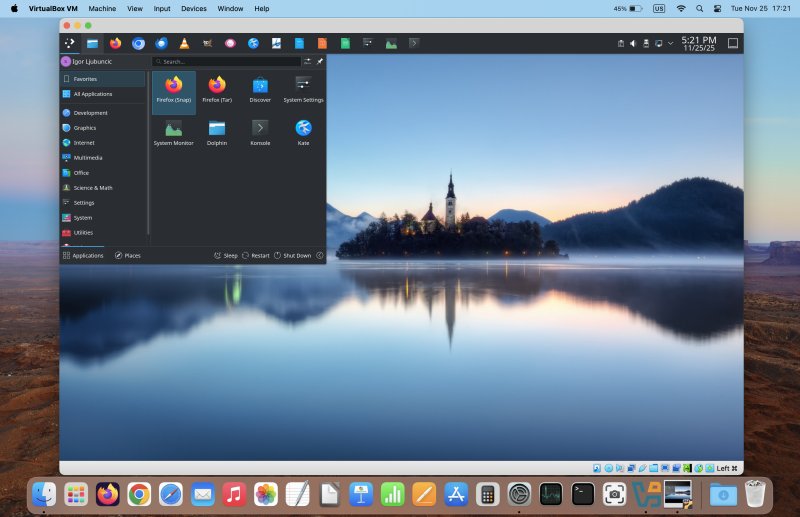
Install server edition
I downloaded the ISO, configured a virtual machine (through VirtualBox), went through a quick text-based installer, and soon thereafter, my headless Ubuntu server was ready. Hit enter to login, provide your credentials, and you're in a terminal window. The networking works out of the box (wired).
Install Plasma desktop
Luckily, there's a single meta package that allows you to download the entire Plasma desktop from the Ubuntu repositories, with one command. And it is also available in the ARM build archives. To wit:
sudo apt install kde-plasma-desktop
A few minutes later, the system was ready.
Reboot, login
After I restarted the virtual machine, I had a login screen before me. It wasn't the nicest or most elegant thing, and it sure didn't use SDDM (which Plasma uses). I could have configured that manually, but I didn't. I wanted to see what would happen without any excessive tinkering. Once I provided my username and password, the Plasma desktop launched. A proper desktop.
Making everything work
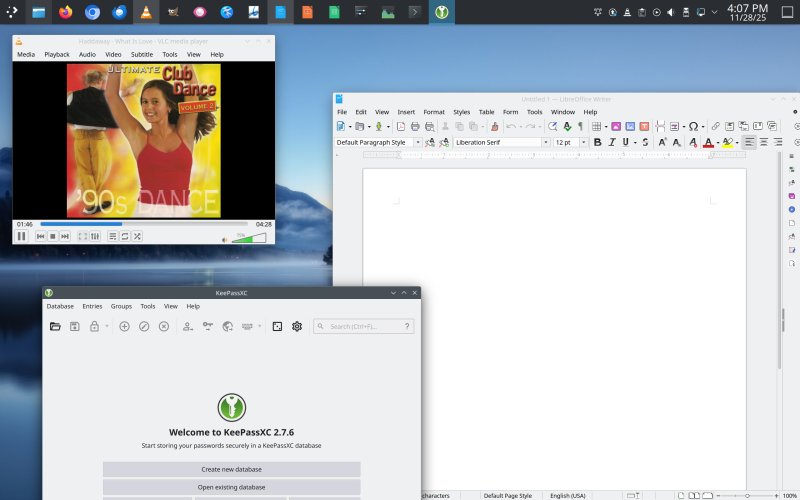
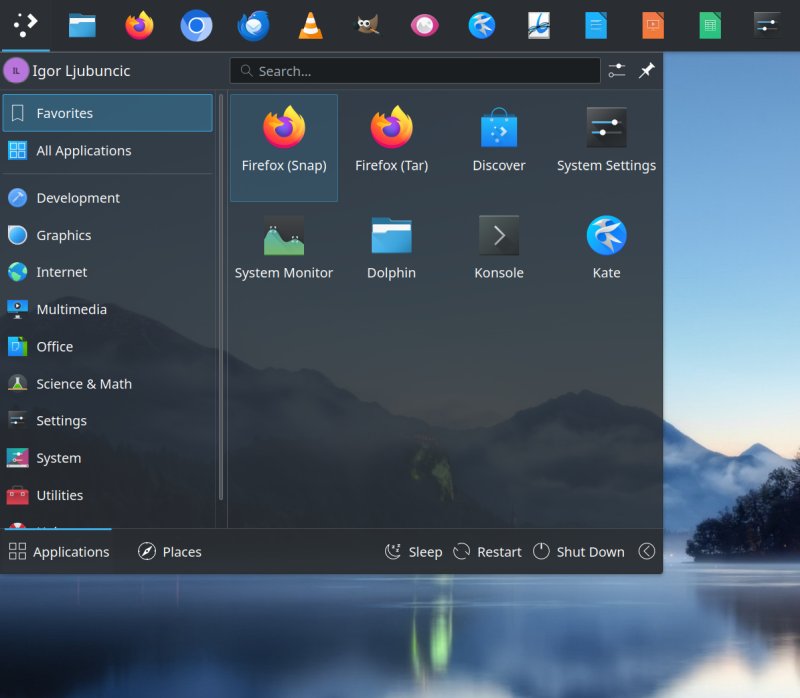
I made sure my system is configured to auto-login into a Plasma X11 session. Great. Next, I downloaded and installed a bunch of KDE programs: Spectacle, Okular, Ark (for archiving), and then some. You really get a lot of the usual stuff, including GIMP, LibreOffice, VLC. I installed Firefox both as a snap and tar (ARM, from Mozilla), and Thunderbird from snap (no self-contained for-ARM tar archive, I'm afraid). Best part, you can use these in parallel, too. I also installed the likes of KeePass2 and KeePassXC, and they both work well. The former does show a bit tiny, but you can fix that with Xpra, as I showed you a while back. Cherish while you can, before Wayland takes this amazing flexibility away from you, along with who knows what else.
Problems?
Yes, one or two. Discover wouldn't really work, because it thought the system was offline. This is erroneous, of course. But I had a rather poshly phrased error message before me:
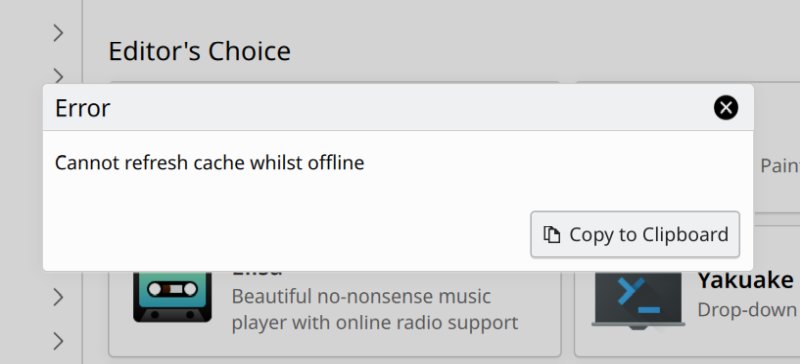
Totally bogus, of course. Apt works great on the command line. Networking works. But. Discover uses PackageKit, which checks and polls NetworkManager for connections. Now, the GUI NetworkManager didn't have any listed, not even the loopback device. Something else in the system manages this functionality. This is your Linux abstractization for you. Once, you had simple scripts, but then everything became more and more convoluted, and here we are. The sad part is, Discover doesn't check the network itself, at all.
The "solution" that I found rummaging through the Internet is to create a fake network interface, which will then allow PackageKit to feel good about itself, and in turn, Discover will also work. The command what does it:
nmcli con add type dummy con-name fake ifname fake0 ip4 1.2.3.4/24 gw4 1.2.3.1
You can use any name you like for the interface. But this is merely a trick. And not a pretty one. Let me show you a more elegant, proper solution, and explain why the network would-be fails and yet works.
- Basically, Ubuntu Server uses netplan to manage its networks. The configurations are stored in YAML format under /etc/netplan, and then parsed and loaded into memory, visible under /run/netplan. The desktop version of the operating system also uses this utility, but it also relies on the NetworkManager to do its job. Hence the discrepancy.
- The solution is to disable the systemd component that manages the network, and then tell netplan to defer the control and management of the network interfaces to NetworkManager, after which, everything ought to work nicely and automatically.
First, with great great joy, we disable the systemd networking service:
systemctl disable systemd-networkd.service
The output of the command:
Removed "/etc/systemd/system/multi-user.target.wants/systemd-networkd.service".
Removed "/etc/systemd/system/network-online.target.wants/systemd-networkd-wait-online.service".
Removed "/etc/systemd/system/sockets.target.wants/systemd-networkd.socket".
Disabling 'systemd-networkd.service', but its triggering units are still active:
systemd-networkd.socket
Next, go to /etc/netplan, and here with sudo, create a file:
sudo nano 01-network-manager-all.yaml
In this file, add the following:
network:
version: 2
renderer: NetworkManager
This is identical to my standard Linux machines, alright. Reboot. And now, all is well!
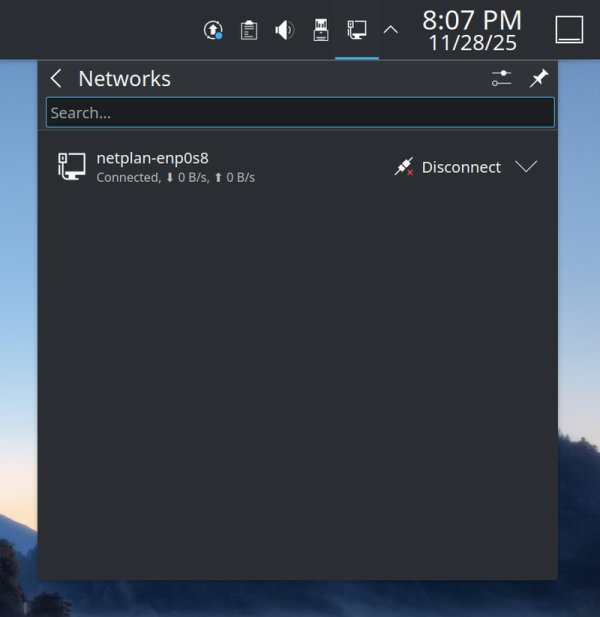
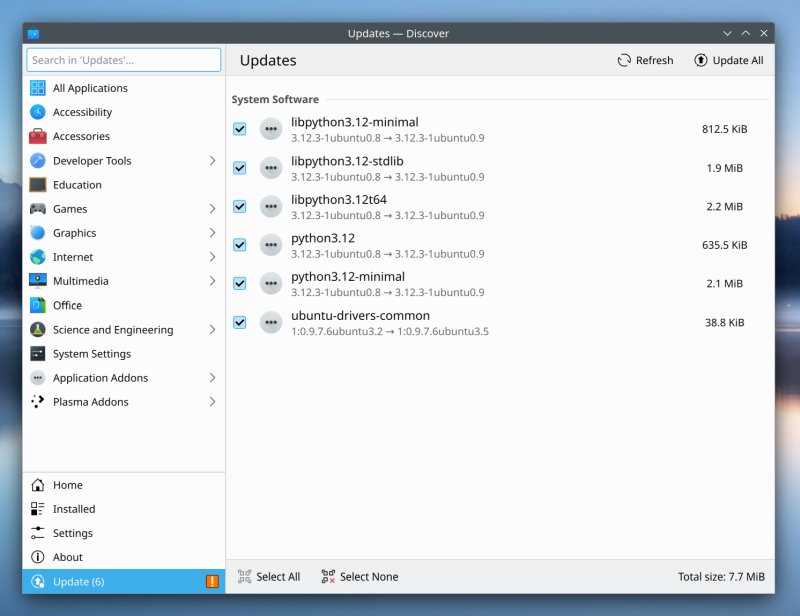
BTW, this is Linux in a nutshell. Sure, I started with a server edition, but then, what "inspired" me to get this working was my own system configuration on a Linux laptop, a desktop edition, which ALSO has netplan there, of course. And it uses NetworkManager as its renderer. Of course, the old scripts under /etc/network were not cool enough, I guess. We need "modern" technology, like networkd and yaml and whatnot. Just makes the end user confused as there are two or three or maybe four separate entities competing for the same space, there are no meaningful error messages, it's one giant obscure and abstract pile of nerdy nonsense.
I should probably write a separate tutorial on this ..
The second issue, actual sound. Supposedly, everything is there, but you can't hear anything. At first, I started fiddling with alsa and pulseaudio configurations, but then, I realized we have a yet another third audio system in Linux. Pipewire. So, I thought, maybe the problem is much simpler than it seems.
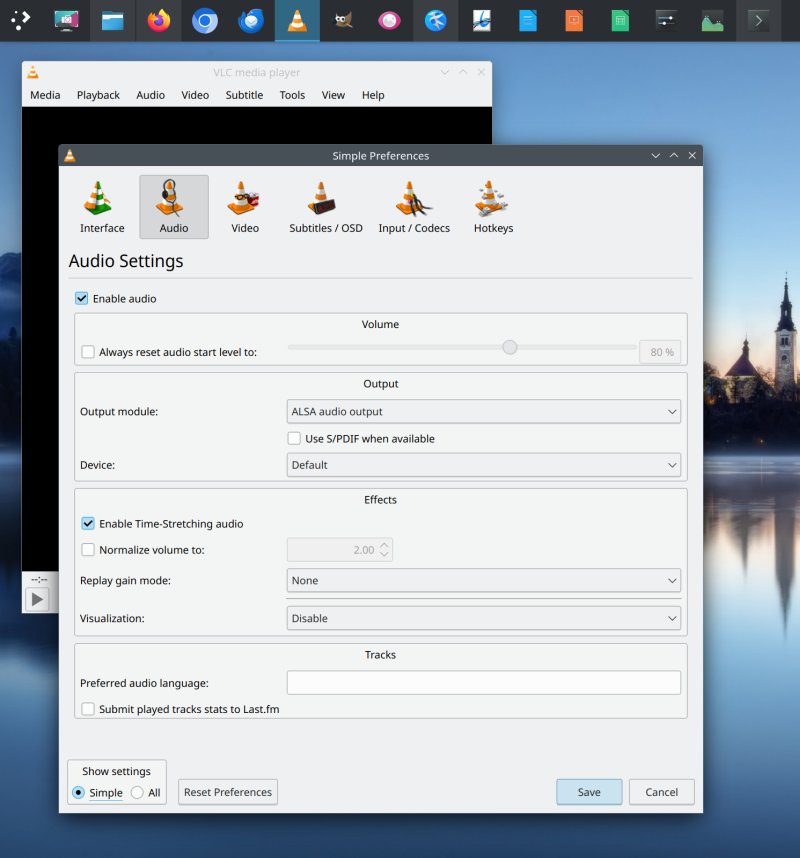
Indeed, VLC does not seem to have a default Pipewire audio output, but since alsa and pulseaudio aren't fully configured on this server build, there's no sound. MPV plays correctly. I also installed alsa-utils, and checked the sound with aplay. This works fine. Thus, the entire problem was pointing VLC to a different output, once I had ALSA utilities installed. And after that, the sound was spiffy. No mega tinkering needed.
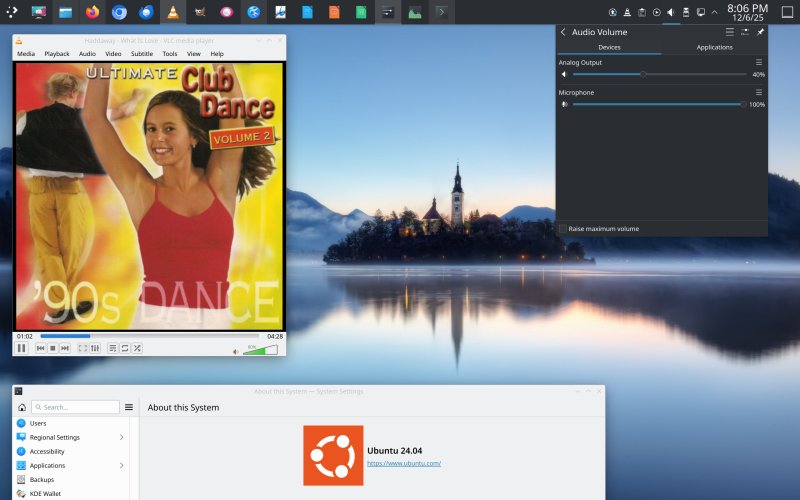
End result? Jolly!
A nice system. Fast, elegant, and it's got everything. Splendid desktop environment, tons of useful programs, multiple browsers, encrypted containers in various forms, and I resolved a small number of issues that arose out of the from-server-to-desktop build. It took me a few days to get this done, with about 5-6 hours of active time invested in creating my own would-be flavor. Not bad, I'd say.
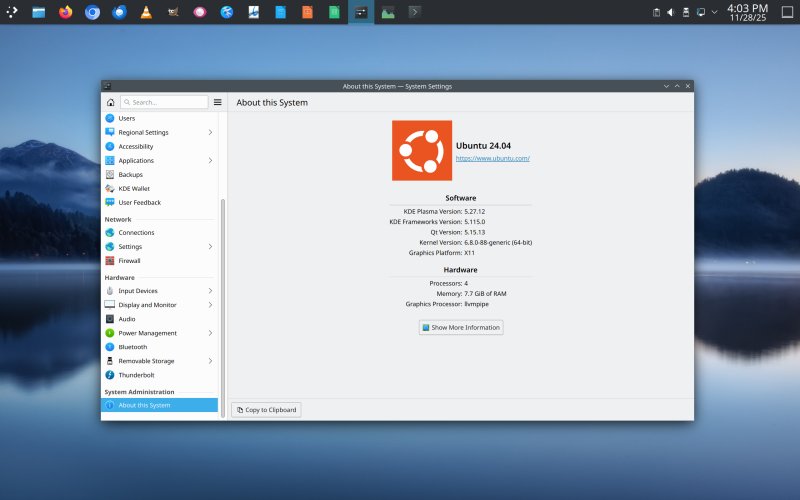
You see, it's not Kubuntu.
Conclusion
I have to say, I'm quite pleased with the outcome of my project. Now, I wouldn't presume to call this a distro, nor would I want to actually make it as one, or release it unto the public. What I did is just a little bit of assembly work, although my results aren't any worse than what you may find out there. The true art is, of course, in the drivers, the hardware-software integration, and philosophical thinking, but that's often missing in the Linux world, too. Then again, my goal wasn't to prove a point, it was to show you a clever way you can create a useful system, even if the defaults aren't readily available.
Should you happen to have an ARM box at your disposal (including a Mac), and you do wish to play with Linux, and you like the Ubuntu crop, you can do a lot of nice things with the Server image. The same way I added Plasma, you can try with Gnome or Xfce. With a little bit of care, you could have a pretty solid system. That would be all for now, folks.
Cheers.