Updated: February 18, 2026
Let us begin. If you use TrueCrypt or VeraCrypt for your encryption needs, then, typically, what you do is: you open the relevant application, point to the desired device or container, mount it (with a password), and go about using this new path like any drive in your system. Once done, you unmount it. This procedure works great, provided you can actually run TrueCrypt or VeraCrypt in your system. But what if you cannot?
You may struggle thinking about an appropriate scenario, but let me paint it for you. ARM build of Ubuntu. Say, a virtual machine on your Macbook, as I did recently. Compared to the x86 architecture, you might experience a dearth of software. For example, TrueCrypt ain't available at all. VeraCrypt can open old containers, but only up to version 1.25.9. This one doesn't have a build for Ubuntu 24.04, and you can't install the Deb file from 22.04 due to hard-coded dependencies. Ipso facto, there seems to be NOTHING that can open old containers on a recent ARM build of Ubuntu. So let me show you a neat workaround.
Dmcrypt to the rescue
One, I'm not sure how Dmcrypt ought to spelled, but let's go with the flow. For a while now, Linux has supported native encryption via Dmcrypt. If you check a bunch of my reviews, including say the Slimbook Titan setup, I've used it to make my hard disks unusable without the correct password. Very handy and practical for easily misplaced devices like a laptop.
And now, the fun part. Dmcrypt also has a built-in TrueCrypt container support!
I encountered this functionality in a negative way. A system freeze after mounting an NTFS-formatted USB drive, from which I tried to copy files onto my Linux machine. The combo of kernel crypto plus TrueCrypt plus Windows filesystem plus external device all caused a neat and complicated problem. I've outlined the issue in a dedicated article on this subject, including the workaround - mounting TrueCrypt containers without the kernel crypto module, i.e., -m=nokernelcrypto. But right now, we actually want this option. Not only that, we will mount the containers WITHOUT these third-party programs (TrueCrypt or VeraCrypt).
Just to recap, why you want or need this:
- For whatever reason, you cannot run TrueCrypt or it's not available on your platform.
- For whatever reason, you cannot run VeraCrypt or it's not available on your platform, or it is available, but not the version that supports legacy containers.
Mount container
Here's how you do it:
sudo cryptsetup tcryptOpen [container name] [mount point]
For example:
sudo cryptsetup tcryptOpen My-container.tc TCMOUNT
You will need to write down the password on the command line. Now, it will be available as a device in the sidebar in your file manager, e.g.: Dolphin. Click, optionally provide your sudo password to make the container visible in Dolphin, and use normally.
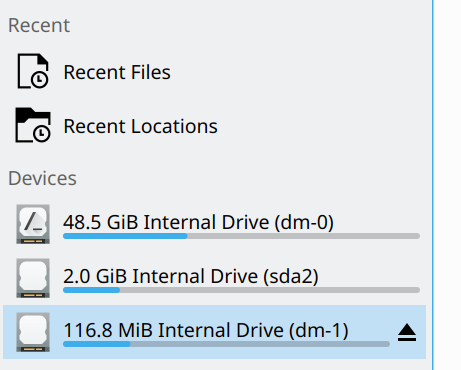
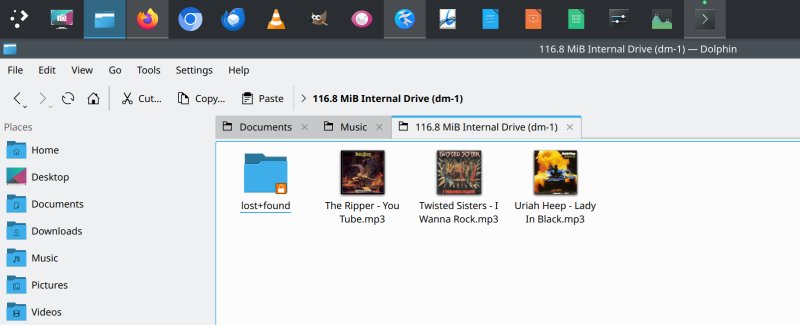
It is possible you may not have write permissions right away. You will need to either chown or chmod the mount point. The question is, where exactly is TCMOUNT? The answer is twofold. First, the actual container will be mounted under your usual per-user mountpoint. For example, in Ubuntu, under /mount/[username], and this path is where you need to apply the necessary permissions.
Furthermore, the container, when managed by Dmcrypt, will reside under /dev/mapper. You can see exactly the symbolic links to the devices, e.g.: dm-0, dm-1 and similar. In my case, we have both the system partition and the mounted container.
drwxr-xr-x 2 root root 100 Nov 26 21:27 ./
drwxr-xr-x 19 root root 4140 Nov 26 21:27 ../
crw------- 1 root root 10, 236 Nov 26 20:49 control
lrwxrwxrwx 1 root root 7 Nov 26 21:27 TCMOUNT ->
../dm-1
lrwxrwxrwx 1 root root 7 Nov 26 20:49
ubuntu--vg-ubuntu--lv -> ../dm-0
Unmount the container
Once you're done, unmount it:
sudo cryptsetup tcryptClose TCMOUNT
And Bob's your uncle.
Alternative tool: tcplay
If you're not happy with the above, and/or you feel this conflicts with your on-disk encryption, then you may also want to try a utility called tcplay. It is a free reimplementation of TrueCrypt, but it also uses Dmcrypt in the background. So you can't really avoid that path, if you don't want or cannot use the actual programs. You can install the program from most Linux distro archives, say on Ubuntu:
sudo apt install tcplay
It is a bit less intuitive, but it works fine. The "difficulty" is in that you would need to first manually map the container to a loopback device, and then mount it with tcplay. First, you will need to figure out which loopback devices are in use on your system:
losetup -f
Alternatively, you can simply check what shows under /dev/loop*, and then select a number above the existing mapped devices, e.g.: loop15 or loop42.
sudo losetup /dev/loop15 Test.cont
Now, you can use tcplay, and write down the container password when asked:
sudo tcplay -m Test.cont -d /dev/loop15
Passphrase:
All ok!
Your container will now be available as something like /dev/mapper/dm-1, similar to the above, and it should show up in your file managers. Optionally, you can do "another" mount command, so the container shows in a more user-friendly path, but that's not critical. And that's pretty much all you need. Once you're done, you will need to unmount the container. Here, you will also need two commands, e.g.:
sudo dmsetup remove Test.cont
sudo losetup -d /dev/loop15
Conclusion
There you go. I am happy that this functionality exists and works, which means you don't need to dread architecture and system changes that much, as there are built-in tools that can help you. Sure, there might always be issues and potential conflicts, but if it's a choice of not being able to mount and open a container or use your data with some possible problems, it's quite a simple decision. The Dmcrypt set of tools does the job quite well (and sometimes too well, as I've shown you). Tcplay is another option. Jolly.
So there you go. For me, with ARM architecture and a less-than-perfect selection of available programs, I gain a valuable degree of freedom. And so do you. Just be aware of the niggles you may encounter along the way, and you're golden. Now, my next challenge is even more colorful. As you know, macOS does not really support NTFS, but could Linux (as a virtual machine) potentially help with this problem? We shall discover that quite soon in my next tutorial. Stay tuned.
Cheers.